
PXLtools — Tool guide
OBJ Exporter — batch OBJ export
Select a group, choose a folder, hit Export. OBJ Exporter walks the children of a selected group and writes each one out as its own .obj — with control over groups, polygon groups, materials, smoothing and normals — with a live progress bar and ETA. Built for breaking a master model into hundreds of individual pieces in one pass.
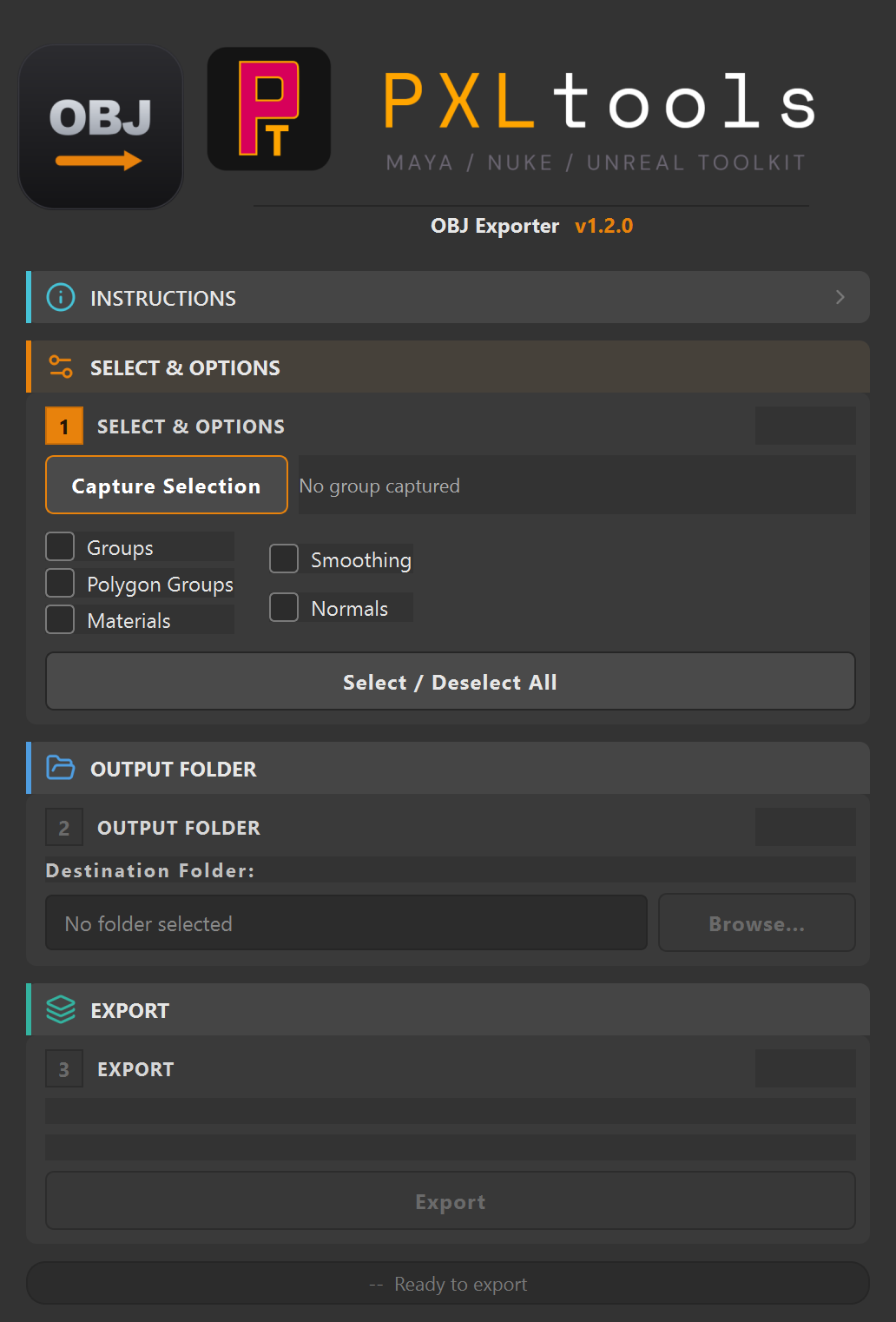
The interface
01
Overview
OBJ Exporter batch-exports the children of a selected Maya group, writing each object to its own .obj file in a folder you choose. You control exactly what goes into the files — groups, polygon groups, materials, smoothing and normals — and a progress bar with a live ETA tracks the run.
It is built for the moment you have one master model made of many pieces and need each piece out as a separate OBJ — tens or hundreds — without exporting them by hand. It shares the same UI kit as the rest of PXLtools and auto-updates automatically on launch.
02
Requirements
- Autodesk Maya 2025
- The OBJ export plugin (
objExport) — ships with Maya; enable it if Maya prompts - Python 3
Tested on:
- Autodesk Maya 2025
Newer releases generally work, but these are the versions every release is actually tested against. If something behaves oddly on a newer host, that is worth reporting.
Network access
PXLtools needs outbound HTTPS (TCP 443) to www.pxlmentor.com and
objects.githubusercontent.com for licensing and updates. On a studio or corporate
machine, check this before you install — see
Troubleshooting.
Maya 2025 already includes PySide6. You do not install it, you do not pip anything, you do not touch your Python environment.
03
Availability
OBJ Exporter is free on the PXLmentor store. Claim it there and you are emailed your licence key and a single INSTALL.py: drag that file into a Maya viewport (or paste the one line from the email into Nuke's Script Editor) and the toolkit installs itself, this tool included. Get it free on the store.
04
Using OBJ Exporter
Select a group, set your options, choose a folder, and export.
How the gated steps work
Green — done
A completed step turns green with a check. Click its header again any time to reopen and change it.
Orange — do this next
The active step is highlighted orange — that is the button to press now.
Grey — locked
Later steps stay greyed out and their buttons disabled until the step(s) they depend on are done.
- Select a group in Maya. Pick the group whose children you want exported as individual OBJ files.
- Set the export options. Tick what each OBJ should carry —
Groups,Polygon Groups,Materials,Smoothing,Normals— or useSelect / Deselect Allto toggle them together. - Choose the export folder. Press
Browse…and pick the destination. The path appears in the field and the status line confirms you are ready. - Export. Press
Export. The progress bar and ETA track each object; the status line reports how many were written when it finishes, and your original selection is restored.
Tip: Each child of the group becomes one .obj named after the object — so a cleanly named hierarchy gives you a cleanly named export set.
05
Troubleshooting
The install fails, or the tool says it cannot reach pxlmentor.com.
This is a firewall almost every time, not a broken installer — and it is very common on studio and corporate machines. PXLtools needs outbound HTTPS on TCP 443 to two hosts:
Send this to your IT team
www.pxlmentor.com  (TCP 443) — licence checks, update checks, downloads
objects.githubusercontent.com  (TCP 443) — the actual file download
Both hosts, not just the first. The download is handed off to a signed link on
objects.githubusercontent.com, so a rule that allows pxlmentor.com but
blocks the second host lets the version check succeed and then fails the download.
A certificate error instead means your network is inspecting HTTPS traffic (Zscaler, Netskope, a corporate SSL appliance) — that needs an SSL-inspection exception for those hosts, not a port opening.
The installer writes full details to ~/Documents/PXLtools/install_failure.log. Email it to
support@pxlmentor.com
and I will tell you which case it is. If your IT will not budge, ask for the offline package.
"Please select an export folder first."
Press Browse… and choose a destination folder before exporting.
"No group selected" / "No objects found in the selected group."
Select a group in Maya that contains the objects you want exported. The tool exports the children of the selected group.
Can I stop a run partway through?
No — once an export starts it runs to completion. For very large sets, test on a small group first to confirm your options.
Some objects failed but others exported.
Per-object failures are logged to the Maya Script Editor and the batch continues. The final status shows how many of the total succeeded; check the Script Editor for the specific objects.