
PXLtools — Tool guide
MU Bridge — Maya → Unreal bridge
Select one or more transforms in Maya, pick an output folder and an asset name, and click EXPORT SELECTED. MU Bridge writes a .fbx plus a .pxlbridge.json sidecar that carries texture colour space tags (ACEScg pipeline) and normal-map convention data for the Unreal Engine side to pick up on import.
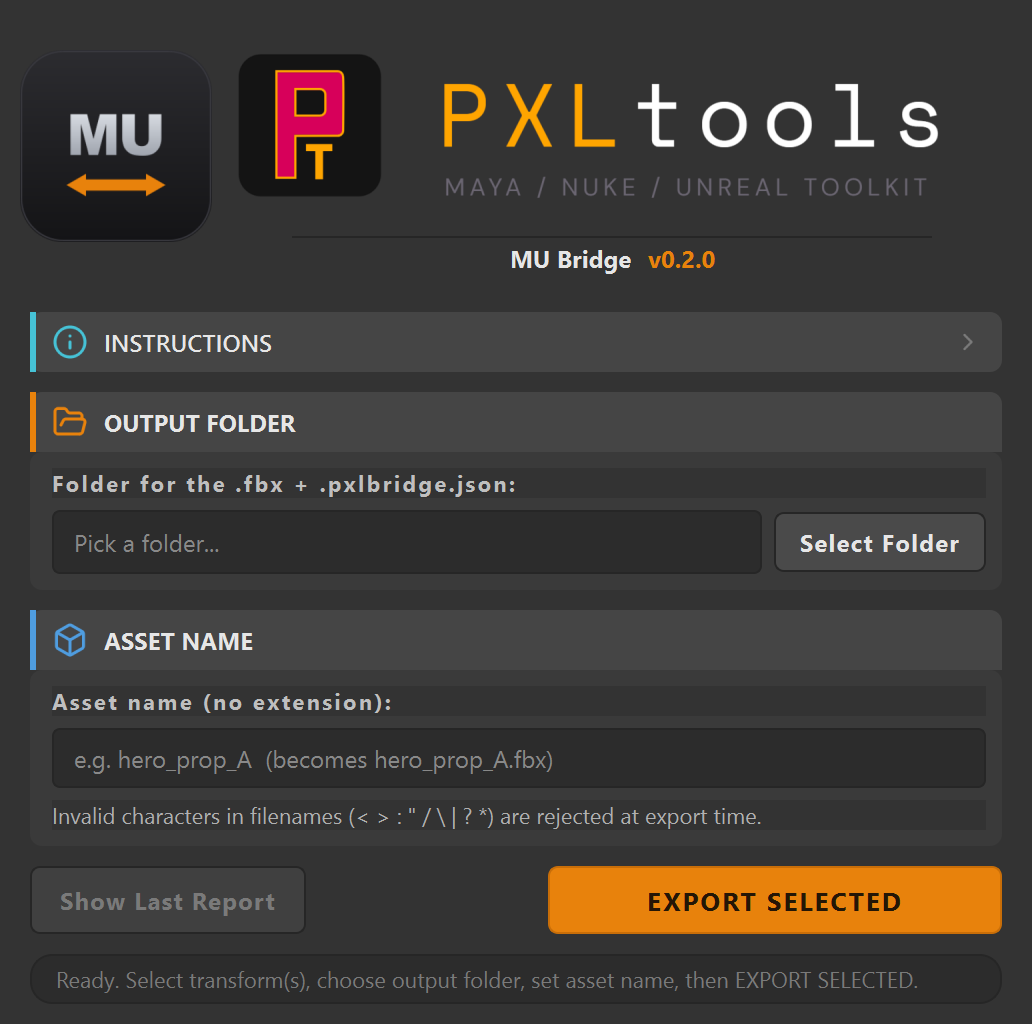
The interface
01
Overview
Early prototype — under active development. MU Bridge v0.2.0-alpha is an early prototype. The UI shown here may change. The Unreal Engine side (which reads the .pxlbridge.json sidecar) is a separate, still-incomplete component. Do not rely on this tool for production work without testing your pipeline end-to-end.
MU Bridge is a Maya → Unreal Engine 5 asset bridge. It walks the selected transforms, exports an FBX, and writes a .pxlbridge.json sidecar alongside it. The sidecar carries texture colour space tags for the ACEScg pipeline and normal-map convention data so the Unreal Engine import side knows how to handle them without manual intervention.
The current version (v0.2.0-alpha) covers Maya-side export only. It shares the same UI kit as the rest of PXLtools.
02
Requirements
- Autodesk Maya 2025
- Python 3.11 (included with Maya 2025)
- Meshes carrying
aiStandardSurfacematerials
Tested on:
- Autodesk Maya 2025
- Unreal Engine 5.6
Newer releases generally work, but these are the versions every release is actually tested against. If something behaves oddly on a newer host, that is worth reporting.
Network access
PXLtools needs outbound HTTPS (TCP 443) to www.pxlmentor.com and
objects.githubusercontent.com for licensing and updates. On a studio or corporate
machine, check this before you install — see
Troubleshooting.
Maya 2025 already includes PySide6. You do not install it, you do not pip anything, you do not touch your Python environment.
The Unreal Engine receiver component (which reads .pxlbridge.json) is a separate, still-incomplete part of this pipeline and is not covered in this guide.
03
Availability
MU Bridge is a prototype. It runs here on real shots, but it is not finished and is not available to download — on the site and on the store it is shown greyed out for exactly that reason. The tools that are ready are free: see them on the store.
04
Using MU Bridge
Select your transforms, set the output folder and asset name, and export.
INSTRUCTIONS
The collapsible INSTRUCTIONS section at the top of the tool lists the full export steps verbatim from the tool itself. Expand it for a quick reference at any time.
OUTPUT FOLDER
Press Select Folder and pick the destination directory. Both the .fbx and the .pxlbridge.json sidecar are written here, named after the asset name you set below.
ASSET NAME
Type the asset name (no extension) in the field. The tool creates <name>.fbx and <name>.pxlbridge.json. Characters that are invalid in filenames (< > : " / \ | ? *) are rejected at export time with a clear error message.
- Select transforms in Maya. Pick one or more transforms whose meshes carry
aiStandardSurfacematerials. - Choose an output folder. Press
Select Folderand pick the destination. The path appears in the field. - Set an asset name. Type a name without extension — e.g.
hero_prop_A— which becomeshero_prop_A.fbxandhero_prop_A.pxlbridge.json. - Export. Click
EXPORT SELECTED. An export report dialog opens showing warnings and any dropped Arnold attributes (subsurface, coat, transmission, sheen are not mapped in v0.1). TheShow Last Reportbutton re-opens it.
Tip: Texture colour spaces are tagged for ACEScg automatically. Review the export report for any attributes that could not be mapped — these are listed per object in the report dialog.
05
Troubleshooting
The install fails, or the tool says it cannot reach pxlmentor.com.
This is a firewall almost every time, not a broken installer — and it is very common on studio and corporate machines. PXLtools needs outbound HTTPS on TCP 443 to two hosts:
Send this to your IT team
www.pxlmentor.com  (TCP 443) — licence checks, update checks, downloads
objects.githubusercontent.com  (TCP 443) — the actual file download
Both hosts, not just the first. The download is handed off to a signed link on
objects.githubusercontent.com, so a rule that allows pxlmentor.com but
blocks the second host lets the version check succeed and then fails the download.
A certificate error instead means your network is inspecting HTTPS traffic (Zscaler, Netskope, a corporate SSL appliance) — that needs an SSL-inspection exception for those hosts, not a port opening.
The installer writes full details to ~/Documents/PXLtools/install_failure.log. Email it to
support@pxlmentor.com
and I will tell you which case it is. If your IT will not budge, ask for the offline package.
"X Pick an output folder first."
Press Select Folder and choose a destination before clicking EXPORT SELECTED.
"X Enter an asset name." / "X Asset name contains invalid characters."
The asset name field cannot be empty, and characters < > : " / \ | ? * are not permitted in filenames. Enter a plain name such as hero_prop_A and try again.
Nothing is selected in Maya when I click Export.
Select one or more transforms in Maya before running the export. The tool exports the meshes under the selected transforms.
The Unreal Engine side does not pick up the sidecar.
The Unreal Engine receiver component is a separate, still-incomplete part of the MU Bridge pipeline and is not yet available. The Maya-side export (FBX + .pxlbridge.json) is complete; watch for a future update covering the Unreal side.