
PXLtools · Tool guide
Substance Painter Material Thumbs Generator · a real preview for every material
Renders a preview for every material in a folder and saves it named after the material. It captures whatever is in your viewport, so the preview look is yours: your model, your lighting, your camera. Set the shot up once and a whole library renders in that style. Smart materials and Substance materials both, subfolders mirrored, already-rendered ones skipped.
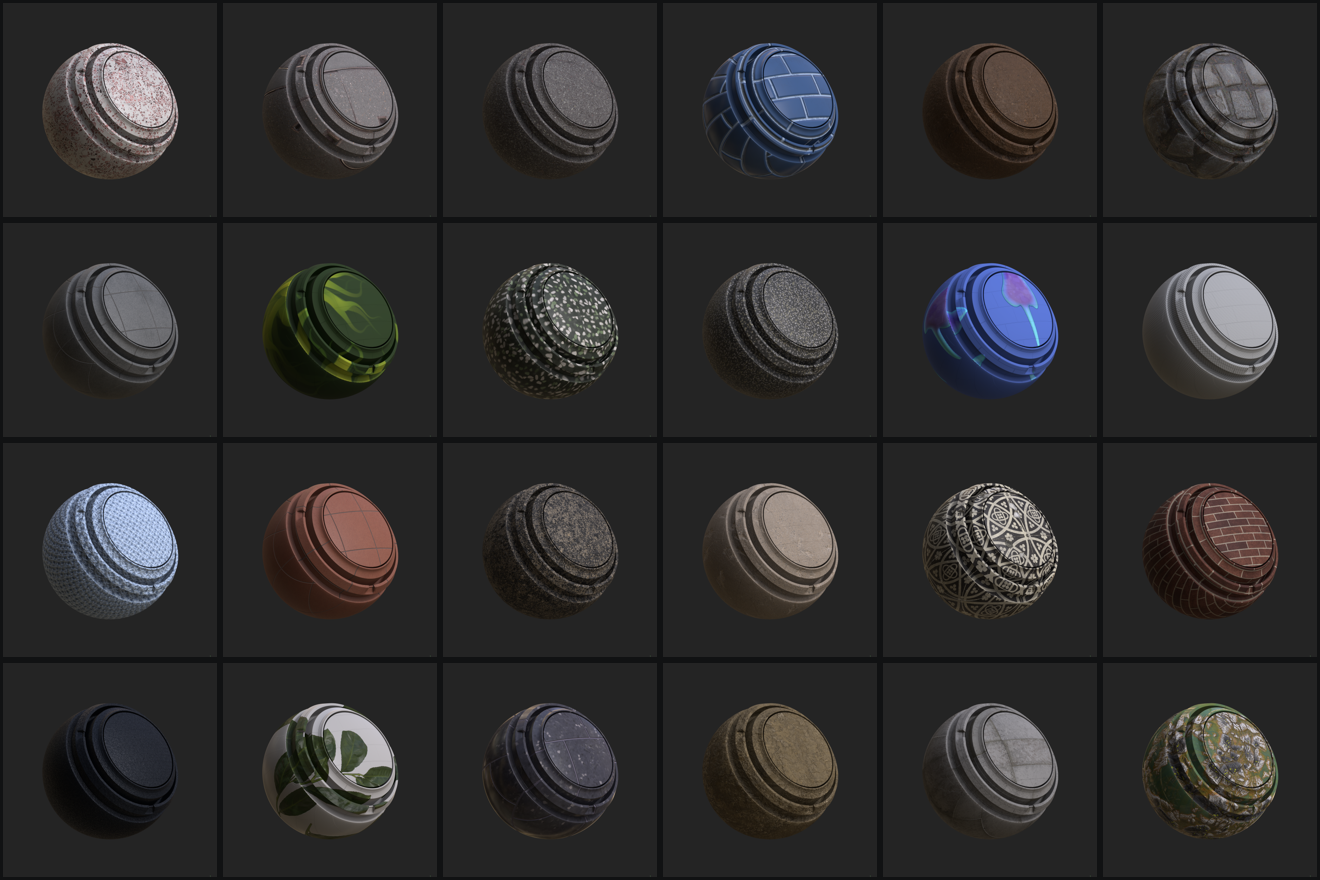
Real output: 24 of 466 rendered in one session
01
Overview
A material library is only browsable if you can see what each material looks like. Most packs ship either nothing, a flat tile of the texture, or a product-page gallery whose images carry no names · leaving you to match a picture to a filename by eye, which does not scale past a handful.
Substance Painter Material Thumbs Generator removes the guesswork by asking Substance Painter itself. It applies each material to whatever you have loaded, waits for the viewport to finish resolving, and saves the render as <material name>.png. Because the name comes from the file, the result is correct by construction and never needs mapping.
It handles both Painter smart materials (.spsm) and Substance materials (.sbsar), walks subfolders, and mirrors them into the output so a whole library keeps its shape.
02
Requirements
- Adobe Substance 3D Painter with its UI visible. The preview is captured from the 3D viewport, so Painter cannot run headless for this.
- A project open, showing whatever you want the materials presented on. The tool captures the 3D viewport exactly as you have it, so the model, the environment, the camera angle and the lighting are all your choice. A sphere is the usual pick because it reads at thumbnail size, but a bust, a shader ball or your own asset works just as well, and every material in the run gets that same treatment.
- The 3D view visible, not tabbed behind the 2D view.
- Write access to the output folder. Subfolders are created as needed.
03
Availability
Part of PXLtools, and the first tool in the suite for Substance Painter. It wears the same interface as the Maya and Nuke tools: the shared header, a collapsible instructions panel, and numbered steps that unlock in order, so if you have used any other PXLtools tool you already know how to drive it.
04
Installing
This is a Substance Painter tool, so you do not need Maya, Nuke or any other application to install it. Painter loads plain Python plugins from one fixed folder, and the installer below writes into that folder and nothing else. Pick whichever route matches what you already have.
If you do not use Maya
Use INSTALL_SUBSTANCE.py. Double-click it. It runs on any Python 3, it does not need Painter to be running, and it does not need a terminal. It finds Painter's plugins folder for you, copies the tool and the shared interface kit in, and backs up any previous copy into a dated _OLD folder rather than overwriting it.
Launch Painter once before you install. Painter only creates its plugins folder the first time it runs, so on a brand-new install there is nothing for the installer to write into yet. If it reports that it could not find the folder, that is why: open Painter once, close it, and run the installer again.
If you also use Maya
The suite installer covers all three hosts from one drag. Drop INSTALL_SUITE.py into a running Maya viewport and it installs the Maya shelf, the Nuke toolbox and this Painter plugin in the same pass, because Painter's plugins folder lives under Documents and is reachable from inside Maya. The success dialog names the Painter folder it wrote to, so you can confirm it landed.
The one manual step, whichever route you used
Painter will not load a new plugin until you tell it to, and this part cannot be automated from outside:
- Restart Substance Painter.
- Open the Python menu and enable the plugin.
- Open it from Window > Render material thumbnails.
If the Python menu is not there at all, Painter's scripting is disabled in your build, and the tool cannot run until it is enabled.
05
Using the tool
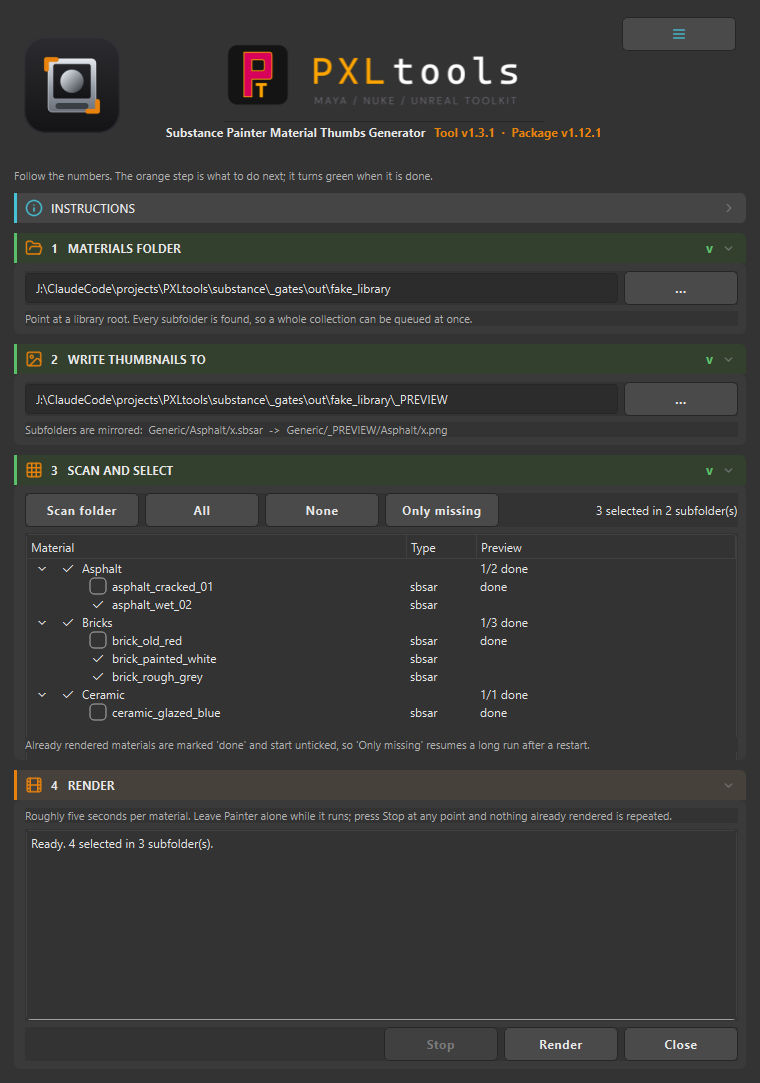
Open it from Window › Render material thumbnails, then work top to bottom.
- Materials folder. Point at a library root. Every subfolder is found, so a whole collection can be queued at once.
- Write thumbnails to. Defaults to a
_PREVIEWfolder at the root of what you chose. Subfolders are mirrored into it, soGeneric/Asphalt/x.sbsarbecomesGeneric/_PREVIEW/Asphalt/x.png. - Scan folder. Lists every subfolder with its materials beneath. Anything already rendered is marked done and starts unticked, and each subfolder shows its own N/M done.
- Choose what to render. Tick a subfolder to take everything under it, or expand it and pick individual materials. All, None and Only missing set the whole list at once.
- Render. It works through the selection one material at a time. Leave Painter alone while it runs.
Expect roughly five seconds per material. A large library is therefore a long job, so it is built to be interrupted: press Stop at any point, and when you come back press Only missing to carry on from where it left off. Nothing already rendered is repeated.
06
Troubleshooting
Every material reports "viewport never changed". The tool refuses to save a file it knows shows the previous material rather than the current one, so it reports instead of writing. Check that the 3D view is visible and that the material is actually being applied · a material that fails to load leaves the previous one on screen.
The thumbnails look soft or half-finished. It waits for the viewport to stop changing before capturing, up to 45 seconds. A very heavy material on a slow machine can exceed that; the run log marks those TIMED OUT so you can re-render them alone.
Nothing appears in the list after scanning. The folder holds no .spsm or .sbsar files, or the path is wrong. Folders beginning with an underscore are skipped deliberately, so the tool never scans its own output.
You want to know exactly what happened. Every run writes _run.log into the output folder, one line per step, flushed as it goes. It records what was applied, how long each material took to settle, and anything that failed.