
PXLtools — Tool guide
mAIa — Claude AI inside Maya
mAIa puts Claude directly inside Maya. Describe what you want in plain language and work one of two ways: Chat Mode streams back a reviewable block of Maya Python you run with one click, or Agent Mode lets Claude drive the scene itself through the MayaMCP tools — creating objects, lights and cameras, setting transforms, and framing the viewport autonomously. Attach reference images, fire one-click Quick Prompts, and replay any past session from the logs.
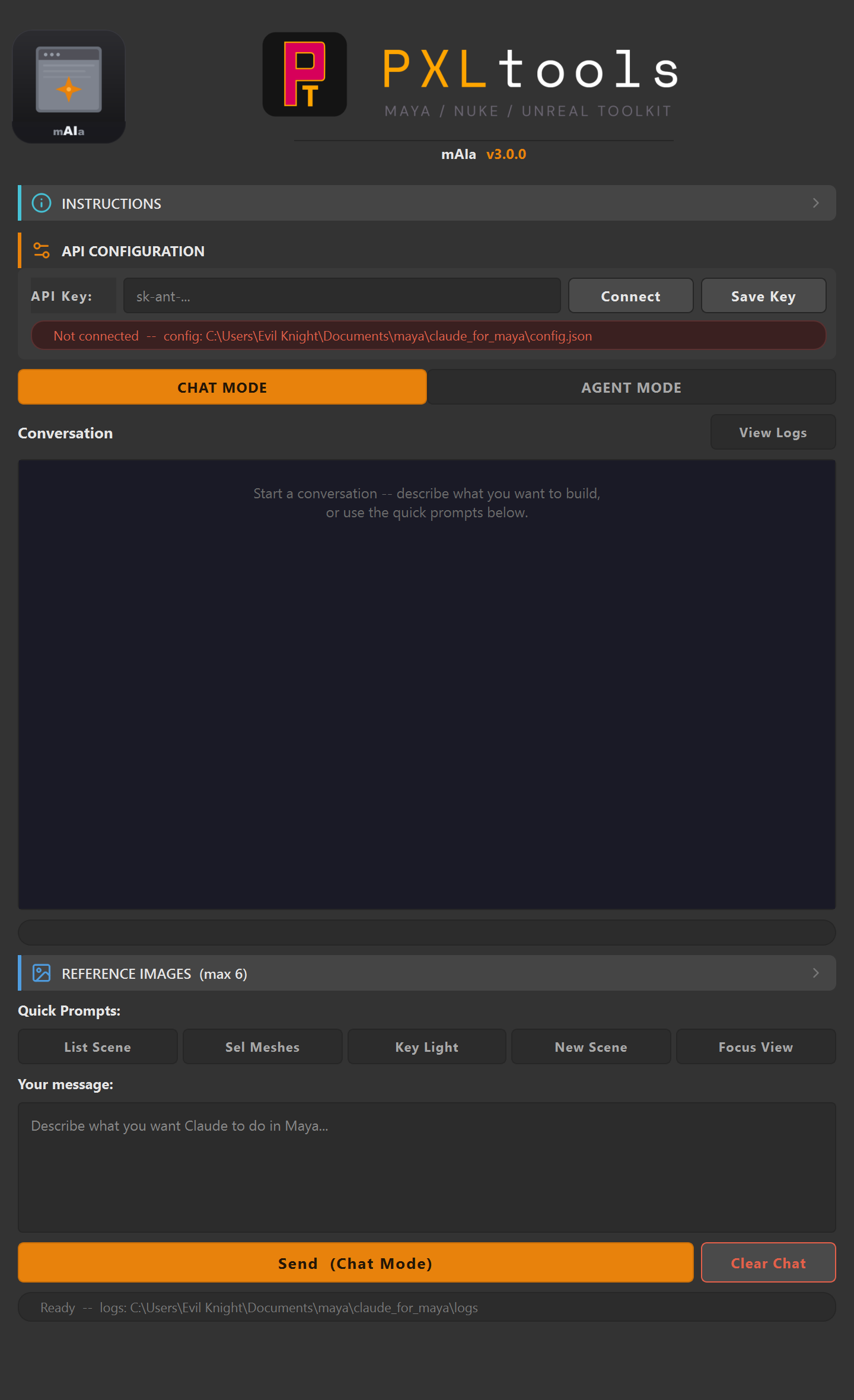
The interface
01
Overview
Early prototype — under active development. mAIa v3.0.0-alpha is a working prototype. The UI shown here and the behaviour may change between versions. It calls the Anthropic API directly, so API usage is billed to your own key. Review every generated action before running it on a production scene.
mAIa (Maya AI Assistant) embeds Claude inside Maya 2025. It shares the same UI kit as the rest of PXLtools and works in two modes you switch between at the top of the window:
- Chat Mode — Claude returns a short explanation plus a single block of Maya Python (
maya.cmds). Responses stream in live. Nothing runs automatically: the code opens in a review window where you read it, edit it if needed, and clickExecute in Maya. - Agent Mode — Claude is given the MayaMCP tool set and acts on the scene directly — creating primitives and lights, building materials, setting transforms, grouping, opening/saving scenes and framing the viewport. Each tool call and its result appears as a bubble in the conversation, and the loop continues until Claude is finished.
Both modes support attaching up to six reference images (layout sketches, mood boards, photos), five one-click Quick Prompts for common tasks, and a rotating session log you can browse and re-execute. Settings and logs live under ~/Documents/maya/claude_for_maya/.
02
Requirements
- Autodesk Maya 2025
- Python 3.11 with PySide6 (both included with Maya 2025)
- Internet access from inside Maya
- An Anthropic API key (
sk-ant-...) — usage is billed to your account - Agent Mode only: the MayaMCP tool files on disk (default path
j:/ClaudeCode/mayamcp/src/mayatools)
Tested on:
- Autodesk Maya 2025
Newer releases generally work, but these are the versions every release is actually tested against. If something behaves oddly on a newer host, that is worth reporting.
Network access
PXLtools needs outbound HTTPS (TCP 443) to www.pxlmentor.com and
objects.githubusercontent.com for licensing and updates. On a studio or corporate
machine, check this before you install — see
Troubleshooting.
Maya 2025 already includes PySide6. You do not install it, you do not pip anything, you do not touch your Python environment. Chat Mode needs only the API key; Agent Mode additionally needs the MayaMCP tools path set.
03
Availability
mAIa is a prototype. It runs here on real shots, but it is not finished and is not available to download — on the site and on the store it is shown greyed out for exactly that reason. The tools that are ready are free: see them on the store.
04
Using mAIa
The window stacks top to bottom: INSTRUCTIONS, API CONFIGURATION, the CHAT MODE / AGENT MODE switch, the conversation, REFERENCE IMAGES, Quick Prompts, your message box, and the send bar.
Connect your API key
Open API CONFIGURATION, paste your Anthropic key (sk-ant-...) into the API Key field, then:
- Connect — validates and connects for this session. The status line turns green when connected.
- Save Key — writes the key to
config.jsonso mAIa auto-connects next time it opens.
Your key is stored locally on your own machine at ~/Documents/maya/claude_for_maya/config.json. It is never sent anywhere except to Anthropic's API.
Chat Mode — generate & review code
With CHAT MODE selected (the default):
- Describe the task in the Your message box — e.g. “Build a three-point light rig around the selected object.”
- Click
Send (Chat Mode). Claude's reply streams into the conversation: a short plain-text explanation followed by a Maya Python block. - Review before running. A
Review Codewindow opens with the generated Python. Read it, edit if needed, then clickExecute in Maya— orCancelto discard. mAIa never runs anything without this step.
Agent Mode — let Claude drive the scene
Click AGENT MODE. Claude now uses the MayaMCP tools directly instead of writing code blocks:
- Set the tools path if prompted — the folder of MayaMCP tool files (default
j:/ClaudeCode/mayamcp/src/mayatools). - Describe the goal and send. Claude inspects the scene, then creates objects, sets transforms, applies materials and frames the viewport on its own.
- Watch the bubbles. Every tool call and its result appears in the conversation as it happens; the loop runs until Claude reports it is done.
Agent Mode acts on your live scene without a per-step confirmation. Save your scene first, and run it on non-critical work while the tool is in prototype.
Quick Prompts, images & logs
- Quick Prompts. One click fills the message box with a common command:
List Scene,Sel Meshes,Key Light,New Scene,Focus View. - Reference Images (max 6). Open the
REFERENCE IMAGESpanel to attach PNG/JPG/WEBP files. Claude analyses all attached images together with your next message — one for layout, another for materials, another for lighting mood. - View Logs. Opens the last five sessions. Pick a session, then an exchange, to see the prompt and generated code — and
Re-execute Code in Mayato run it again, orOpen Log Folder. - Clear Chat. Resets the conversation for a fresh start (the session log is kept).
05
Troubleshooting
The install fails, or the tool says it cannot reach pxlmentor.com.
This is a firewall almost every time, not a broken installer — and it is very common on studio and corporate machines. PXLtools needs outbound HTTPS on TCP 443 to two hosts:
Send this to your IT team
www.pxlmentor.com  (TCP 443) — licence checks, update checks, downloads
objects.githubusercontent.com  (TCP 443) — the actual file download
Both hosts, not just the first. The download is handed off to a signed link on
objects.githubusercontent.com, so a rule that allows pxlmentor.com but
blocks the second host lets the version check succeed and then fails the download.
A certificate error instead means your network is inspecting HTTPS traffic (Zscaler, Netskope, a corporate SSL appliance) — that needs an SSL-inspection exception for those hosts, not a port opening.
The installer writes full details to ~/Documents/PXLtools/install_failure.log. Email it to
support@pxlmentor.com
and I will tell you which case it is. If your IT will not budge, ask for the offline package.
The status line stays red — “Not connected”.
Check the key starts with sk-ant- and that Maya has internet access, then click Connect. If it still fails, the key may be invalid or out of credits — verify it in your Anthropic console.
Agent Mode does nothing, or reports the MCP tools path is not found.
Agent Mode needs the MayaMCP tool files on disk. Set the tools path to your MayaMCP mayatools folder (default j:/ClaudeCode/mayamcp/src/mayatools). Chat Mode works without it.
Claude replied in Chat Mode but nothing happened in the scene.
Chat Mode never runs code on its own by design. Click Execute in Maya in the Review Code window that opens with the response. If no code block was generated (a plain-text answer), there was nothing to run.
A request fails with an HTTP error.
This comes straight from the Anthropic API — usually an invalid key, no remaining credits, or a rate limit. The full message is shown in the conversation as an error bubble. Check your key and account, then retry.
An attached image was ignored.
Supported formats are PNG, JPG and WEBP, up to six at a time. Attach them in the REFERENCE IMAGES panel before sending the message you want them analysed with.