
PXLtools · Tool guide
Jetset · Maya Bridge + Windows Sync
Two tools that close the loop with Lightcraft’s Jetset app. The Maya Bridge marks the places you want to stand inside your virtual set, prepares the scene and publishes a .usdz. The Windows Sync app carries that file to the phone and brings the day’s footage back. Then the Bridge reads the take and rebuilds the shot as an animated Maya camera, aligned to the same locator it was framed from.
The Maya Bridge
Inside Maya
Jetset Bridge
Mark scene locators, prepare and export the USDZ, then read the camera take back into Maya. A PXLtools shelf tool with guided, gated steps.
Windows desktop app
Jetset Sync
Move the USDZ set to the phone and bring footage back. Standalone Windows app, no Maya licence needed. Installs in one click and updates itself.
01
Overview
Lightcraft Jetset turns an iPhone into a virtual camera: you load your CG set onto the device, walk the real world with the set overlaid, and shoot. What comes back is a camera track, a plate, and the metadata that ties them together.
Lightcraft ship documented integrations for Blender and Unreal. Maya is not one of them. These two tools are that missing half, built on the Thresholds production, where the virtual camera work is shot on Jetset and finished in Maya.
An independent companion tool, with no connection to Lightcraft. Jetset is a product of Lightcraft Technology, and Jetset and Lightcraft are their marks. Jetset Bridge and Jetset Sync are not affiliated with, endorsed by, or supported by Lightcraft, and they are not a Lightcraft product.
They were written by Cristian Spagnuolo, for his own productions, precisely because he uses Jetset: the app is good and the Maya leg was the piece missing from his workflow, so he built it. They are not sold and they are not a paid product. Anything concerning the Jetset app itself, including support, licensing and its own roadmap, belongs to Lightcraft and should go to them.
They are deliberately two separate programs, because the two jobs happen in two different places. Authoring the set is desk work inside Maya. Moving 250 MB of USDZ onto a phone, and pulling a day of footage back off it, happens on set, often on a laptop that has no Maya licence and belongs to whoever is running the shoot. So the Sync half is a plain Windows application: no Maya, no plug-in, no account, no API key.
Inside Maya
Jetset Bridge
Marks your scene locators, prepares and preflights the scene, exports the .usdz, and later reads a shot take back in as an animated camera. A PXLtools shelf tool, same UI kit and step-gating as the rest of the suite.
On the shoot laptop
Jetset Sync
A single-window Windows app that moves files between a shared folder, the phone, and this machine. It talks to the device directly over your local network. Install the .exe and nothing else.
02
The round trip
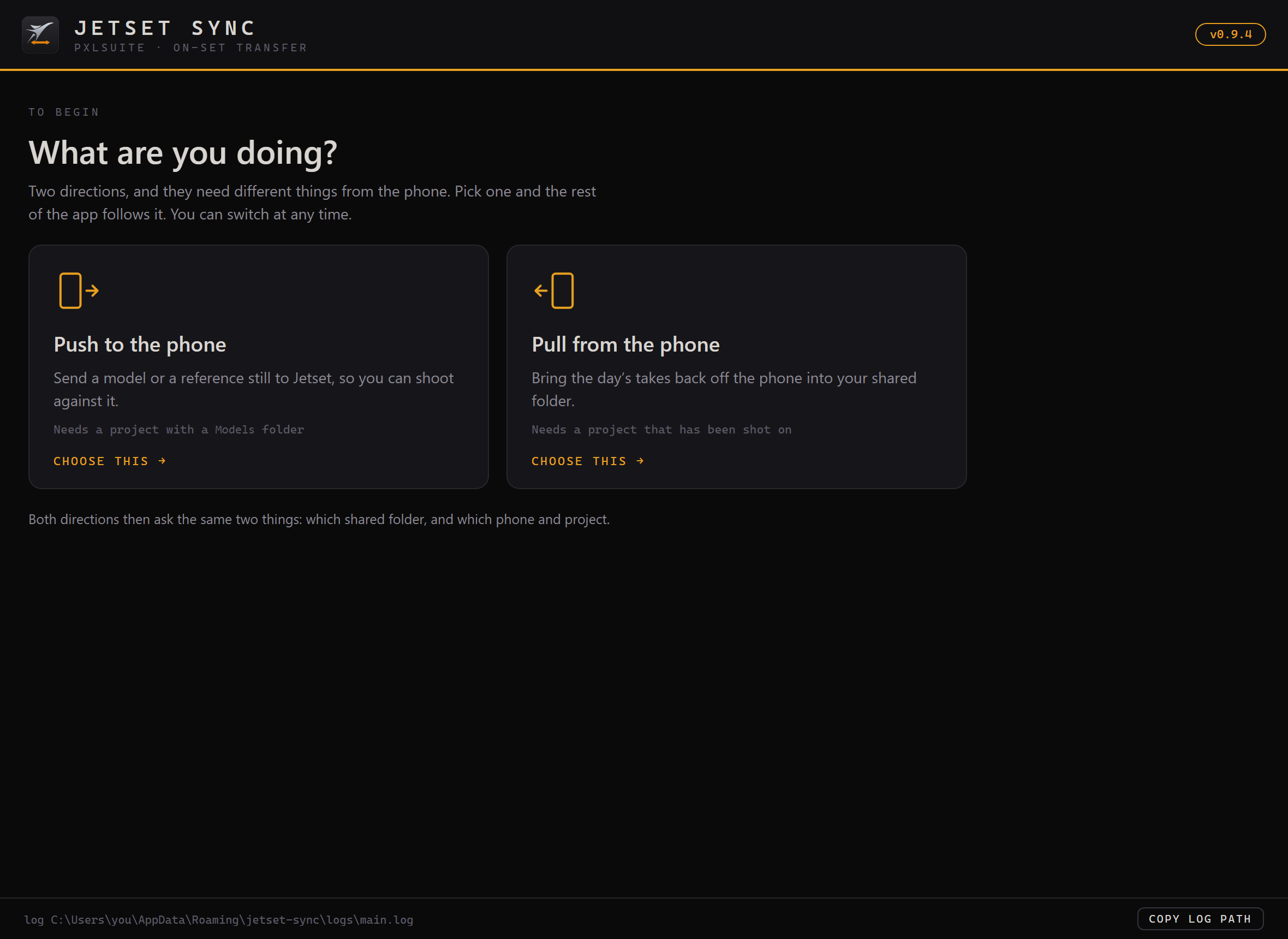
Neither tool is useful alone, and they do not run side by side. They alternate. Read this order once and the rest of the page follows it.
One shot, start to finish
- In Maya, the Bridge. Mark the places you want to stand (
01), prepare the scene onto a safe working copy (02), preflight and export a.usdz(03). - On the laptop, Sync. Verify the shared folder, find the phone, choose the project, push the model across.
- On set, the Jetset app. Load the model, stand on a locator, shoot the take. Nothing of ours runs here.
- On the laptop, Sync again. Pull the takes back into the shared folder, in the device’s own layout.
- Back in Maya, the Bridge. Point
04at that folder and the shot returns as an animated camera, aligned to the locator it was framed from.
The two halves meet in one file. When you create a locator in Maya it is named sceneloc_<name>. The Jetset app records that same name into the take’s tracking data. On the way back, the Bridge reads the name out again and uses it to put the camera in the right place. That naming convention is the entire handshake, which is why the tool names locators for you rather than letting you type them.
03
Requirements
Developed and tested on this exact stack:
- Autodesk Maya 2025 (PySide6, already bundled, nothing to pip and nothing to install)
- An iPhone running Lightcraft Jetset
- Windows 10 or 11 for the Sync app
- The phone and the laptop on the same local network
Storage mode on the phone
This one setting decides whether anything works at all, so it is worth knowing before the shoot rather than during it. Jetset’s WebDAV server exposes whichever storage backend the app is currently set to.
- Local, Jetset builds the project folders itself and everything works.
- iCloud, a newly created project is an empty shell with no
Modelsfolder, and the device refuses to let anything create one remotely. A push into it fails.
There is no way to change that setting from off the device, so Sync does not try. It detects it: the moment you choose a project it checks and marks it READY or NOT READY, and says what to change in the Jetset app. Set Jetset to Local storage.
Network access
Sync speaks to the phone over plain HTTP on port 8080 on your own network, and discovers it over Bonjour/mDNS. No credential is involved and nothing leaves the local network. The Google Drive route, if you use it, is the same two anonymous HTTPS requests a browser makes, with no Google account and no sign-in.
Both tools check their PXLtools licence on launch using outbound HTTPS to www.pxlmentor.com. The Maya Bridge also needs objects.githubusercontent.com for its software updates. Jetset Sync fetches its updates from a separate Cloudflare R2 host. See Troubleshooting for the exact hosts by tool.
04
Availability
Jetset is a working prototype, not a release. It is not on the store, there is no download on this page, and it is not in the public PXLtools package. This guide exists so the workflow is documented while the tools are still being proven on a real production.
Both halves are in active development and the interfaces still move between versions. The Maya Bridge is alpha. The Windows Sync app is in private beta with a small number of testers on live shoots.
If you shoot on Jetset and finish in Maya, that is exactly the case these tools were built for, and early feedback is genuinely useful. Write to info@blackmamba3d.com and say what you shoot on.
Who made this, and who owns it
Jetset Bridge and Jetset Sync were created and are released by Cristian Spagnuolo, and are his property, published under PXLmentor as part of PXLtools. Copyright © 2026 Cristian Spagnuolo. All rights reserved.
They are not affiliated with Lightcraft Technology and are not sold. See the note above.
05
Using the Maya Bridge: sending the set
The Bridge has two tabs, SEND TO JETSET and IMPORT FROM JETSET. This section covers the first. Everything is gated: work the orange step and the next one wakes up.
Step states at a glance
Green, done
Satisfied already. Marked with a tick, not just a colour.
Orange, do this now
The one enabled step. Complete it and the next one opens.
Grey, locked
Deliberately un-clickable until its turn. Finish the orange step first.
01 · Create locators
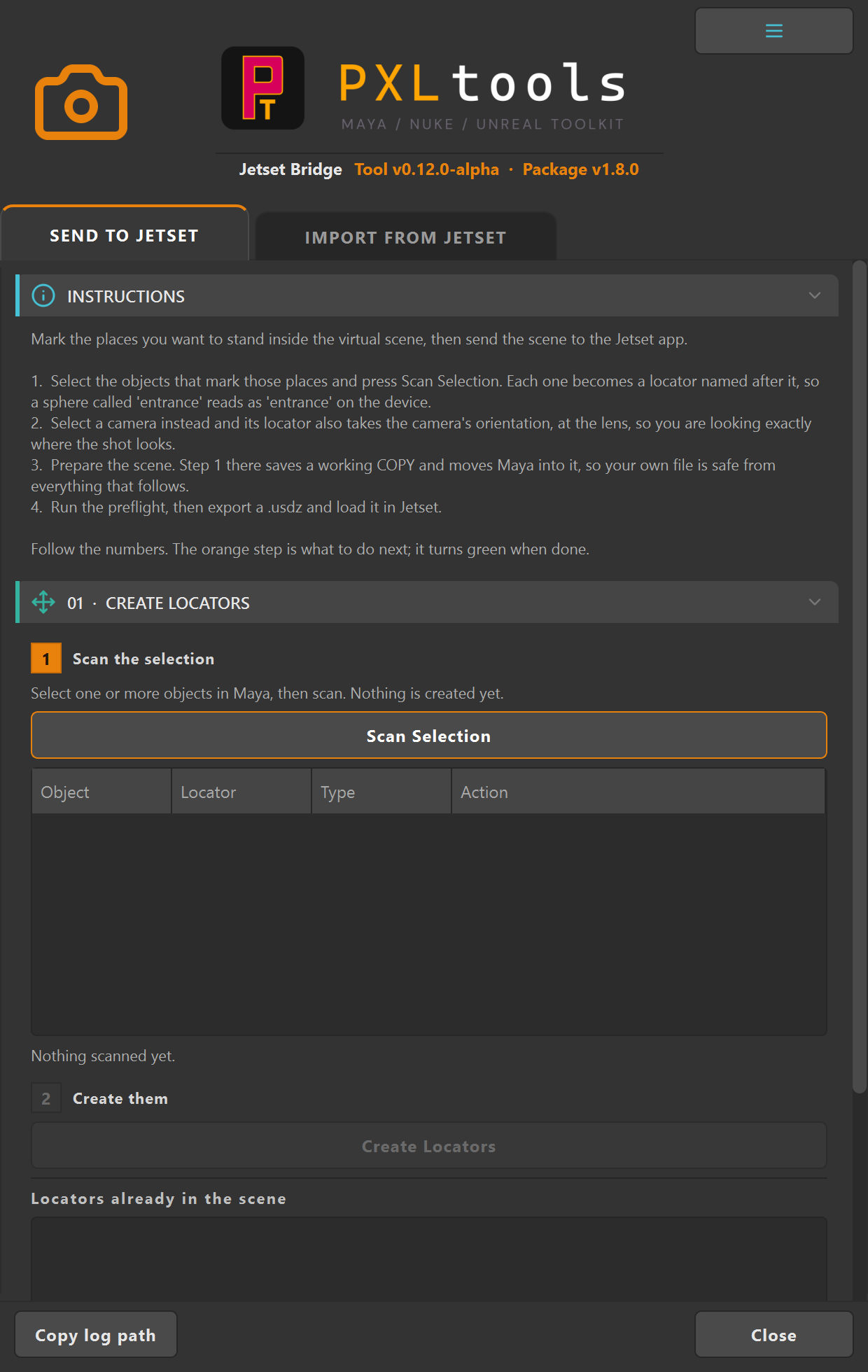
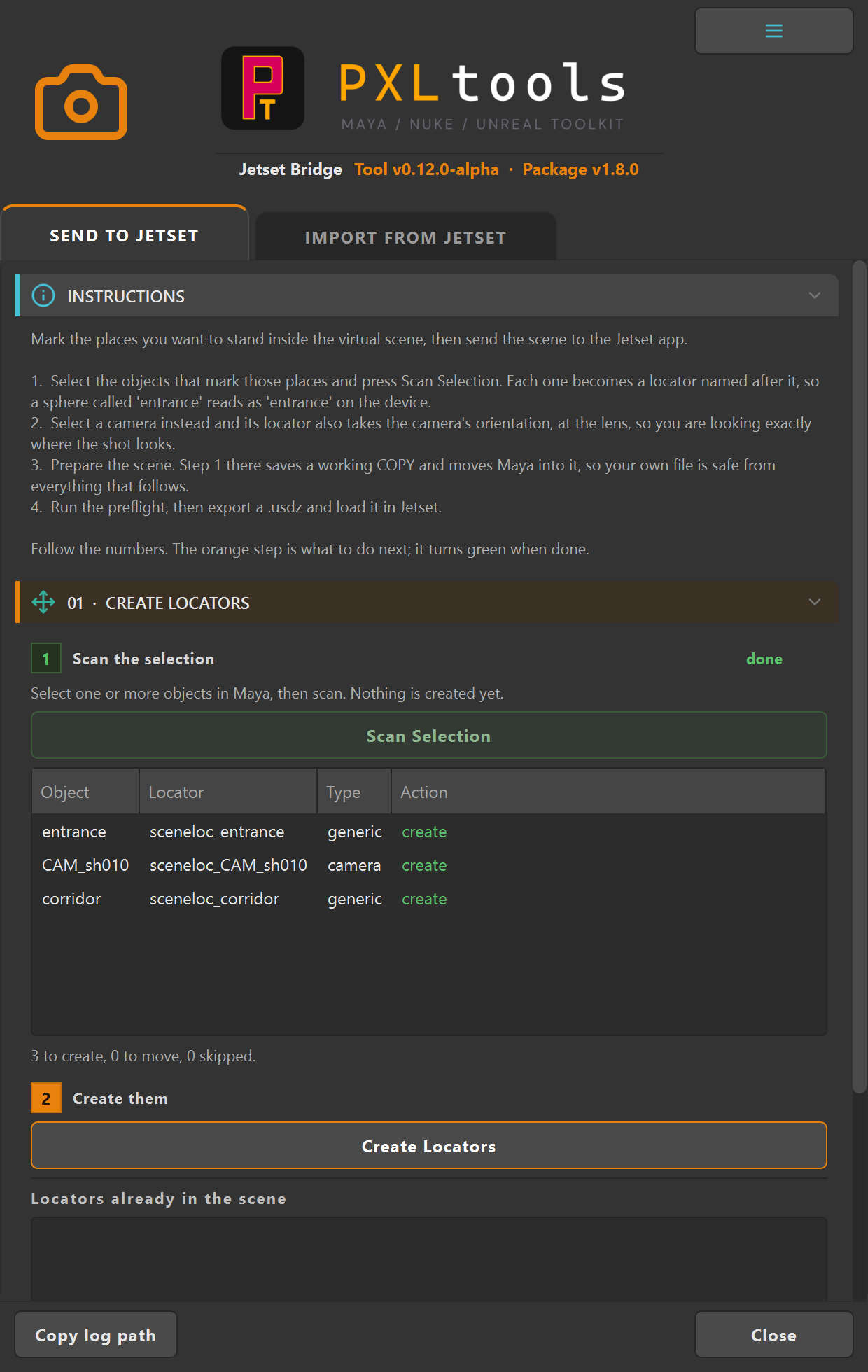
A scene locator is a place you want to be able to stand inside the virtual set on the day. You author them here because there is no way to create one from inside the Jetset app: the app can fly around freely, but it cannot save a position under a name. Locators are free, so make more than you think you need.
- Scan Selection. Select one or more objects in Maya and press it. Nothing is created yet. You get a table of exactly which locators would be made, and from what. A sphere called
entrancebecomes a locator that reads asentranceon the device. - Create Locators. Creates or moves what the table listed. Select a camera instead of an object and its locator also takes the camera’s orientation, at the lens, so on the day you are looking exactly where the shot looks.
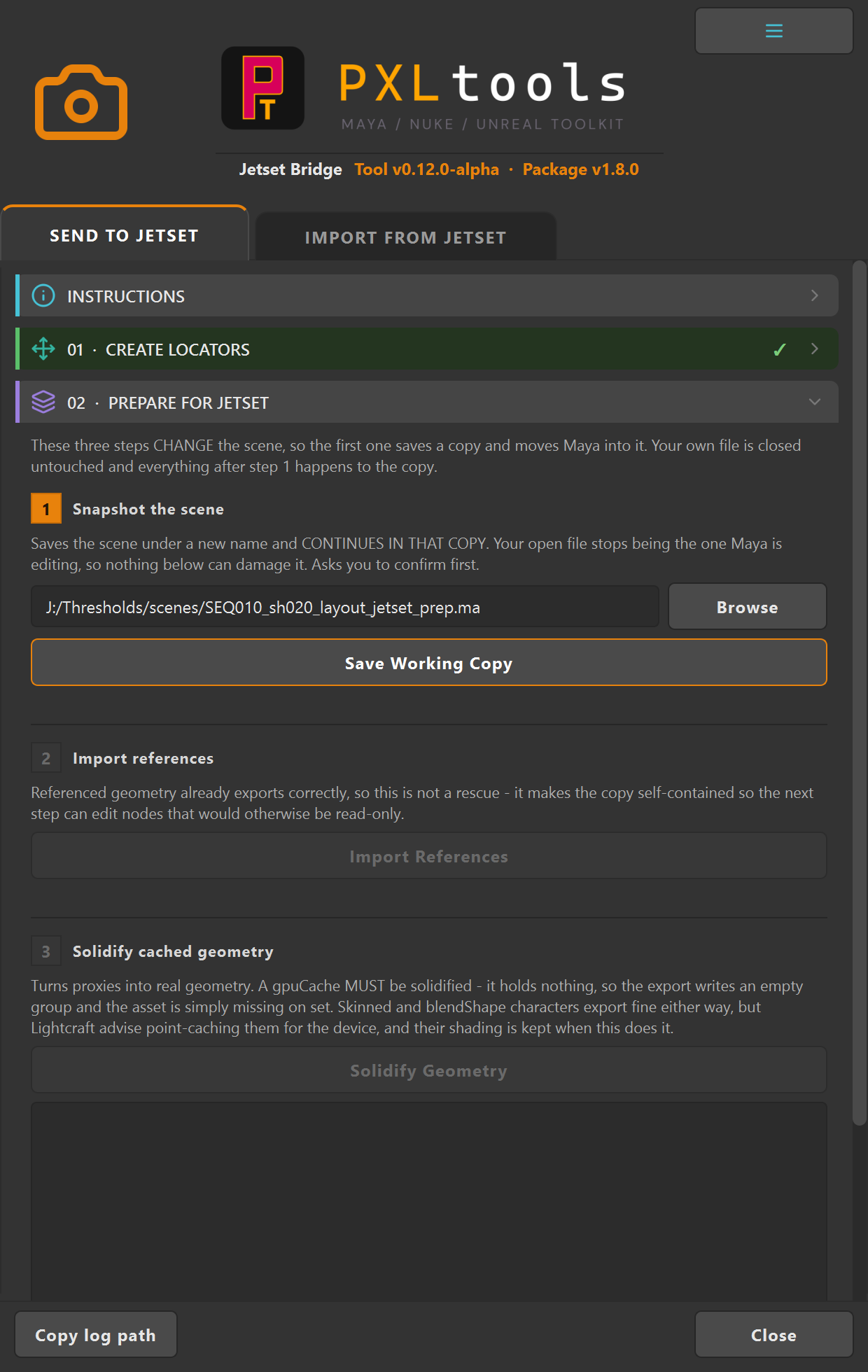
02 · Prepare for Jetset
These steps change the scene, so the first one protects you from the rest.
Step 1 saves a copy and moves Maya into it. Your own file stops being the one Maya is editing and is left exactly as it was. Everything after that point happens to the working copy. It asks you to confirm before it does this, and the path is yours to change.
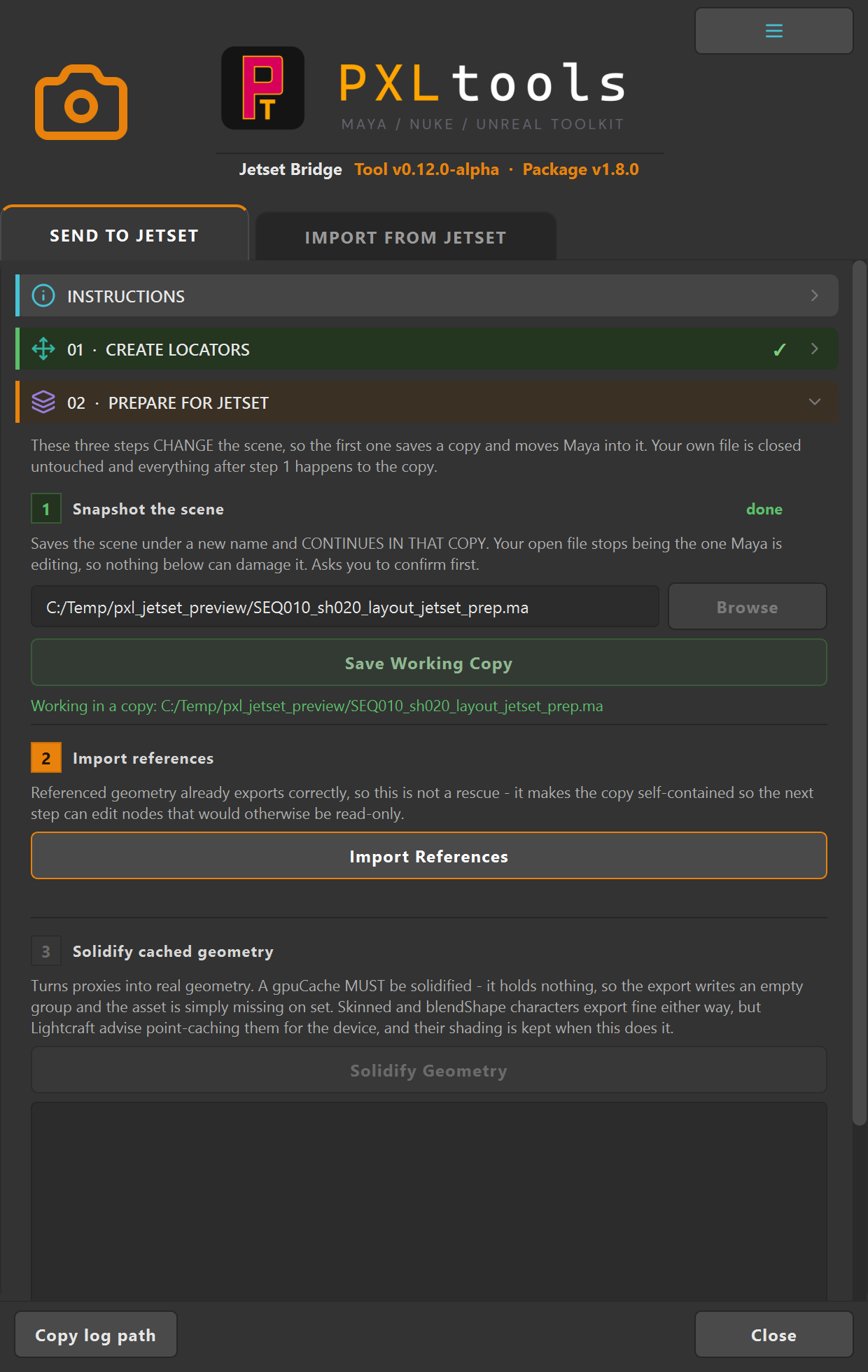
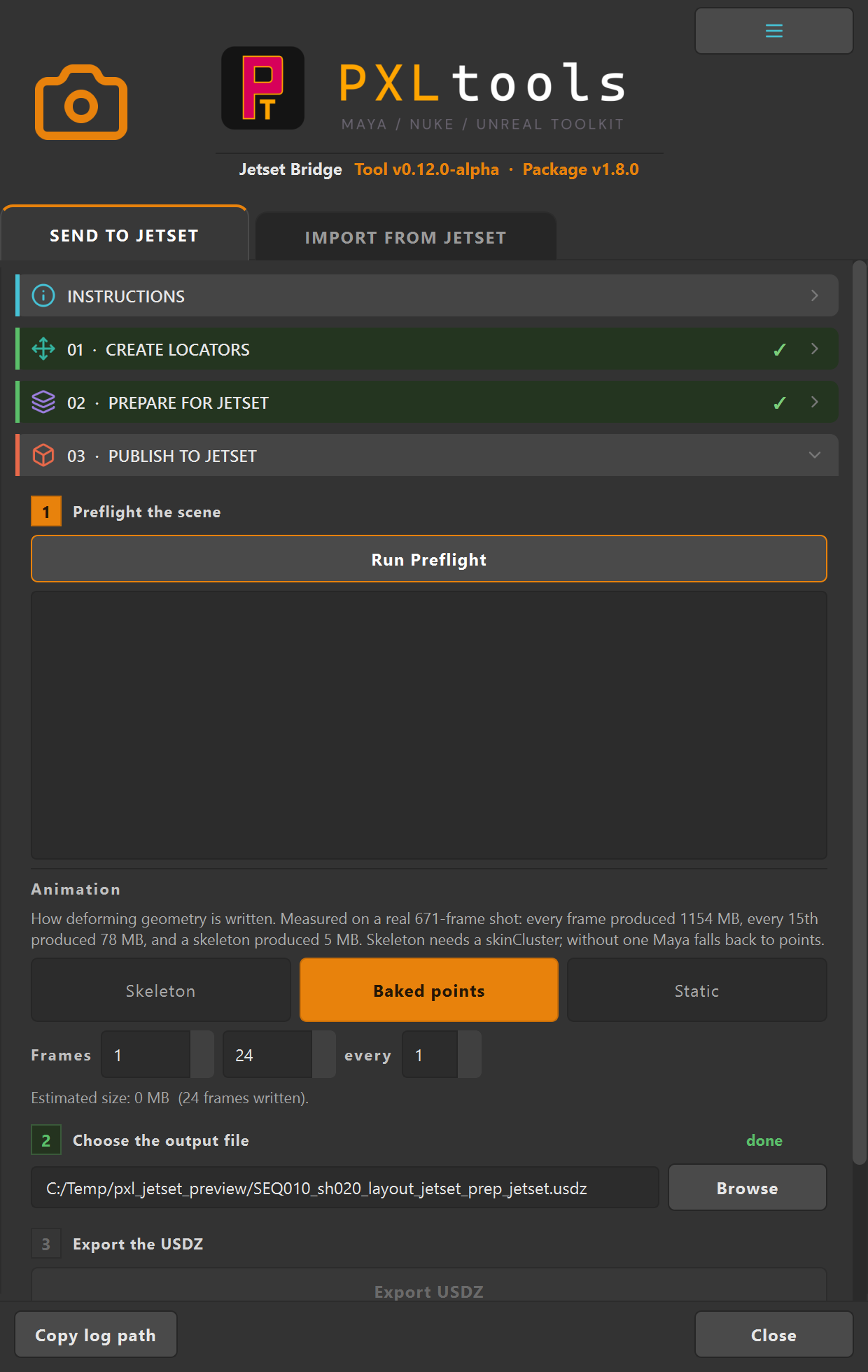
02 green, publishing unlocks.03 · Publish to Jetset
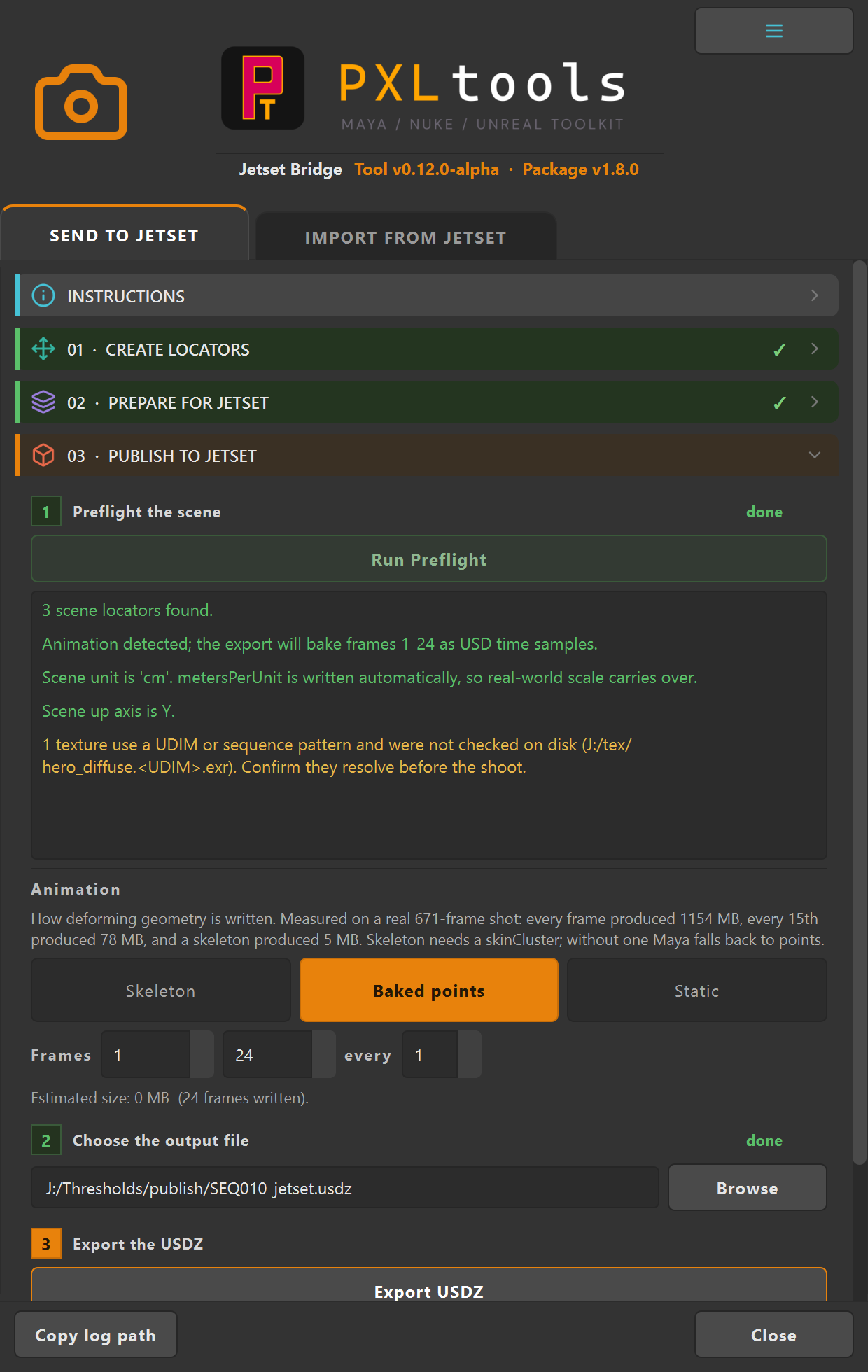
- Run Preflight. Checks for the things that fail silently on the device rather than loudly in Maya: bad locator names, accidental motion scale, missing textures, wrong units. It reports what it found in plain sentences, and warnings are worded as warnings rather than dressed up as errors.
- Choose how animation is written, then the output file.
- Export USDZ. That file is what Sync pushes to the phone.
The animation setting is the one that decides your file size, and the gap is enormous. Measured on a real 671-frame shot: writing every frame produced 1154 MB, every 15th frame produced 78 MB, and a skeleton produced 5 MB. Skeleton is by far the smallest but needs a skinCluster, and the device has to support skeletal animation, so test it in Jetset before you rely on it. Static is often enough when the characters are only there to help you frame.
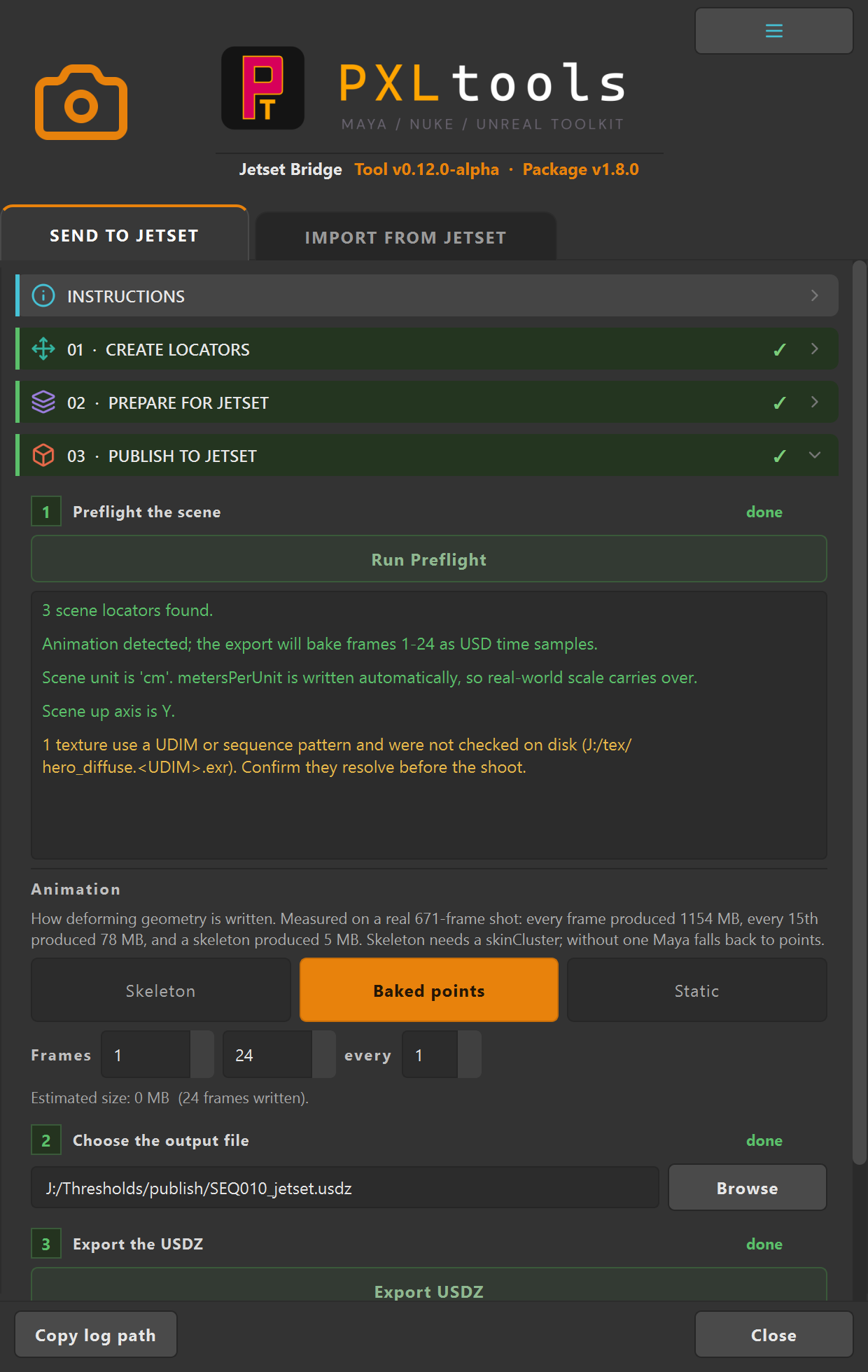
.usdz is on disk. Hand this to Jetset Sync.06
Using Jetset Sync on Windows
One window. It asks the direction first, push or pull, then walks the three steps that direction needs, in order. The left rail always shows where you are and what is still locked, and you can switch direction at any time without redoing the shared folder or the phone. The app moves files between three places: the phone, a shared folder, and this machine.
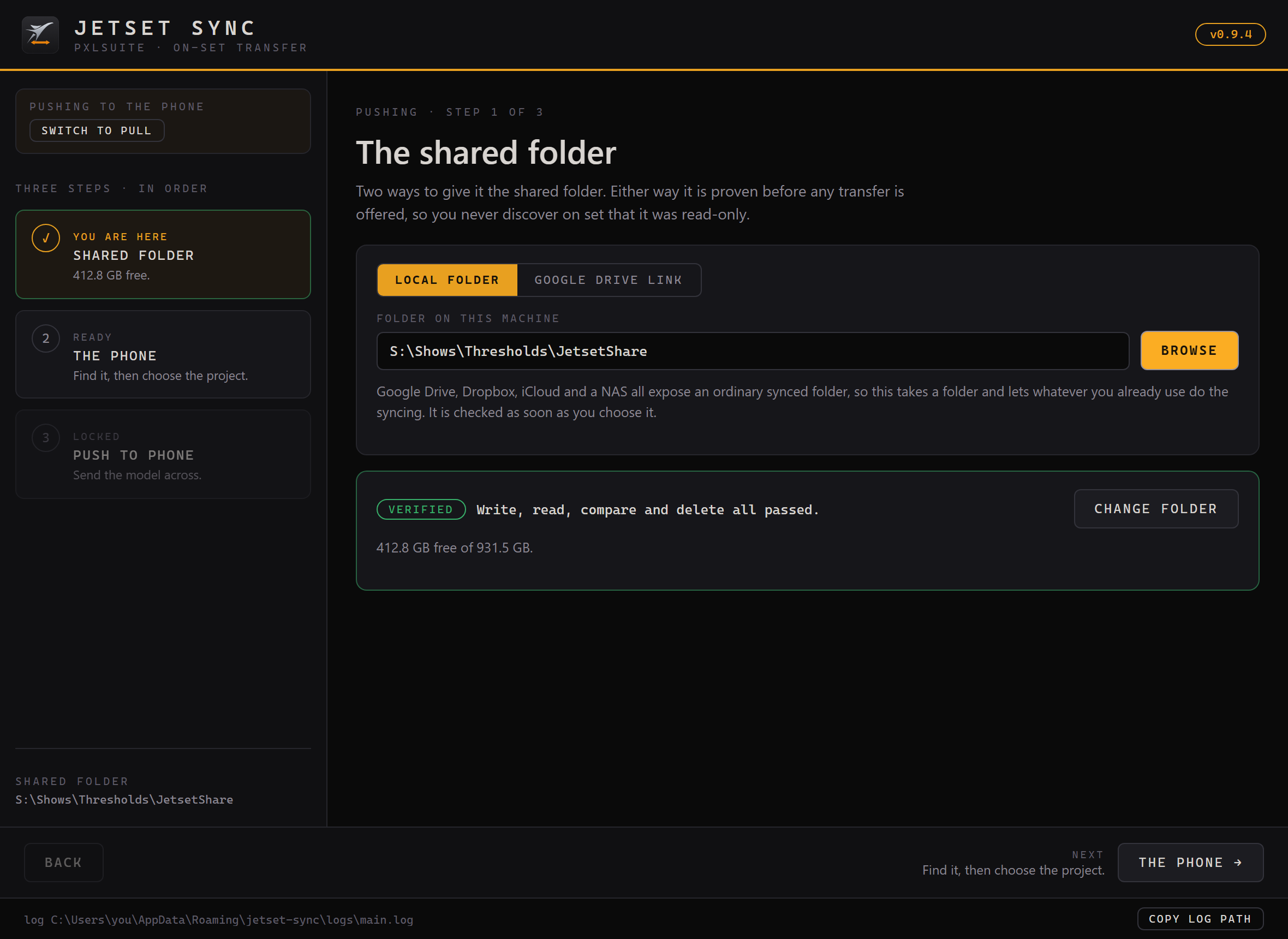
1 · Point it at the files, and verify
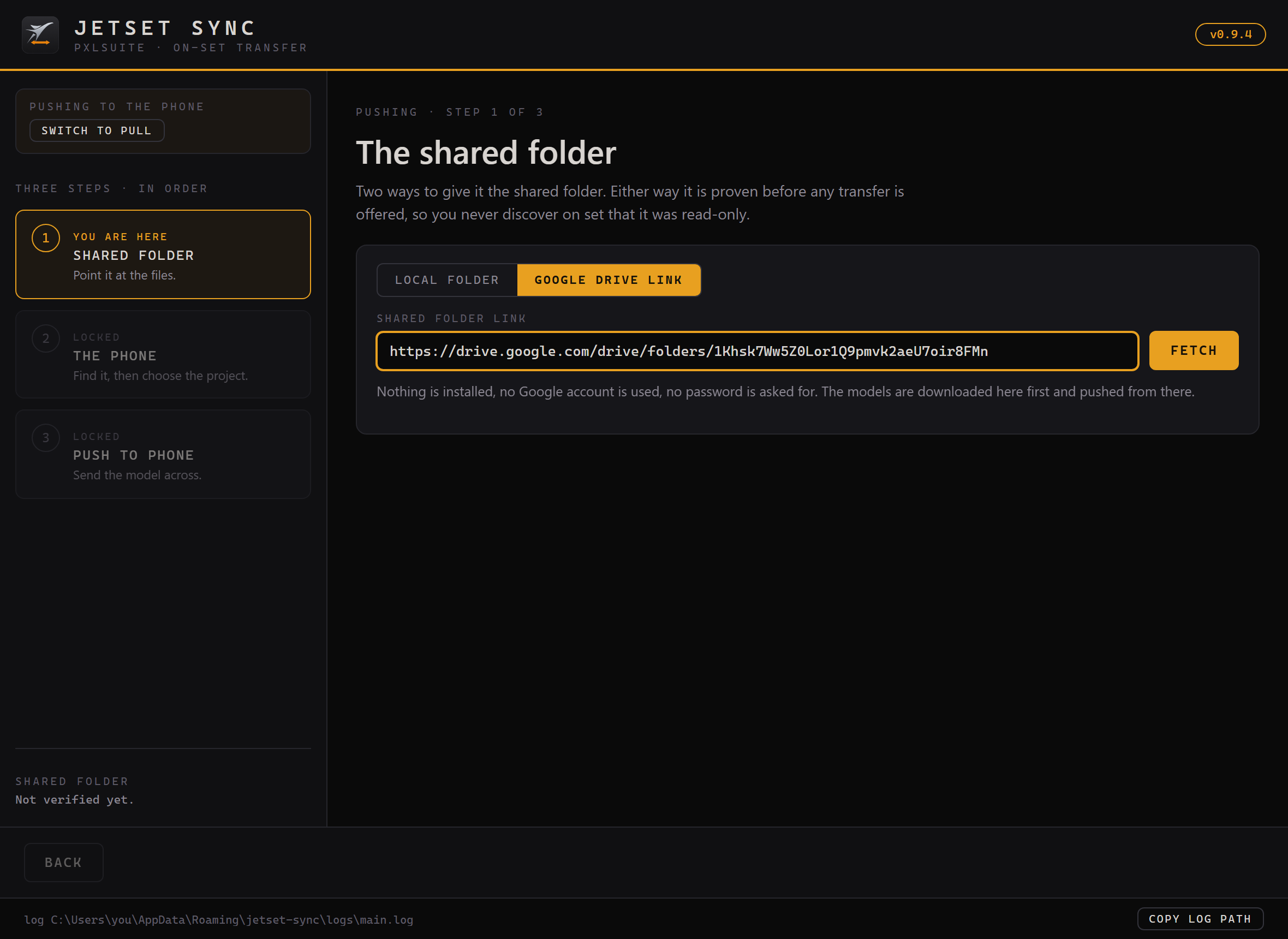
Two ways to give it the shared folder, chosen with the toggle at the top:
- Local folder, a path on this machine. Google Drive, Dropbox, iCloud and a NAS all expose an ordinary synced folder, so the tool just takes a folder and lets whatever you already use do the syncing.
- Google Drive link, paste a shared folder link. Nothing is installed, no Google account is used, no password is asked for. It reads the public folder page and downloads the models and stills next to its own logs.
The folder is proven, never assumed. The tool writes a probe file, reads it back, compares the bytes, and deletes it. If any of those four fails it stops and tells you which one and why: a read-only folder, a full disk, an online-only cloud placeholder, a share that will not let files be removed. No transfer button enables until both read and write are proven. It reports free space while it is there.
2 · Find the phone, then choose the project
Scan Network browses for the Bonjour service Jetset advertises and lists whatever answers by name. If more than one phone answers you choose, because the tool never picks for you. If nothing answers, it says “nothing answered” rather than “the phone is off”, because Lightcraft themselves document networks where discovery returns nothing while the phone is in fact reachable. On those, type the address Jetset shows you into Enter IP. It is validated and the port is added for you.
Connecting is only half the step. A Jetset device keeps Models, Images and Takes inside a project. There is no /Models/ at the device root, so the tool lists the projects and you pick one. Steps 3 and 4 stay locked until you do, because without a project every remote path is a guess.
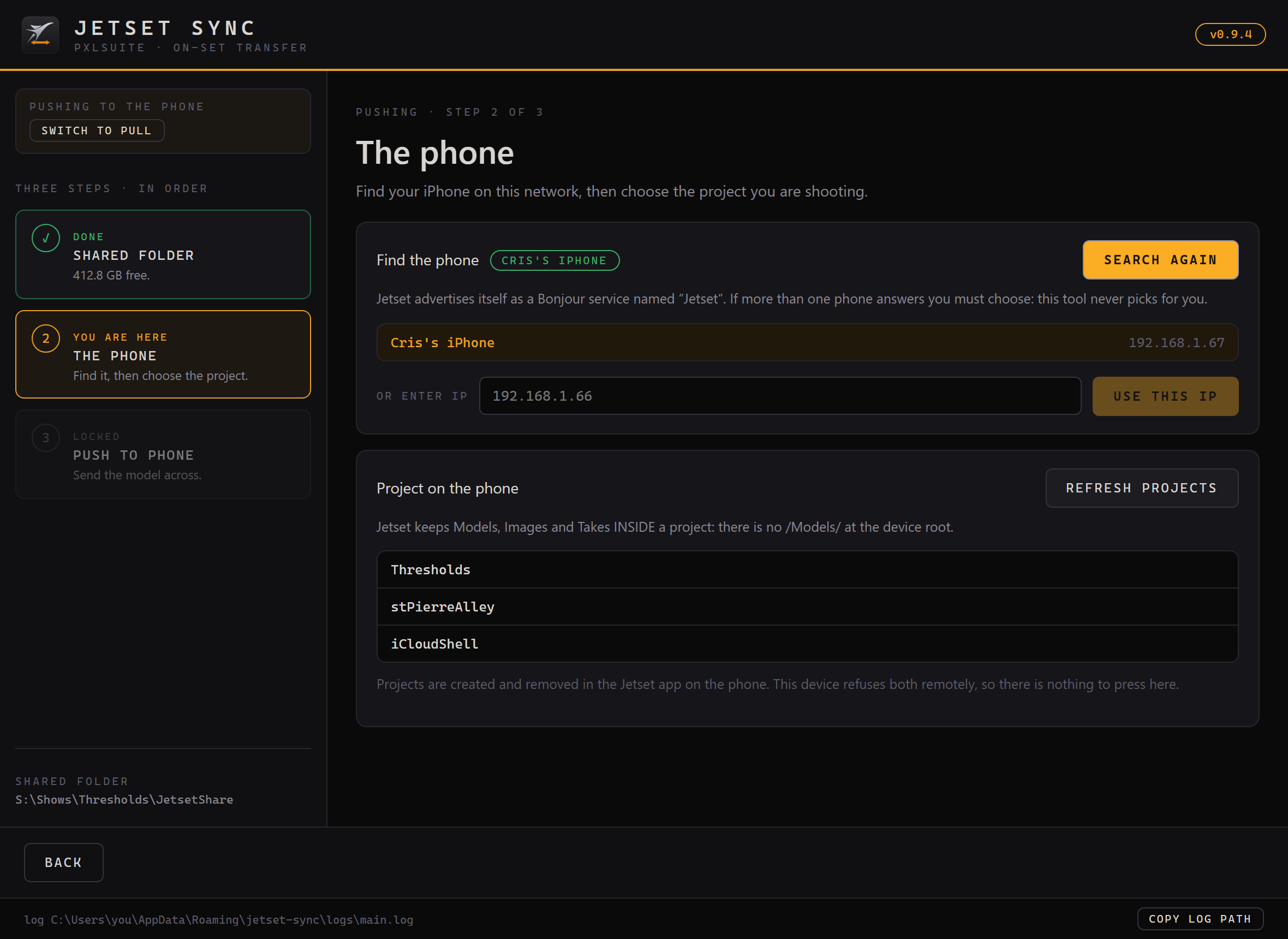
READY and NOT READY are words, not just colours. A project whose Models folder is missing does not unlock the push, and the reason is given where you are making the choice.Why there is no Create Project and no Delete. The device refuses both requests, so there is no button that pretends otherwise. Projects are created and removed in the Jetset app on the phone. Make the change there, then press Refresh projects.
READY is a verdict about pushing only. Pushing needs Models, pulling needs Takes. They are separate questions, so a project that was shot on but never pushed to still gives its footage back.
3 · Push to the phone
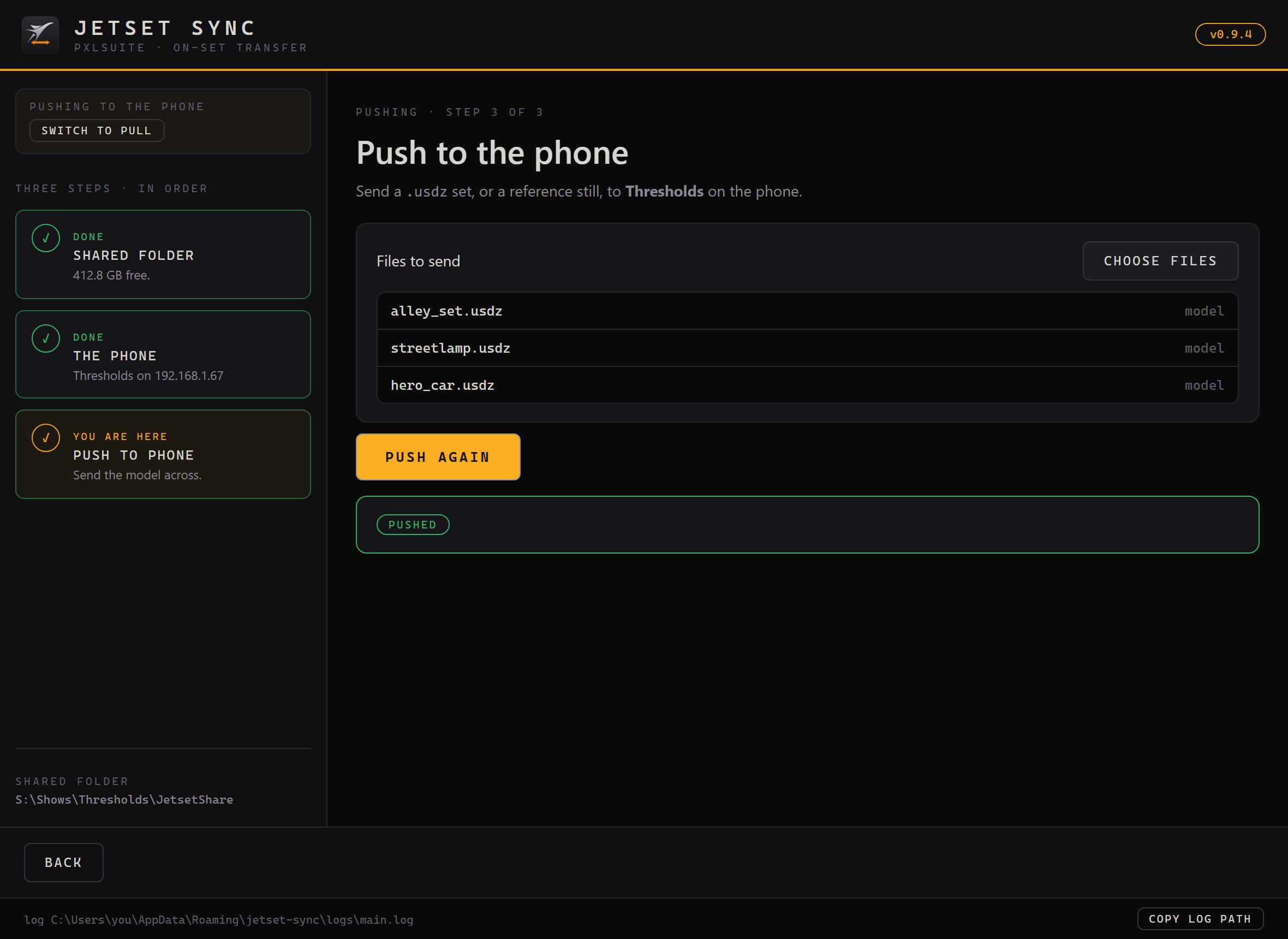
Send a .usdz set (or a reference still) from the shared folder or a browsed file, with a real progress bar, live speed and ETA, and a Cancel that works. The destination is proven to exist before the first byte leaves this machine, so a missing folder is a hard stop naming the path, not a failure after a minute of streaming.
4 · Pull the takes back
List the project’s takes, choose what you want, and they are copied into the shared folder in the layout the device itself uses:
What lands in your shared folder
<shared folder>/Takes/<take>/<Cam>/META
                                /SCANS
                                /TRACKING
                                /VIDEOS
Copying it faithfully, rather than inventing a tidier structure, is the point: the receiving side ingests it as if it had come off its own phone, and the Maya Bridge knows how to read it.
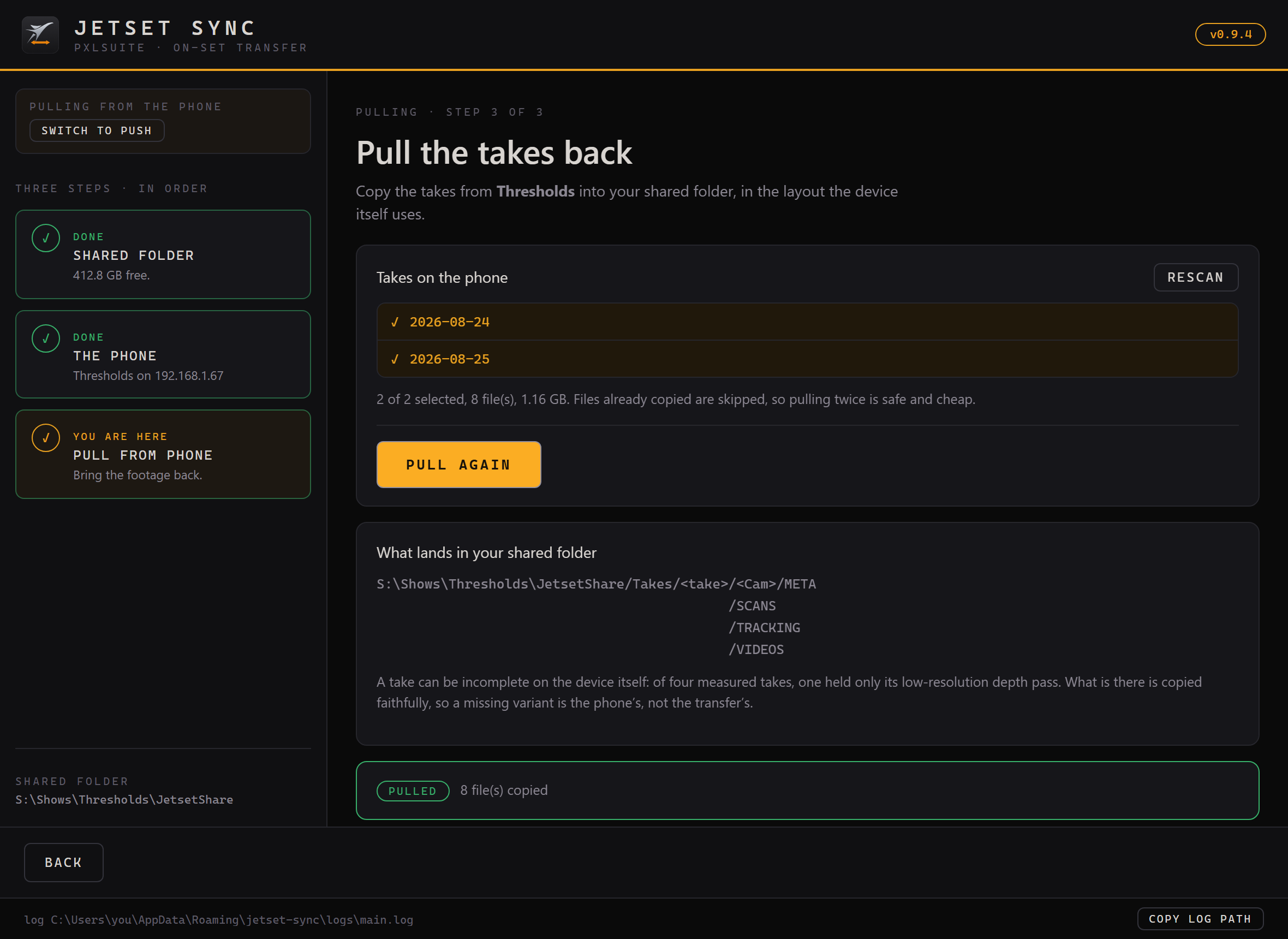
A take can be incomplete on the device itself. Of four measured takes, one held only its low-resolution depth pass with no cam and no comp. Sync copies faithfully whatever is there, so a missing variant is the phone’s, not the transfer’s. Every operation writes to a log, including cancels and no-ops, and there is a Copy log path button for when you need to send it on.
The Google Drive route
If the shoot laptop has no Drive client, paste a shared folder link instead of a path. Sync downloads the models into a folder beside its own logs and pushes from there. Same two anonymous requests a browser would make.
07
Back in Maya: importing the take
Second tab of the Bridge, IMPORT FROM JETSET, section 04 · IMPORT A TAKE. Point it at the shared folder Sync pulled into, and the shot comes back as an animated Maya camera: position, rotation and focal length keyed on every frame.
The alignment is the hard part, and it is the part that is measured. The camera is built into the same rig Autoshot builds, under a SceneParentLocator that carries the whole alignment. That parent is placed by putting the locator the shot was framed from back on top of the same locator in your scene. Verified against Autoshot’s own Maya export, frame by frame, to 0.006 cm and 0.01 degrees.
- Choose the take. Browse to the shared folder, the one holding a
Takesdirectory. Browsing scans it for you. One row per shot: a take folder holds several (SC30_TK001,TK002), each with its own camera track. Rescan this folder is there for when the folder changes underneath you mid-shoot. - Read what it says about the shot before importing: how many frames the track holds, and whether the plate agrees.
- Import. The camera arrives keyed and parented.
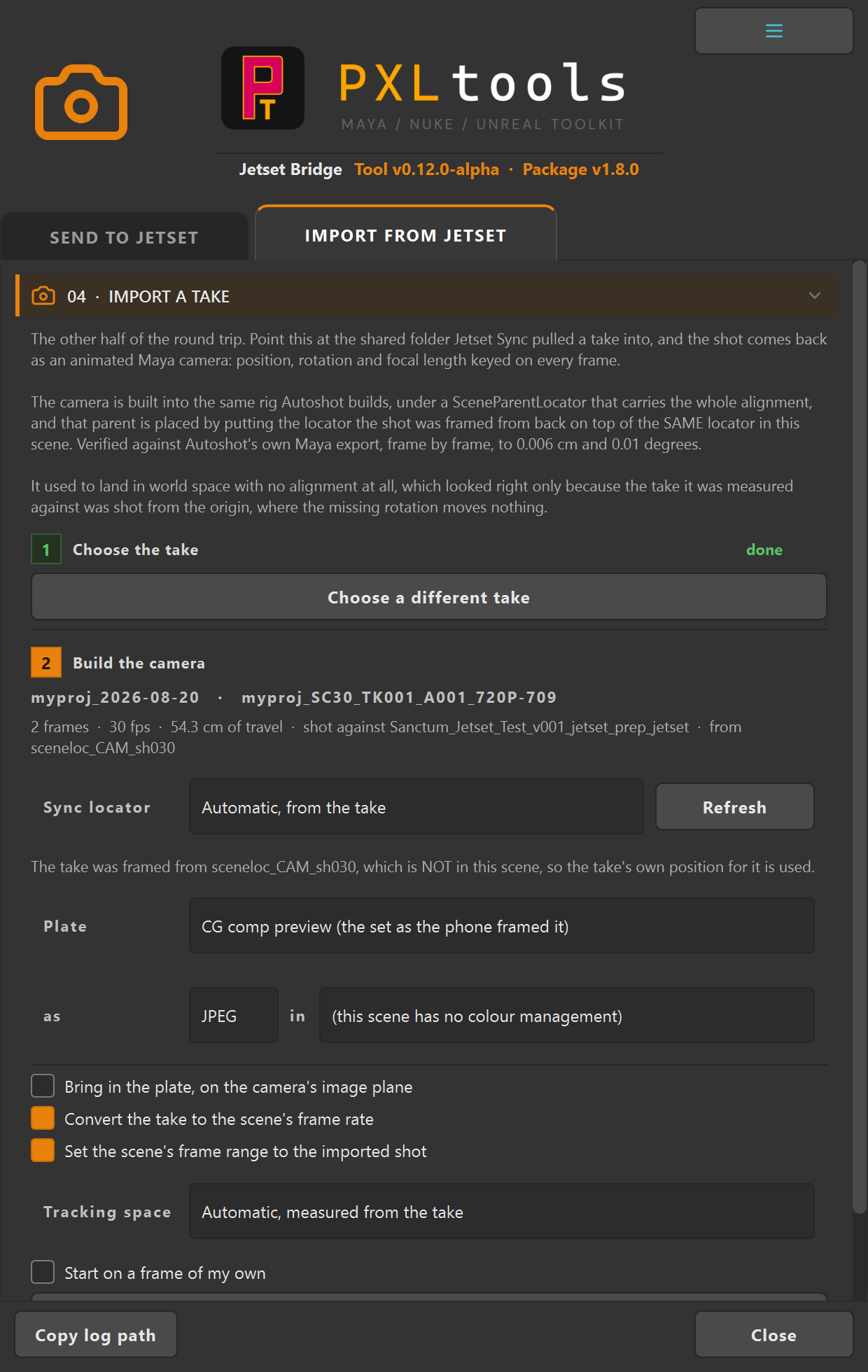
The plate
Importing the plate is optional and worth understanding, because the device records more than one and they are not interchangeable.
- The cam pass is the raw iPhone photography, the actual plate you composite over. This is the default.
- The comp pass is Jetset’s own CG preview of the set. Useful when you are checking the rebuilt camera against the set, rather than working with it.
Why the cam pass is the default. Measured on a real take: the track held 965 contiguous records, the cam pass held 965 frames, and the comp pass held 963. The comp pass cannot stay in register with the camera. A warning fires whenever the plate length disagrees with the number of camera keys, so a mismatch is visible rather than silently two frames out.
The cam and comp passes are HEVC, which Maya’s image plane will not read, so the tool transcodes to JPEG with ffmpeg. If ffmpeg is missing, or is a build that cannot decode HEVC, it says so plainly instead of failing obscurely.
08
Troubleshooting
Sync finds no phone, but the phone is definitely on the network.
This is common enough that Lightcraft document it themselves: on some networks Bonjour discovery returns nothing while the device is perfectly reachable. Guest and corporate Wi-Fi frequently block the multicast traffic discovery depends on, and so does client isolation on a hotel or venue network.
Use Enter IP. Read the address off the Jetset app and type it in, and it is validated with the port appended for you. This is a first-class path, not a workaround. If a phone hotspot is available, both devices on it will almost always discover each other.
The project shows NOT READY and the push step will not unlock.
The project has no case-exact Models folder on the device. Almost always this is iCloud storage mode: a new project created under iCloud is an empty shell, and the device refuses to let anything create the missing folder remotely.
In the Jetset app, set storage to Local and let Jetset build the project structure itself, then press Refresh projects. Note that pulling takes is gated separately, so a project can be NOT READY for pushing and still hand its footage back.
The shared folder will not verify.
The message names which of the four probe operations failed, and that is the answer. Write failed means read-only or a full disk. Read failed on a cloud folder usually means the files are online-only placeholders rather than real local files, so mark the folder “always keep on this device” in your sync client. Delete failed means the share does not allow removal, which some managed shares enforce.
The USDZ is enormous and takes forever to push.
That is the animation setting in Bridge step 03. Every frame of deforming geometry is written by default, which measured 1154 MB on a 671-frame shot. Raise the frame stride (every 15th frame measured 78 MB) or switch to Skeleton if your characters have a skinCluster and Jetset renders it. If the characters are only there to help you frame, Static is enough.
The plate will not import, or Maya shows no image.
The cam and comp passes are HEVC and Maya’s image plane cannot read them, so the tool transcodes with ffmpeg. If you have no ffmpeg on the machine, or one that cannot decode HEVC, the tool says which case it is. Note that a build that reads the container and reports the right frame count can still fail to decode a single frame, which looks exactly like a corrupt file and is not one.
A take is missing its video, or has fewer passes than the others.
Takes can be incomplete on the device. One of four measured takes held only its depth pass. Sync copies faithfully what is there, so a missing variant means the phone did not record it. Check the take in the Jetset app before assuming the transfer dropped something.
A button is greyed out and I cannot click it.
That is the step-gating doing its job. Find the orange step, which is your current action, and completing it unlocks the next one. In Sync, the left rail shows which step you are on and which are still locked.
The tool will not launch, or says it cannot reach pxlmentor.com.
A firewall almost every time, and very common on studio machines. The two tools need different hosts. Open outbound HTTPS (TCP 443) to the hosts that apply to the tool you are running:
Send this to your IT team
Jetset Bridge (Maya)
  www.pxlmentor.com  (TCP 443)  licence checks, update checks
  objects.githubusercontent.com  (TCP 443)  software update download

Jetset Sync (Windows app)
  www.pxlmentor.com  (TCP 443)  licence checks
  pub-a9074a6fde9d44acbd5a20cd7c7876f8.r2.dev  (TCP 443)  software update download
For the Maya Bridge, allowing only pxlmentor.com lets the version check pass but fails the download, which is why “it sees the update but cannot install it” is nearly always this. For Jetset Sync, the update download comes from the Cloudflare R2 host above, not GitHub. A certificate error instead of a connection failure means your network inspects HTTPS traffic and needs an exception rather than a port rule.