
PXLtools — Tool guide
Animatic Builder — shot list to Sequencer
Drop in a shot list and get a built animatic. Animatic Builder reads a JSON or CSV breakdown and constructs the whole thing inside Maya's Sequencer — a camera and a group per shot, placeholders, frame ranges, FPS and resolution, all named to your convention and wired into the sequencer ready to previs. Pairs naturally with PXLbid's script breakdown for a full script-to-Maya pipeline.
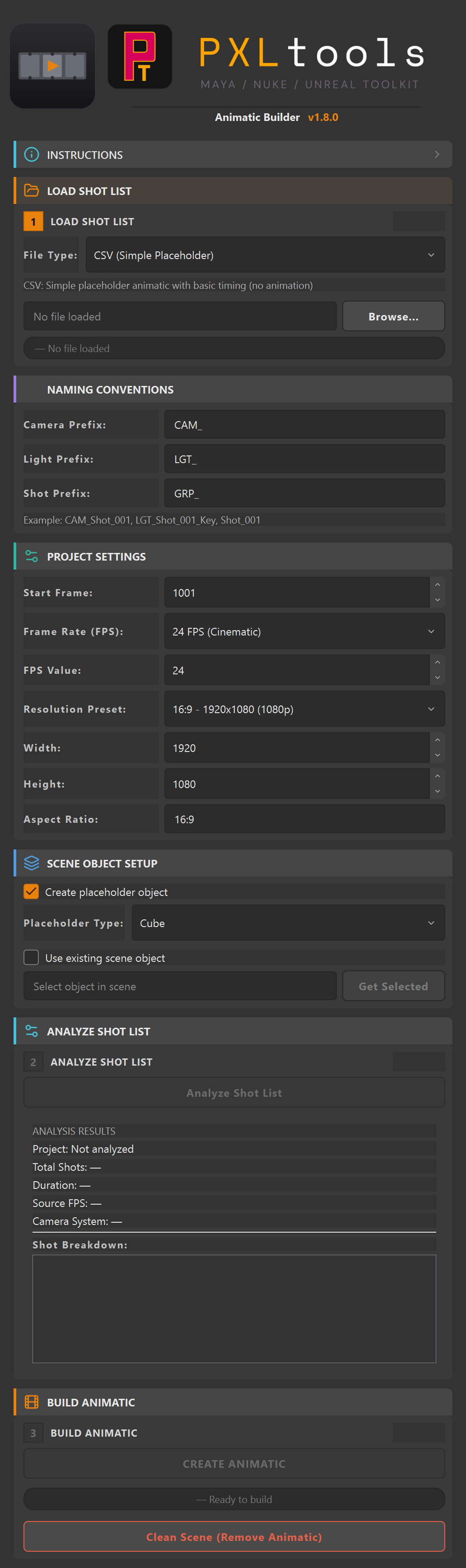
The interface
01
Overview
Animatic Builder turns a shot list into a working Maya animatic. Feed it a JSON or CSV breakdown and it builds an ANIMATIC_MASTER hierarchy: one camera and one group per shot, a placeholder object (or your own selected object), the timeline frame range, FPS and resolution, and shot nodes wired into Maya's Sequencer so the shots play back in order.
Each camera is positioned and keyframed from the shot's type and duration, so you get a roughed-in animatic to previs against in minutes instead of building it shot by shot. A one-click Clean Scene removes everything it generated and leaves your own objects untouched. It shares the same UI kit as the rest of PXLtools and auto-updates automatically on launch.
02
Requirements
- Autodesk Maya 2025
- A shot list as JSON (full animatic) or CSV (simple placeholder) — e.g. exported from PXLbid
- Python 3
Tested on:
- Autodesk Maya 2025
Newer releases generally work, but these are the versions every release is actually tested against. If something behaves oddly on a newer host, that is worth reporting.
Network access
PXLtools needs outbound HTTPS (TCP 443) to www.pxlmentor.com and
objects.githubusercontent.com for licensing and updates. On a studio or corporate
machine, check this before you install — see
Troubleshooting.
Maya 2025 already includes PySide6. You do not install it, you do not pip anything, you do not touch your Python environment.
03
Availability
Animatic Builder is a prototype. It runs here on real shots, but it is not finished and is not available to download — on the site and on the store it is shown greyed out for exactly that reason. The tools that are ready are free: see them on the store.
04
Using Animatic Builder
Load a shot list, analyze it, set your conventions, then build — Clean Scene resets when you want to start over.
How the gated steps work
Green — done
The action spine is 1 Load → 2 Analyze → 3 Build; each turns green with a check once complete.
Orange — do this next
The active step is highlighted orange — that is the button to press now. Naming / project / scene settings stay freely editable throughout.
Grey — locked
Analyze is locked until a list is loaded; Create Animatic is locked until you have analyzed.
- Load the shot list. Pick
CSV (Simple Placeholder)orJSON (Full Animatic), pressBrowse…, and select the file. - Analyze. Press
Analyze Shot Listto see the project name, total shots, duration, source FPS and a per-shot breakdown — confirm it read correctly before building. - Set conventions & project settings. Naming prefixes (
CAM_/LGT_/GRP_),Start Frame,Frame Rate(24/30/60/120/custom), and resolution preset. Choose a placeholder (Cube/Sphere/Cylinder) or tickUse existing scene object+Get Selected. - Create the animatic. Press
CREATE ANIMATIC. It builds theANIMATIC_MASTERgroup, per-shot cameras + groups, the placeholder, the Sequencer shots, and sets the timeline. The status line confirms success. - Clean up.
Clean Scene (Remove Animatic)removes everything it generated — your own objects stay.
Tip: JSON gives a full animatic (camera moves per shot); CSV is the quick placeholder path. If your source FPS differs from the project FPS, the tool converts the frame counts — analyze first to sanity-check the durations.
05
Troubleshooting
The install fails, or the tool says it cannot reach pxlmentor.com.
This is a firewall almost every time, not a broken installer — and it is very common on studio and corporate machines. PXLtools needs outbound HTTPS on TCP 443 to two hosts:
Send this to your IT team
www.pxlmentor.com  (TCP 443) — licence checks, update checks, downloads
objects.githubusercontent.com  (TCP 443) — the actual file download
Both hosts, not just the first. The download is handed off to a signed link on
objects.githubusercontent.com, so a rule that allows pxlmentor.com but
blocks the second host lets the version check succeed and then fails the download.
A certificate error instead means your network is inspecting HTTPS traffic (Zscaler, Netskope, a corporate SSL appliance) — that needs an SSL-inspection exception for those hosts, not a port opening.
The installer writes full details to ~/Documents/PXLtools/install_failure.log. Email it to
support@pxlmentor.com
and I will tell you which case it is. If your IT will not budge, ask for the offline package.
My CSV didn't load (or shots were skipped).
The CSV needs a header row with a Shot ID column and valid in/out timecode. Rows with invalid timecode are skipped and logged in the Script Editor. Supported formats include MM:SS:FR, HH:MM:SS:FR, and bare frame counts.
Frame counts look off.
If the shot list's source FPS differs from your project FPS, durations are converted. Run Analyze Shot List first and check the reported durations before building.
"Use existing scene object" is greyed out.
It's mutually exclusive with "Create placeholder object" — untick the placeholder to enable it, then select your object and press Get Selected.
I want to start over.
Clean Scene (Remove Animatic) deletes the generated cameras, groups, placeholders and Sequencer shots, leaving your own scene objects in place. Then rebuild.