
PXLtools · Tool guide
PXLproj · Project Manager for Maya
Browse the whole production in one window: assets and shots, departments and tasks in columns, and every version as a card with its preview, its application and where it lives. It creates the folder tree from your convention file, points Maya at the right department so its default directories stop littering your root, and names and reserves your file when you save, refusing anything the convention would reject. It works fully on a local disk; PXLflow only adds to it. The structure is a portable JSON file, so a studio brings its own rather than adopting mine.
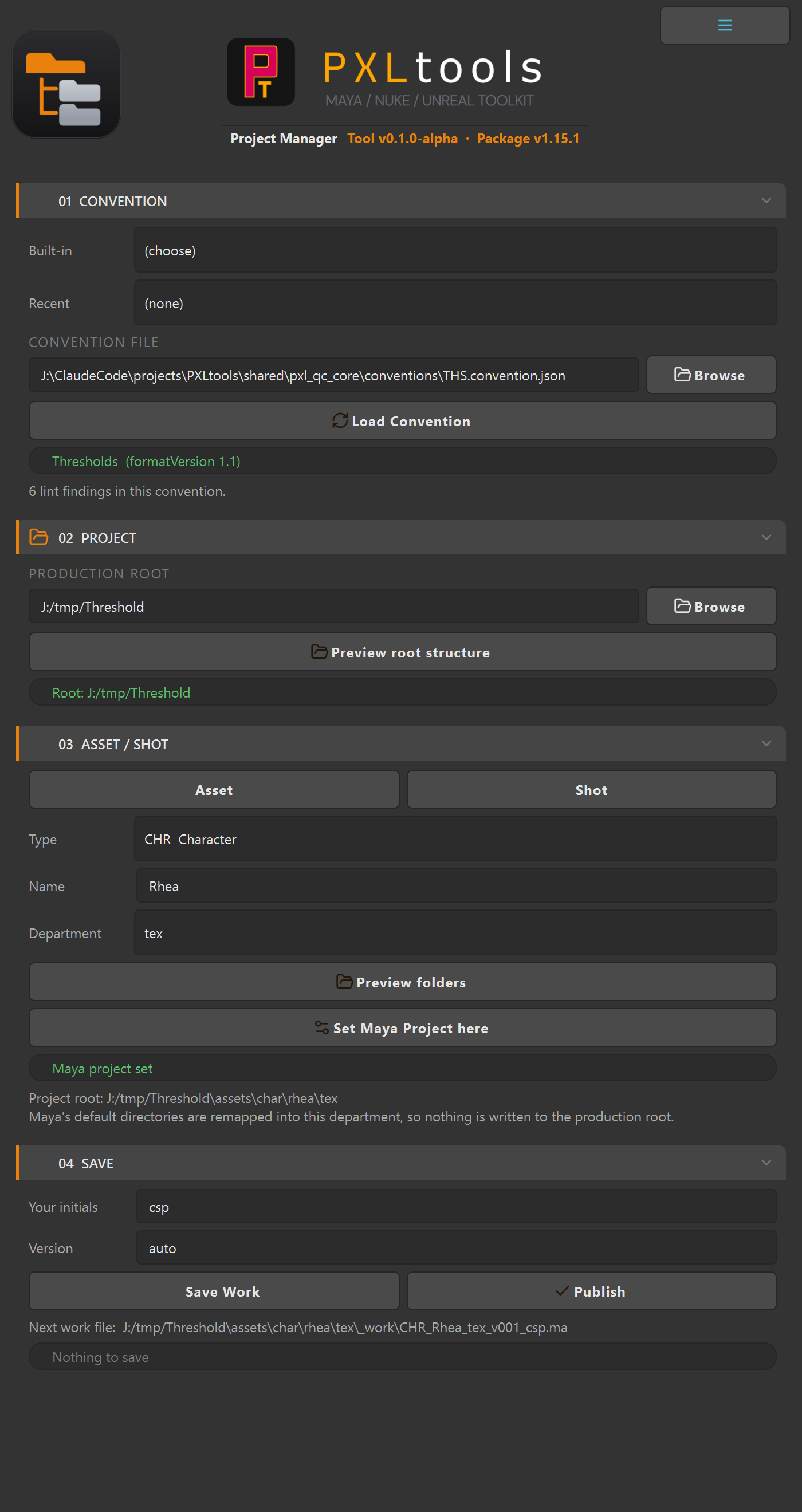
Project Manager in Maya
01
Overview
A production's folder structure is written down in a bible that nobody opens at the moment they need it. So folders get made by hand, named from memory, and by the fortieth asset the tree has three ways of saying the same thing. The structure was never the problem. Creating it by hand was.
Project Manager creates it for you, from the same convention file the QC tool checks against. It does three things nothing else in the suite does: it builds the folders, it sets the Maya project at the right department, and it names your file for you when you save, refusing anything the convention would reject.
It shows you every folder before it creates any. The plan is a list you confirm, not a button that writes. A tool that makes directories on your disk from a single click is a tool that eventually makes them in the wrong place, and you find out later.
02
The structure it makes
Nine folders at the root, and each one is a different kind of thing. Maya's own default directories are deliberately absent: the tool writes a workspace.mel that remaps every one of them into the department you are working in, so images/, renderData/ and sceneAssembly/ never litter the top of your production.
PRODUCTION_ROOT/
  _admin/      contracts, schedules, deliverables
  _docs/       bible, onboarding, specs
  _library/    third-party source with no owning asset:
               purchased kits, scan data, HDRI libraries
  assets/      things that exist
  sequences/   things that happen
  editorial/   teaser / trailer / fullCut
  delivery/    client_review / final / archive
  pipeline/    ocio / luts / scripts / templates
  _OLD/        archive-on-delete
Inside a department is where the real work happens, and where published work, work in progress, and files in transit are kept apart:
assets/char/rhea/tex/
  v001/     published, locked. No artist initials.
  v002/
  _work/    in progress. Local only, never synced.
  _io/in/   received from another app or artist
  _io/out/  handed off
  _extra/
Published versions get a folder. One per version. A single texture set is eight or more maps times however many UDIM tiles, so a flat department becomes unreadable within a week.
Initials mean work in progress. CHR_Rhea_tex_v003_csp.ma is yours; CHR_Rhea_tex_v003.ma is published and everyone downstream depends on it. Because _work/ never syncs, that distinction is a place as well as a name, and the two cannot disagree.
Exchange sits beside the department, not at the root. A file in a global inbox does not record which asset it belongs to, so you have to open it to find out. That is how an exchange folder turns into a dumping ground.
03
Your structure, not mine
None of the tree above is written into the tool. It is read from a portable JSON file, the same one PXLqc validates scenes against, so a studio brings its own structure rather than adopting mine. The folder shape lives in a folders block:
"folders": {
  "root": ["_admin", "_docs", "_library", "assets",
           "sequences", "editorial", "delivery",
           "pipeline", "_OLD"],
  "assetPath": "assets/{typeFolder}/{assetSlug}",
  "shotPath":  "sequences/{seqCode}/{shotCode}",
  "department": {
    "publishedIn": "v{version}",
    "work": "_work",
    "io": { "folder": "_io", "children": ["in", "out"] }
  },
  "departmentApps": {
    "tex":   ["substance"],
    "cncpt": ["photoshop", "comfyui"]
  },
  "localOnly": ["_work"]
}
departmentApps is the knob most studios turn. A department with one application keeps _work/ flat, because the department already tells you which application it is. List more than one and each gets its own subfolder. It is also the only place your toolset is written down.
A convention with no folders block is not guessed at. The tool says so and refuses to scaffold. Creating folders a production never agreed to is worse than creating none, because afterwards nobody can tell the invented ones from the real.
04
Requirements
- Maya 2025 or newer, Python 3.11 with PySide6.
- A convention JSON at
formatVersion1.1 or later. Earlier files still load, but they carry no folder structure, so only the naming half works. - Write access to wherever you point the production root.
05
Availability
Project Manager is an internal alpha and is not part of the public PXLtools release yet. It is being used on a live production first, which is the only way to find out what a folder tool gets wrong. This page describes what it does today so the structure can be reviewed before it ships.
06
Creating a project
The window is a browser: Assets or Shots, then Department, then Task, then the versions of that task as cards or a list.
- Project Setup. Opens on first run, and from the settings button after that. Three steps: load your convention JSON or pick a built-in (it reports the profile, the format version and anything the linter finds); choose the production root, with a dry run of the folder tree and every missing folder marked; and, optionally, link PXLflow. The choices are remembered, so you do this once.
- Pick what you are working on in the columns. The + button creates a new asset or shot from the convention and shows the folder before it is made.
- Right-click a task to Set Maya Project here or create its missing folders. Opening or saving a version does the same for you: it points Maya at the department and writes the
workspace.melthat keeps Maya's own directories out of your root. - Save. Covered below.
Files from every application are listed with their official icon (Maya, Houdini, ZBrush, Painter and more) and can be filtered with the DCC chips. Opening and saving are Maya only in this version; in any other host the Save button stays visible, disabled, with the reason.
Nothing is created until you confirm, and confirming twice is safe: folders that already exist are left alone, so the same preview is how you add a department to an asset later.
An existing workspace.mel is never silently replaced. If the tool did not write it, it is copied to _OLD/ first and you are told where it went.
07
Connecting to PXLflow
If your production is tracked in PXLflow, the Project Manager can read it directly instead of you retyping every asset name. Open PXLflow, sign in as yourself, then press Connect on the PXLflow Link step of Project Setup. PXLflow is optional: everything on this page except the statuses, My Tasks and downloads works without it.
There is nothing to configure and no second password. The tool talks to the PXLflow app already running on your machine and inherits the session you are signed into, so what you can see in the tool is exactly what you can see in PXLflow, and nothing more.
Once connected, the browser gains:
- Statuses and assignees on assets, shots, departments, tasks and versions, in PXLflow's own words. My Tasks shows just the work assigned to you.
- Where each version lives. Every card and row says Local (on this disk only), Server (in PXLflow, not downloaded) or Local + Server. Filter with All / Local / Server.
- Download. A server version downloads into the right folder of your production root, with progress and Cancel, and keeps its note and author.
- Create missing folders from PXLflow. In the settings menu. Compares the production against your disk and offers to create anything missing. It shows every path first, and it never deletes.
Each artist maps their own drive. PXLflow knows the production; it does not know where you keep it. The first time you connect, point the production root at your own local or network copy and the tool remembers that pairing for you alone.
What it will not do
- It never writes back to PXLflow yet. Saving and publishing put files on disk. Publish to server and Mark task Pending Review are shown disabled until PXLflow's write routes arrive; updating a task's status is still done in PXLflow.
- It never deletes. An asset cancelled in PXLflow disappears from the list so you cannot start work that has been dropped, but its folders and files stay exactly where they are.
- It will not invent a folder. If PXLflow uses an asset type or a department your convention does not declare, those rows are listed under Not in your convention with the reason, and nothing is created for them. Add them to the convention, or leave them out.
If Connect does nothing
The button reports why in plain words: PXLflow is not running, nobody is signed in, the PXLflow version is too old, or your address is not on the production's team list. That last one still lets you use the picker; it only stops Only my tasks from knowing which tasks are yours.
08
Saving and publishing
You do not type a filename. Press Save New Version (Ctrl+S): the dialog shows the target folder, the resolved version, the filename it will write, a preview captured from the viewport, and a comment box. The version is resolved from the disk and, when connected, from what PXLflow has already published.
- Save Work writes into
_work/with your initials, at the next unused version. An optional suffix such as_wipgoes after your initials. - Publish writes into
v###/with no initials, keeping the version number of the work it came from, sov003_csppublishes asv003.
It is a choice rather than a guess, because publishing is a decision and the tool should never make it for you. Right-click a version and choose New version from this to carry an older one forward.
A name the convention would reject is refused, with the reason shown as a checklist row, and nothing is written. The number is reserved before Maya saves, so two artists saving at the same moment never get the same version, and a published version is never overwritten. Every version gets a small .pxl.json file beside it with the comment, author, application and scene settings, and a preview image, so the browser works offline.
09
Troubleshooting
"This convention declares no folder structure"
Your file is a formatVersion 1.0 convention. It still works for naming; it carries no folders block to build a tree from. Add one, or load a 1.1 file.
"Enter your initials"
A work file must carry them, or it is indistinguishable from a publish. Use Publish if that is what you meant.
The save was refused and named a token
The assembled name does not satisfy the convention. The message says which part: the type prefix, the asset name, the department, the version or the texture map. Asset names are production-assigned and case-sensitive.
"That folder does not exist yet"
Set Project needs the department to be there. Preview the folders in section 03 first.
Where is the log?
Under Documents/maya/PXLtools/logs/Project_Manager/. Every folder it proposes, creates, or that you cancel is recorded there, along with every save.