
PXLbid — Tool Guide
PXLbid User Guide
For: VFX supervisors and producers who are new to PXLbid
What this guide does: gets you from a script to a breakdown and a bid in one sitting, then explains every screen and how to make the numbers match your studio
Using PXLbid under an NDA
Your key, your agreement. Loading a script uploads no script content. It does send a short usage note to PXLbid's beta log (that a script was loaded, with your email, name, app version, browser and screen size). Running a pass sends the script text to Anthropic under your own API key, so it is covered by your own agreement with Anthropic, not ours. The same request carries your notes for that run, your AI house rules for that stage and your saved corrections. Corrections you save as Global go with the passes of every project, not only the one where you made them.
Not stored, not logged. On the way, the script and your key pass through the PXLbid server in memory only. The server has no database and no code that writes to disk. An automated test in PXLbid's test suite (
proxy/test/smoke-no-log-leak.mjs) sends marked script text and credentials through the real server for a first pass on each processing option, including their error paths, plus deliberately malformed requests, and checks that none of the marked values appear in anything the server prints to its logs. It covers the requests it sends, not every possible one.Not used for AI training. On Anthropic direct (the default), API use falls under Anthropic's Commercial Terms: "Anthropic may not train models on Customer Content from Services." On your own Bedrock or Vertex account (below), the model call is made under your agreement with AWS or Google instead, so check what that agreement says.
If your policy rules out the public Anthropic API. PXLbid can run against Claude in your own AWS Bedrock or Google Vertex AI account instead (Settings, "Where your scripts are processed"). The script is then processed inside your own cloud contract. It still passes through the PXLbid server the same way, in memory only. Your cloud credentials are stored in your browser, like the Anthropic key, so use short-lived credentials that can only call Claude.
Your NDA still comes first. Before you run a pass on client material, tell your client you use AI-assisted script analysis and get their OK in writing. If the NDA forbids sharing with third parties or AI services, do not run a pass. A ready-to-send request and clause are in Where your script goes (NDA).
Start here
Eight steps from signing in to a breakdown you can hand to PXLflow and a bid you can send. Each step links to its full section. The breakdown comes first: sequences, shots, assets, departments and the AI plan. The money is built on top of it.
The journey bar shows where you are. Across the top of every screen, under the slim top bar, six stages run left to right: Script read, Setup, Pass 1, AI plan, Pass 2, Bid. A green check is a stage that is done, a gold dot is the one you are on, an orange warning is a stage that is out of date because an earlier one was run again, and a dim ring has not run yet. Click a finished stage to go to it from any screen. Under it, JSON shows exactly what that stage saved and Re-run runs it again as a new analysis version (the old one stays). New and Open are at the left end of the bar, Project, Bid and Schedule at the right end. See The top bar and the journey bar.

1. Sign in, add your key, and set up your studio. Sign in with the Google account Cris put on the allowlist (Google shows a warning the first time: here is how to get past it). Then click the gear icon at the top right, paste your Anthropic API key and click Test connection. No key yet? Getting an Anthropic API key. The moment the key is in, Quick setup opens by itself (once; you can skip it): about ten minutes of questions about your studio, your rates and how fast your team works, so every bid after it is built on your numbers, not ours. See Quick setup.
2. Load a script. Drag a PDF, DOCX or TXT onto the start screen, or paste the text. Nothing is sent until a read or a pass runs. See Load a script.
3. Read the Script read. A one-minute read of the whole script opens by itself: the story, the main characters, where and when it is set, hints for the bid, and the sequences with their VFX load and a rough shot count. It is your first look at where the work is. See Script read.
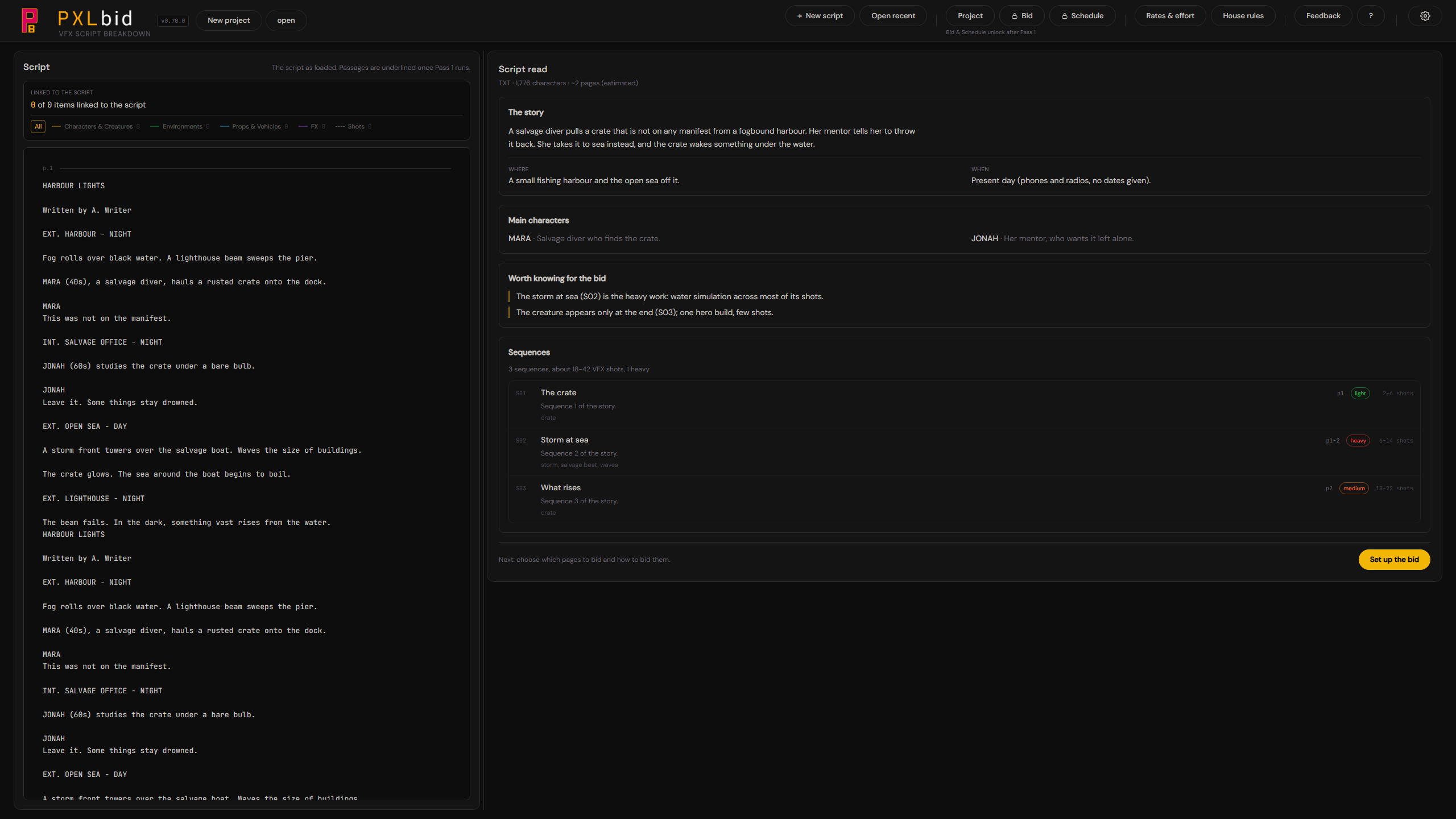
4. Set up the bid. Click Set up the bid (or Setup on the journey bar). Name the project and choose its project type (it decides how the script is read and which departments exist). Choose Whole script or Choose sections. Then choose how to bid:
- Full production: department by department, at your studio's day rate. The studio bid.
- Boutique: the same department breakdown for a small team of generalists, at the Boutique day rate with merged roles.
- Guesstimate: no final script or edit yet. A ranged estimate from a treatment, a draft or a short form.
- Breakdown only: sequences, shots and assets for PXLflow, with no prices.
Answer a few walkthrough questions about the script if you know the answers, then click the Run button at the bottom. The budget and the percentages are not asked here: you set them the first time you open the Bid, and when you start another bid. See Set up the bid.

5. Pass 1, then Checkpoint 1. Pass 1 reads the script as a VFX supervisor would and lists every sequence, shot and asset with a complexity grade. Review it: rename, regrade, set each shot's VFX scope (No VFX, Traditional, AI-assisted) and mark anything Light or Skip. See Pass 1 and Checkpoint 1.
6. Check the AI plan. Right after Pass 1, the AI plan tab shows how AI is used on each shot (CG to AI, fully prompted, AI fix-it, AI matte painting and more) and where each asset comes from (built, already built, downloaded, Character Creator, AI generated). No price is shown. Change anything; what you set is kept. See The AI plan.
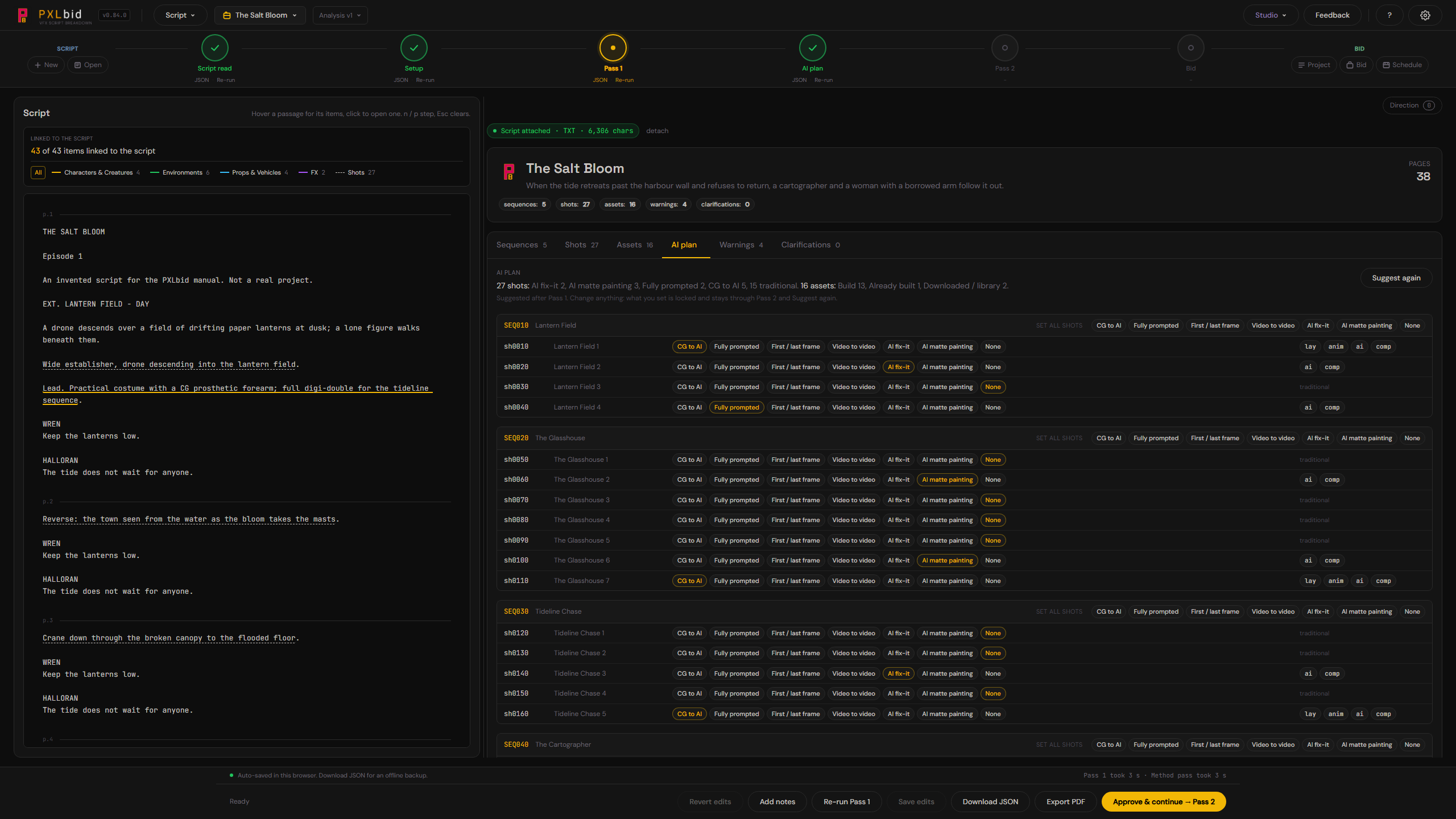
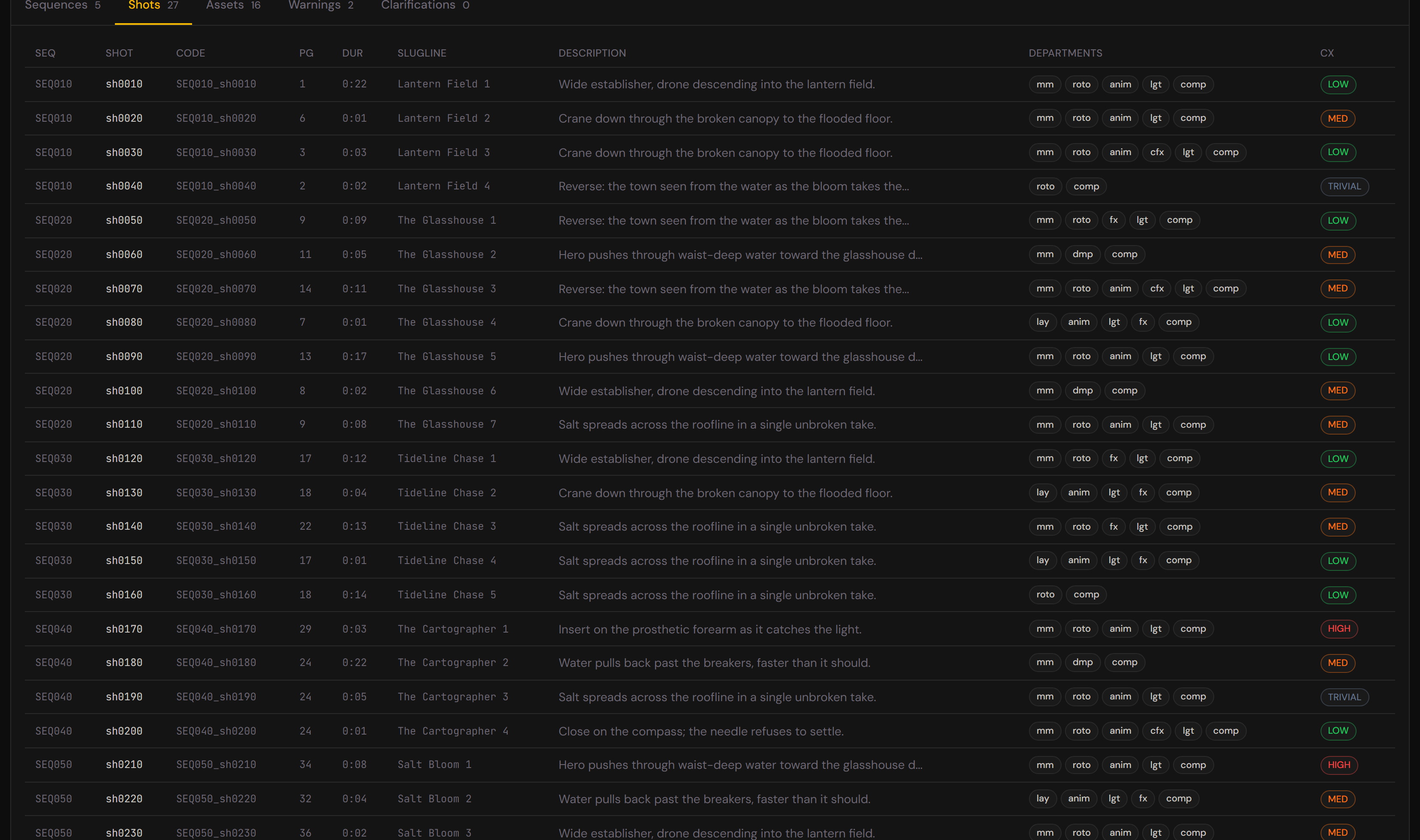
7. Pass 2. Click Approve & continue → Pass 2. Pass 2 splits wide shots into workable ones and tags the departments each shot and asset needs (these become PXLflow tasks). Review the Shots, Assets and Warnings tabs. See Pass 2.
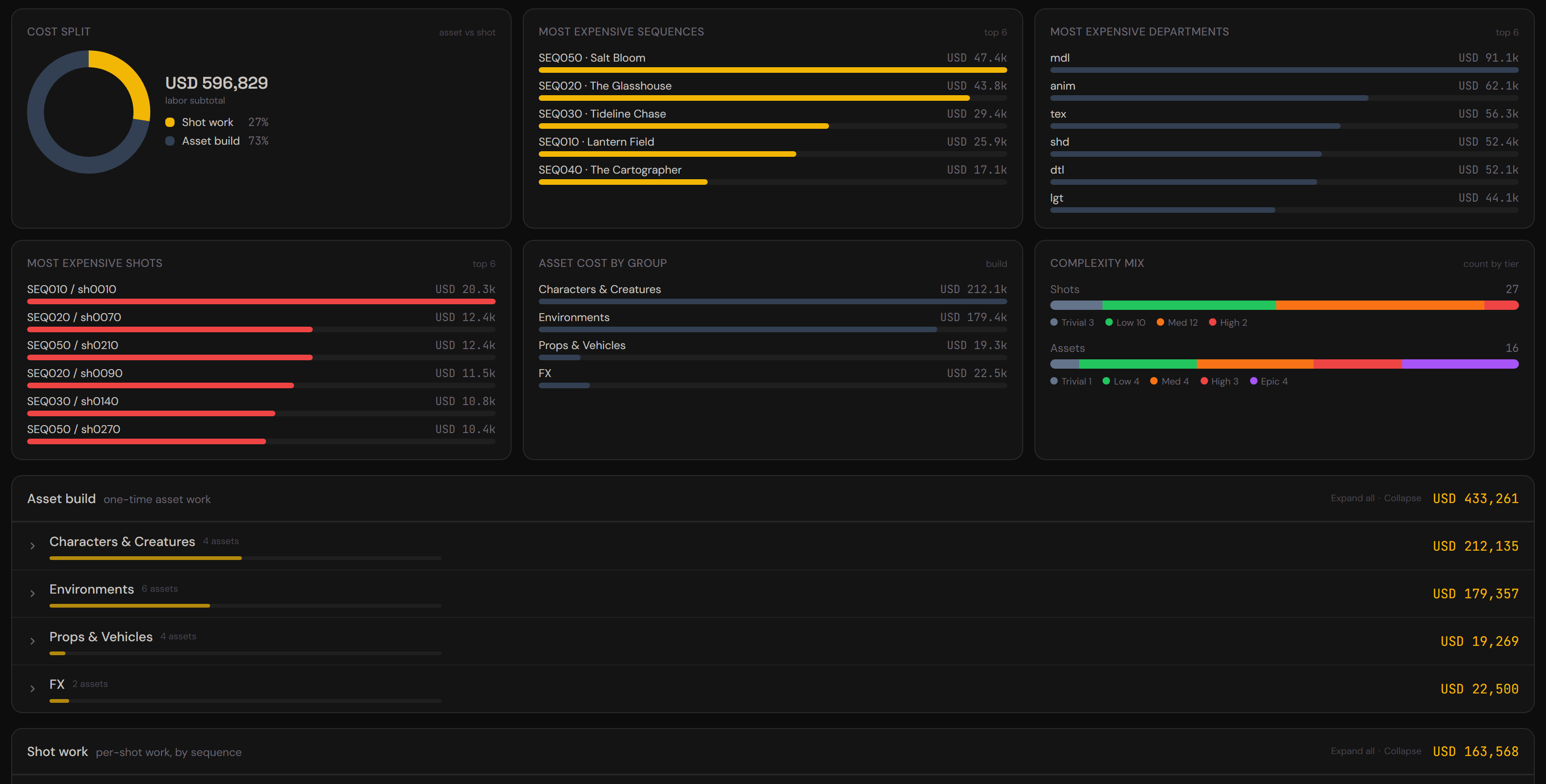
8. The Bid, then export. Click Approve & continue → Bid. You see the price, how it was built, the budget check with Fit to budget, and Compare ways (Full production, Boutique, AI support). When the breakdown is right, send it to PXLflow: Export to PXLflow on the Script analysis page (or Review and export in Breakdown only). To price the same analysis another way, use Start a bid there. See The Bid, Script analysis and Exporting to PXLflow.
Before you trust a price, run Quick setup (or calibrate by hand). Until then the breakdown is right and the money is placeholder.
What PXLbid does (and does not)
PXLbid turns a script into a structured breakdown of sequences, shots and assets, then prices it and produces a broad schedule.
The flow: drop a script, read the Script read, set up the bid, run Pass 1, review, check the AI plan, run Pass 2, review, then open the Bid and the Schedule.
Where it stops: at the bid and a broad schedule, with calendar days by department and team size. Assigning work to named artists with their own rates and calendars is PXLflow's job. PXLbid is the pre-production estimate.
One breakdown, the whole production. PXLflow picks up where PXLbid stops. Export the breakdown and PXLflow fills the production from it in one import: every sequence, shot and asset, plus a task for each department Pass 2 tagged. Export the schedule (Schedule, Export, Schedule JSON) and the start and due dates land on the matching shots. ShotGrid and ftrack exports are also there (see Exporting to ShotGrid and ftrack).
What is not here: per-artist scheduling, rate-card matrices, retake discounts or batching logic. It is deliberately simple: one blended day rate per way of bidding, one baseline per discipline, five complexity tiers, three seniority levels. Everything you tune lives in Rates & effort.
Before you start
- Access: Cris has placed your email on the allowlist. Sign in with that Google account. The first sign-in shows a warning screen. See Signing in, and the warning Google shows you: it looks alarming and it is not.
- Browser: any current version of Chrome, Edge, Firefox or Safari. Your work is saved in the browser you use, on that machine, so keep to one browser for one show (see Where your work is saved).
- Your own Anthropic API key: PXLbid needs one to run its passes. You pay Anthropic directly, on your own account. PXLbid holds no credits, no quota and no cap over you, and never sees your billing. Your key is saved in this browser's local storage, so you do not paste it again, and it travels with each run to reach Anthropic. The PXLbid service never stores it, never logs it and never writes it to disk. See Where your script goes (NDA).
Signing in, and the warning Google shows you
The first time you sign in, Google stops you with a full-page warning saying it hasn't verified this app, and offers a blue Back to safety button. Most people press it. Do not: it takes you away from the tool you came to try.
Here is what it is. Google runs a formal verification review for apps that ask for access to a Google account, and PXLbid has not been through it yet. It is a paperwork queue, not a security finding: nobody has looked at PXLbid and concluded anything about it. Every app in a private beta looks like this until its developer completes that review.
PXLbid asks for your basic Google profile only: your email address, your name and your profile picture. The email is checked against the allowlist. It does not read your Gmail, your Drive or your calendar, and it cannot: it never requests those permissions.
The warning says the app is requesting "sensitive info". That is Google's fixed wording on this screen, printed for every unverified app whatever it asks for. The screen that follows lists the real permissions, and you can read them before approving.
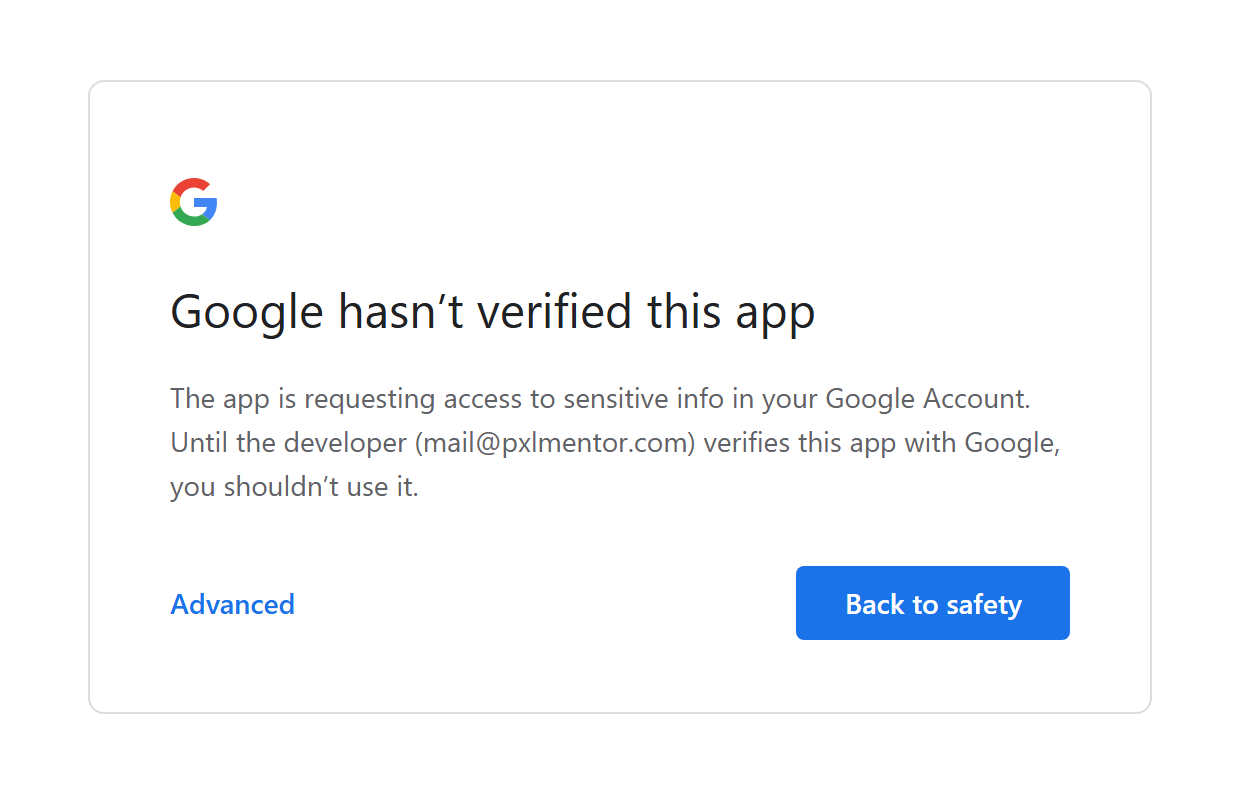
To get through it:
- Click Advanced, the small blue text at the bottom left of the card. Not "Back to safety".
- The card expands and a link appears at the bottom: Go to PXLbid (unsafe). Click it.
- Google's normal permission screen follows. Approve it and you are signed in. If your address is not on the allowlist yet you land on an Access pending card instead. That is the allowlist, not this warning: ask Cris.

Google remembers the decision, so later sign-ins normally go straight through. While the app is unverified the grant can lapse and show the screen again: same screen, same way past it.
If you would rather not click past a warning at all, that is a reasonable position. Say so and you will get a straight answer about what the app touches.
Getting an Anthropic (Claude) API key
PXLbid runs on your Anthropic account, not mine. That is deliberate.
If I gave you access on my key, I would be metering you: counting your runs, capping your usage and sitting between you and the model. On your own key nobody holds credits or quotas over you. During the beta you can run as many breakdowns as you like, and the only person who sees your usage is you. You pay Anthropic directly, at cost, with no markup.
There are only two situations.
If you already have an Anthropic API key
Click the gear icon in the top-right corner to open Settings. The Anthropic API key field is at the top. Paste the key and click Test connection. That sends one tiny request to confirm the key works and costs a fraction of a cent. Green means you are ready.
Any existing key works. If you want this tool's spending on its own line in Anthropic's dashboard, make a second key named "PXLbid". That is a convenience, not a requirement.
If you do not have one yet
You need an Anthropic account, credit on it, and a key. Anthropic's own documentation is the authority on all three:
- How can I access the Claude API?: creating the account
- I created a Console organization: how do I start?: the walkthrough, with screenshots
- How do I pay for my Claude API usage?: credits and billing
The console is at platform.claude.com. If you have ever used Claude, the same login works.
Three things worth knowing before you start:
- The API is prepaid, and it is separate from a Claude subscription. You buy credits up front and draw them down. A Claude Pro or Max subscription does not include API usage. It is billed separately.
- **Put credit on the account before you create the key. Open Billing and use Buy credits. $10 is a sensible start: roughly 5 to 20 breakdowns depending on script length, fewer in Deterministic mode. A key with no credit behind it passes Test connection** and then fails on your first real run, which looks like a broken app rather than an empty balance.
- Then create the key at API Keys, Create Key. It starts with
sk-ant-and is shown once, so copy it immediately. If you lose it, delete it and make another.
Then paste it into PXLbid as described above. If anything here does not match what you see, trust Anthropic's documentation over this page.
What it costs to run
A typical breakdown costs roughly $0.20 to $2, depending on the length of the script. Both passes default to Opus, the most capable model. You can switch Pass 1 to a Sonnet in Settings > Model per stage, which costs noticeably less. Deterministic mode runs Pass 1 three times and compares the results, so it costs about three times as much.
The setup page shows the size of the job before you run anything. No tokens are spent until a read or a pass starts.
What happens to your key
Your key is stored in this browser's local storage, and it travels with each run: the request goes through the PXLbid service, which forwards it to Anthropic under your key. The service never stores it, never logs it, and never writes it to disk. It exists on our side only while a run is in progress. Anyone who can use this browser profile can use the key, so clear it in Settings on a shared machine.
Quick setup: your studio in ten minutes
Every bid built on the shipped placeholder numbers is structurally right and financially fictional. Quick setup gives you a credible calibration in about ten minutes, without touching the raw numbers. It opens by itself the first time you use PXLbid, right after you add your API key (you can skip it, and it will not open by itself again). It is always in the Studio menu, first item, and the "These numbers are not calibrated yet" banner on the Bid and Schedule has a Calibrate now button that opens it.
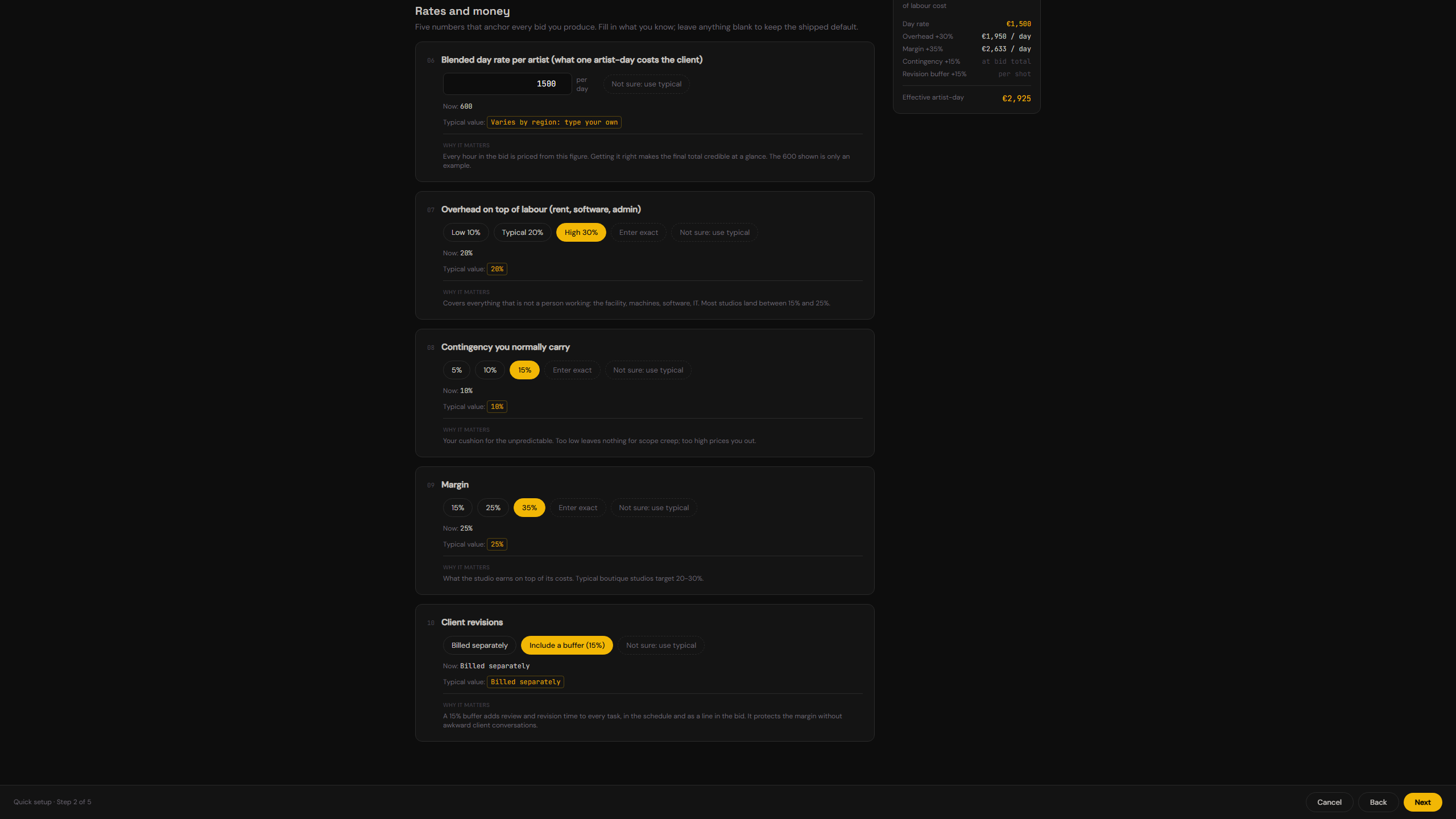
Nineteen questions in five steps. Every card shows the typical value and says why the question matters, and every one can be left alone or answered Not sure: use typical, which keeps what is there now and lists it as an assumption.
- Your studio: the kind of studio (Freelancer, Boutique 2-10, Mid 10-50, Large 50+), the currency you quote in, the hours in a working day, the working days, and your team's experience.
- Rates and money: your blended day rate (you type your own; the field only shows an example, because rates differ too much by region to suggest one), overhead, contingency, margin, and whether client revisions are billed separately or carry a 15% buffer.
- Supervision: who supervises a show (you alone, VFX sup and producer, or the full team) and their yearly cost or day rate.
- How fast your team works: five questions in hours (a hero character, a hero environment, a hero vehicle, one FX setup, five seconds of animation). They are the same five questions as the quick tune in Rates & effort: each one rescales a whole family of effort baselines, keeping their proportions, and asking twice never compounds.
- AI and tools: the AI and 3D tools you already own and the asset libraries you subscribe to, taken from the real catalogs.
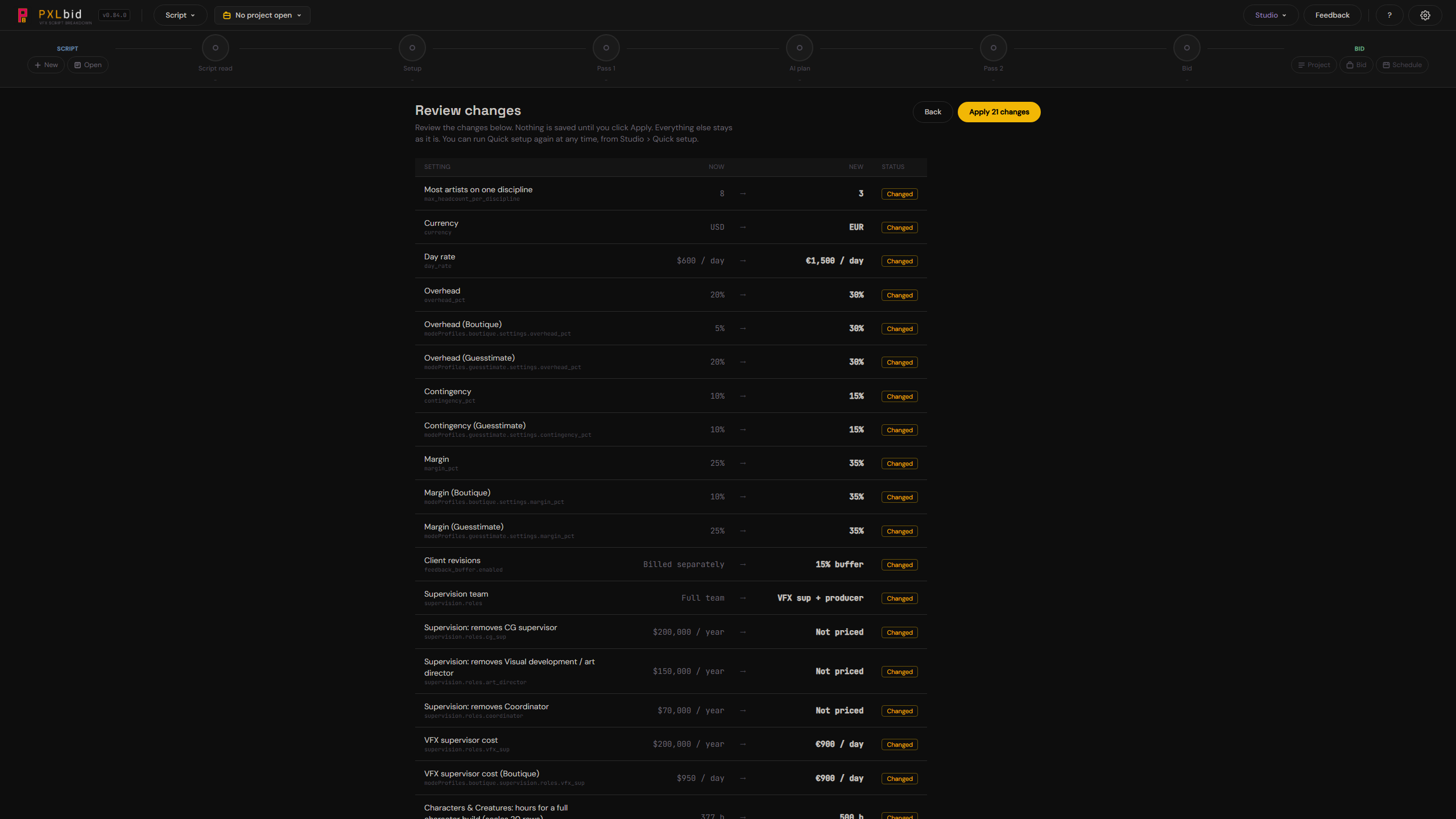
Review changes. The last screen lists every setting that will change, with its value Now and the New one. Nothing is saved until you click Apply. You can come back at any time and run it again.
The Excel template. Prefer a spreadsheet, or want to send the questions to someone who knows the numbers? Studio > Download template gives you PXLbid_Studio_Setup.xlsx: one sheet per section, with the same four columns (Question, Your answer, Typical, Why it matters). The yellow cells are the only ones you can edit, and the choices have a dropdown. Studio > Download my answers gives the same file filled with what the studio has now. Fill it, then Studio > Import answers: you see "These N settings will change" with old and new values first, and nothing is saved until you click Apply. A file that is not the studio template is refused with a message.
The raw config workbook (every number in one file) is still under Studio > Templates & data, now called Advanced.
Advanced: calibrate by hand (the ten-minute calibration)
Quick setup is the way in. The steps below set the same numbers one by one in Rates & effort, and are the way to fine-tune what Quick setup cannot: per-discipline hours, complexity, seniority multipliers and the Boutique rates.
Step 1: Set your day rate (2 minutes)
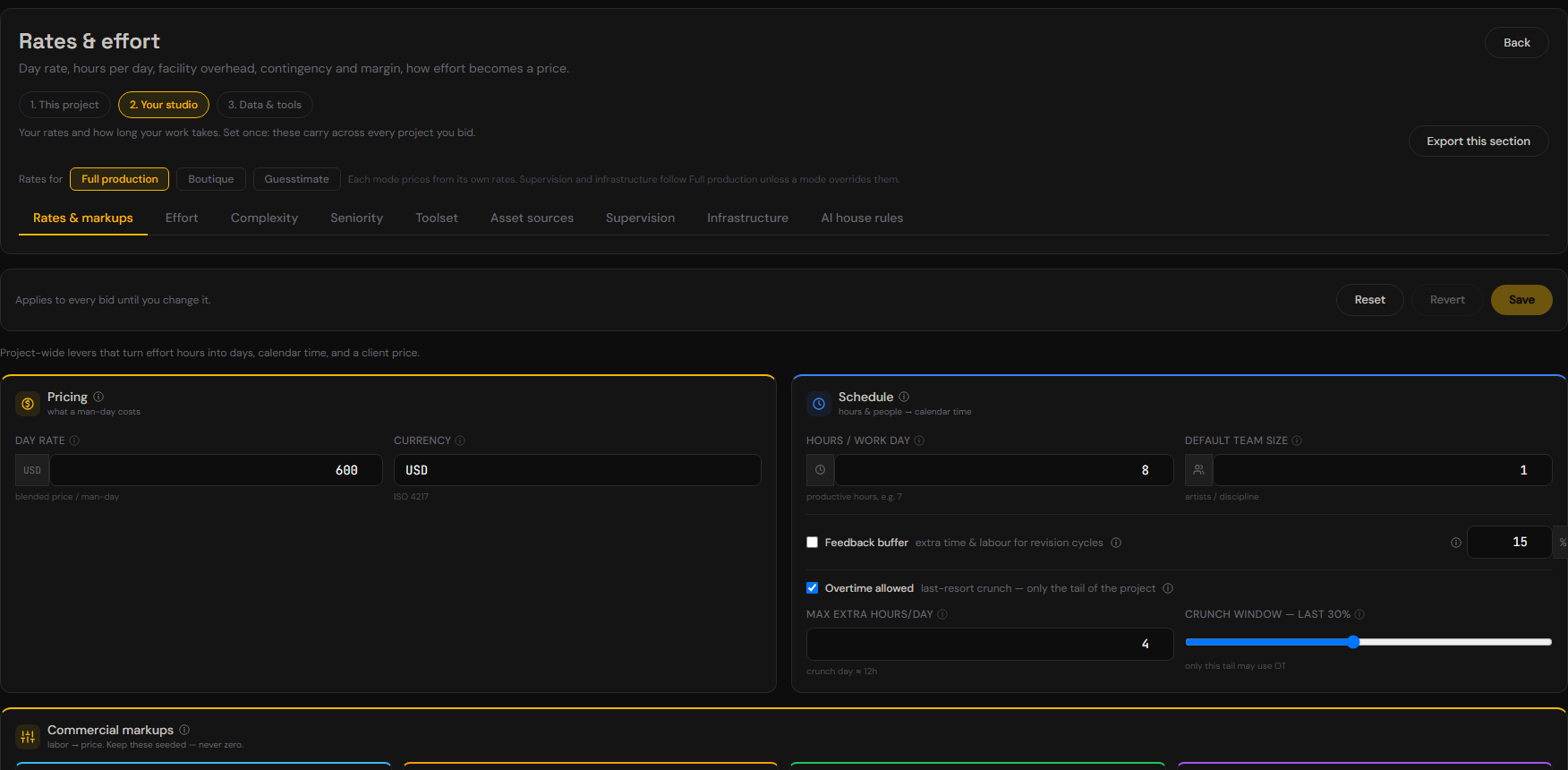
- Open the Studio menu in the top bar and click Rates & effort.
- Click 2. Your studio. Check that Rates for reads Full production.
- Open Rates & markups and enter your day rate: one blended price per man-day. The shipped 600 is a placeholder, not a recommendation.
- (Optional) tune the markups. They apply in order: labour + supervision + infrastructure, then facility overhead, then contingency, then margin. Shipped defaults: facility overhead 20%, contingency 10%, margin 25%, best and worst range ±10%, currency USD, team size 1, feedback buffer off (15% when on). They compound, so they do not simply add up.
- Leave hours per work day at 8 unless you bid on a different day.
- Click Save.
Step 2: Tell it how long your work takes (5 minutes)
Open Rates & effort > 2. Your studio > Effort. This is the most important panel.
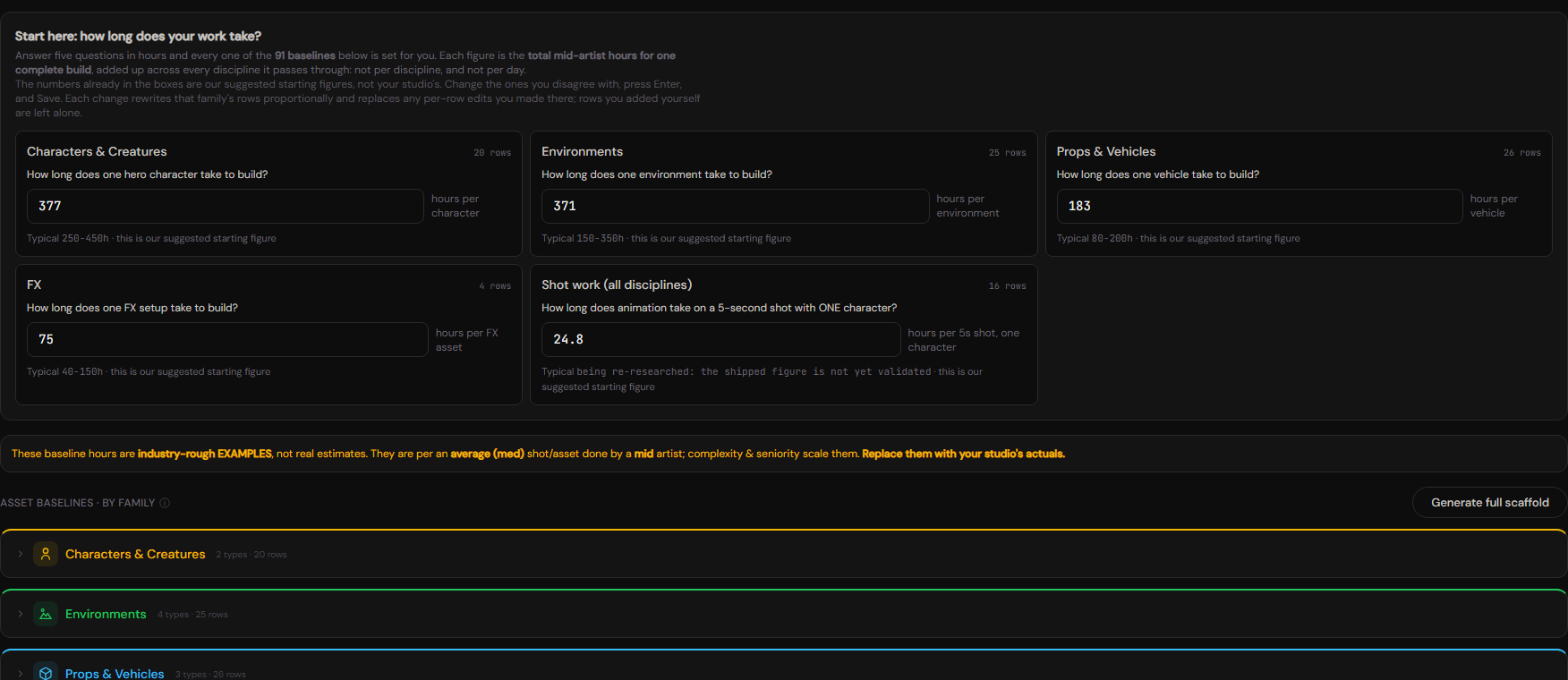
At the top is Start here: how long does your work take? Five questions, in hours:
| Question | You answer | Suggested |
|---|---|---|
| How long does one hero character take to build? | hours | 377 |
| How long does one environment take to build? | hours | 371 |
| How long does one vehicle take to build? | hours | 183 |
| How long does one FX setup take to build? | hours | 75 |
| How long does animation take on a 5-second shot with ONE character? | hours | 24.8 |
Each figure is the total mid-artist hours for one complete build, across every discipline it passes through (modelling plus texturing plus rigging and so on). It is not per discipline and not per day.
The numbers in the boxes are our suggested starting figures, not yours. Change the ones you disagree with, press Enter, then click Save. To override a single discipline (just rigging, say), open the family rows below and edit that row.
Do this once per studio. It carries across every project you bid.
Step 3: (Optional) check complexity and seniority
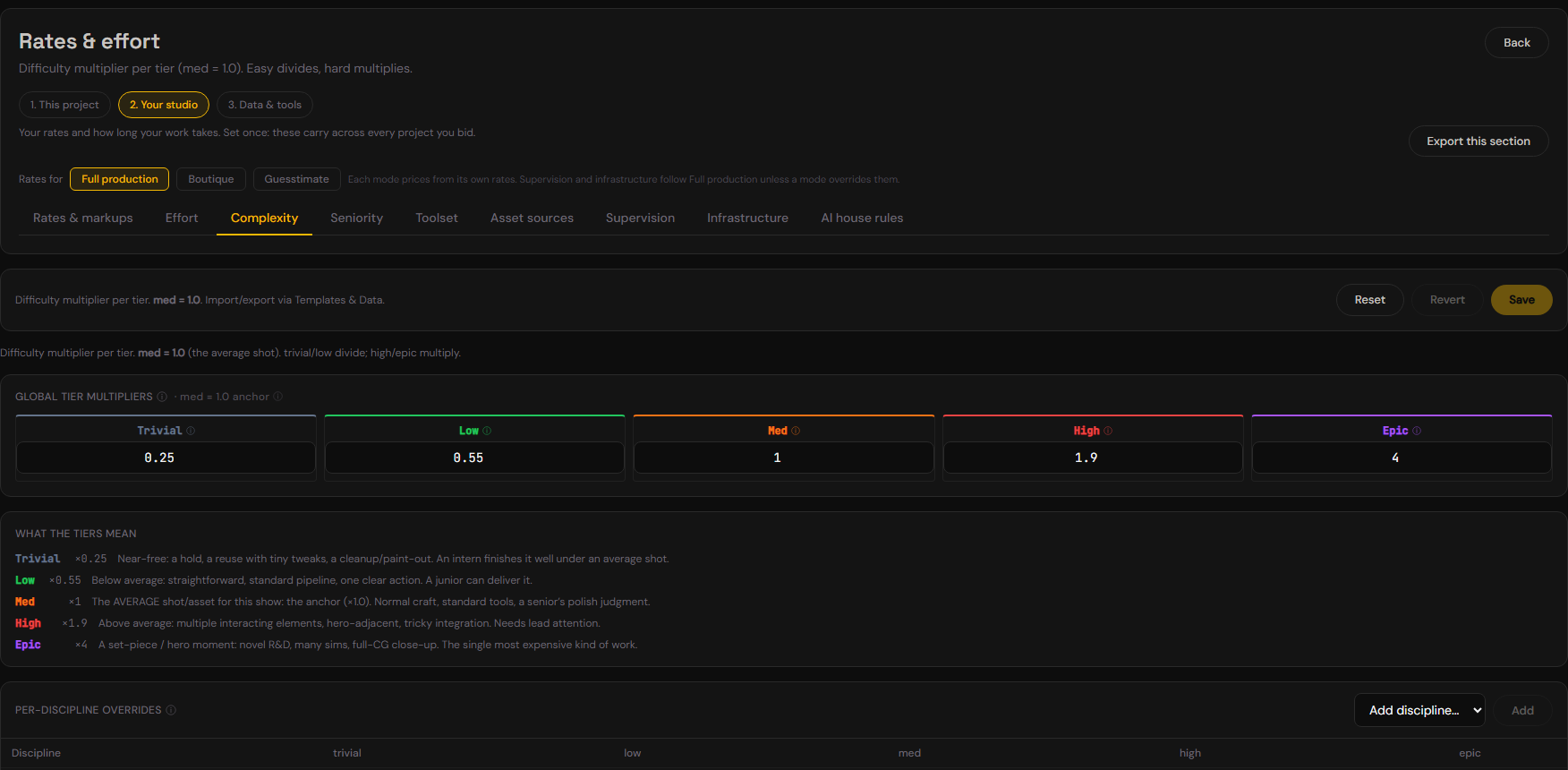
- Complexity: the five tier multipliers (trivial 0.25, low 0.55, med 1, high 1.9, epic 4). Leave them unless your grades differ sharply.
- Seniority: junior 1.5, mid 1.0, senior 0.7. Change a discipline where a senior saves more, or a junior is slower.
Once your rates and your effort baselines both differ from the shipped values, the gold "not calibrated yet" banner on the Bid and Schedule disappears. It comes back if you reset to the defaults, because reset numbers are placeholders again.
Running a breakdown, step by step
Load a script
Drag a script onto the start screen, click Drag & drop or click, or paste the text and click Use pasted text. PDF, DOCX and TXT work. (.doc, old binary Word, needs a local backend and only works when PXLbid runs from source.)
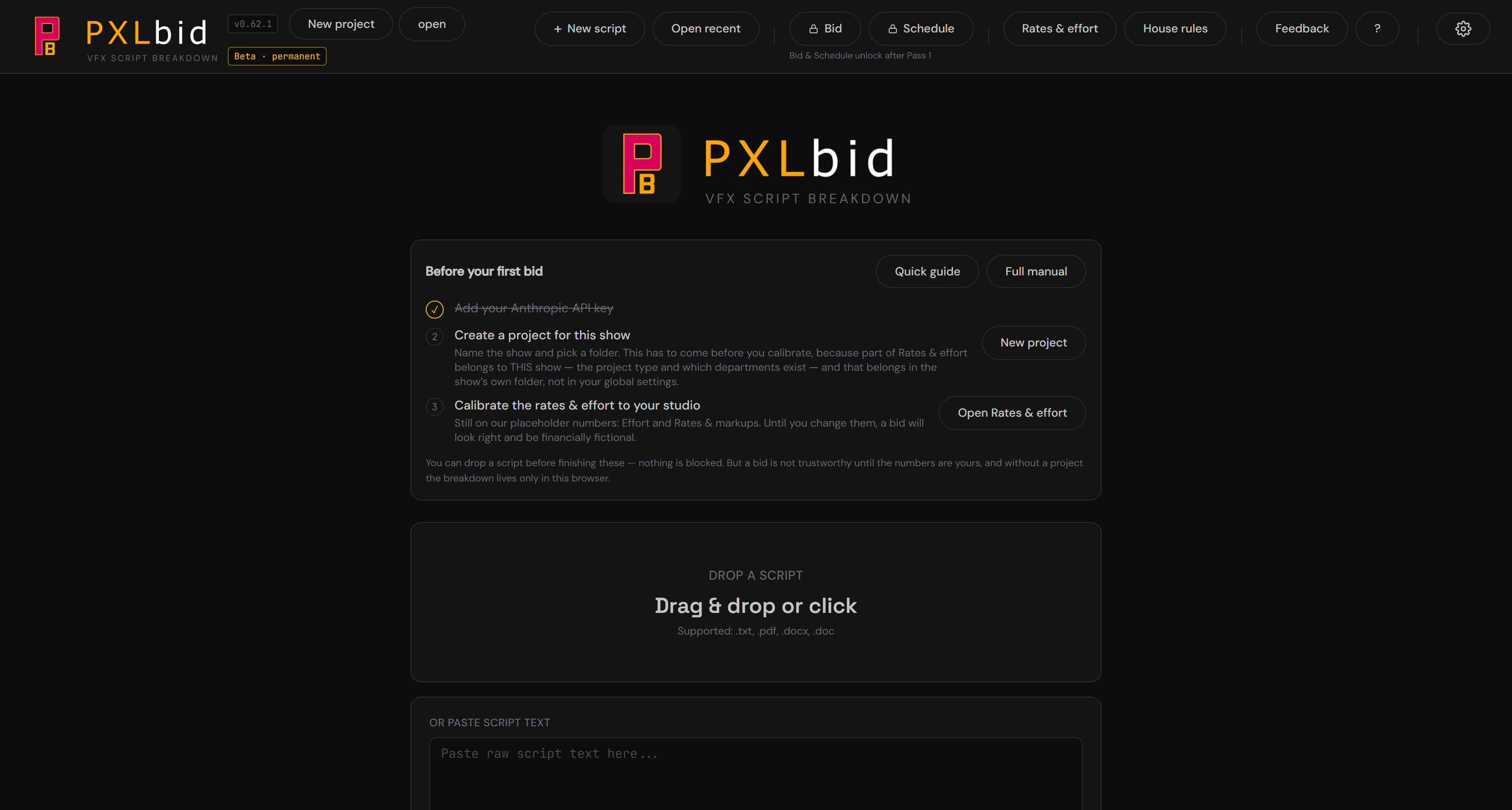
The row at the bottom reopens earlier work: Open recent (this browser), Load JSON from disk..., Open project..., Compare versions... and Guesstimate without a script....
On a long script, bid it in parts. There is no hard page limit, but a full feature in one pass runs longer, costs more and gives the AI less attention per scene. Around 20 pages at a time is a comfortable size. Use Choose sections in the setup (see Bidding part of a script).
Script read
A new script opens on the Script read. One quick model call reads the whole script and tells you, in about a minute, what the project is:
- The story in a few plain sentences, ending included, with where and when it is set (anything inferred rather than written is marked as a guess).
- Main characters, each in one line.
- Worth knowing for the bid: two to four hints you can act on before any breakdown, such as where the heavy work sits and what recurs.
- Sequences: each one with its page range, its VFX load (none, light, medium or heavy) and a rough shot count.
The script itself sits in the left column. You never have to wait: Set up the bid is live the whole time. If the read fails, choose Retry or Continue without it. The header says how long the read took.
The read is saved with the project. Script read on the setup page and on the Project view shows it again without reading the script a second time.
Set up the bid
Click Set up the bid. The page has numbered steps and one Run button at the end. Script read at the top takes you back.
Step 1: The project. Name the project and choose its project type (required, nothing is preselected). There are eight: Live-action VFX Feature, Live-action VFX Series, Full-CG Feature, Full-CG Series, Feature Animation, Short film, Commercial / music video, and Hybrid (live + CG). The type decides how the script is read and which departments are priced: a full-CG show has no plate prep, matchmove or roto.
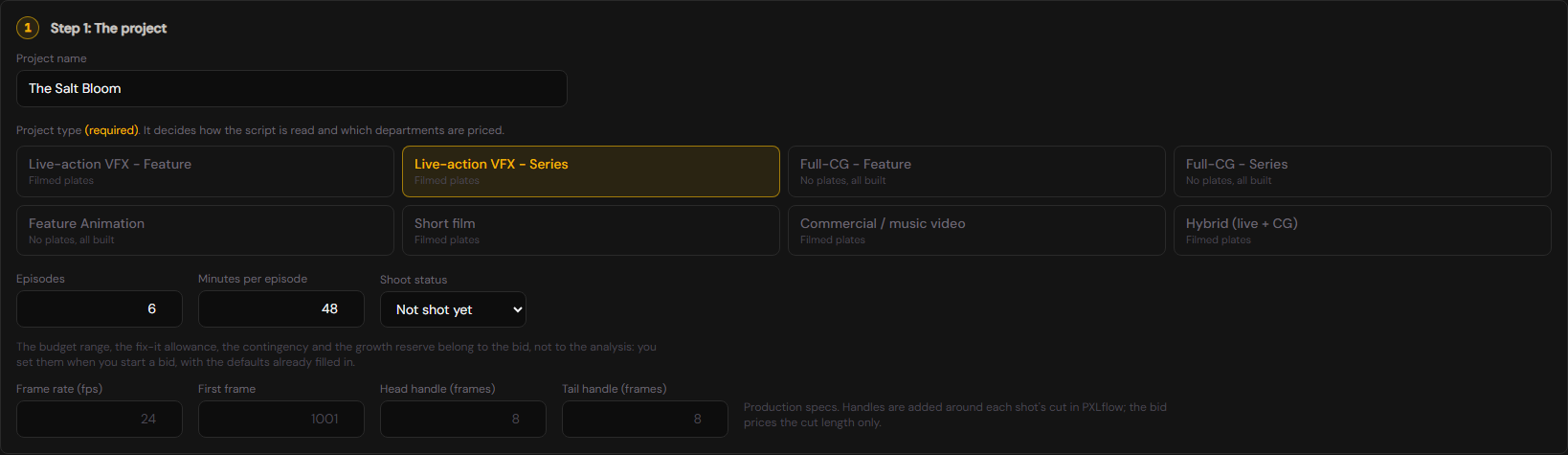
The fields below follow the type:
- Runtime (or Episodes and Minutes per episode for a series) and Shoot status for a filmed show.
- Budget from and Budget to (optional, USD). The Bid checks the price against this range.
- Fix-it allowance (12.5% of the shot count by default: the unscripted fixes every show has), Contingency (leave it empty to use your Rates & effort value) and Growth reserve (30% by default: how much a show tends to grow from first script to turnover; shown on the Bid, never added to the price).
- Production specs: frame rate, first frame and head and tail handles (24 fps, 1001, 8 and 8 when left blank). They travel to PXLflow with each shot's estimated duration. Handles are not priced: a bid prices the cut length only.
Step 2: What to analyse. Whole script (every page, in one run) or Choose sections (sequences or page ranges). See Bidding part of a script.
Step 3: How to bid. Full production, Boutique, Guesstimate or Breakdown only (one line each in Start here). Under it, Propose AI solutions is on by default: PXLbid plans how AI is used on each shot and where each asset comes from. Tick This show is under an NDA to have local AI tools proposed first. Switch it off and every shot is planned and priced the traditional way.
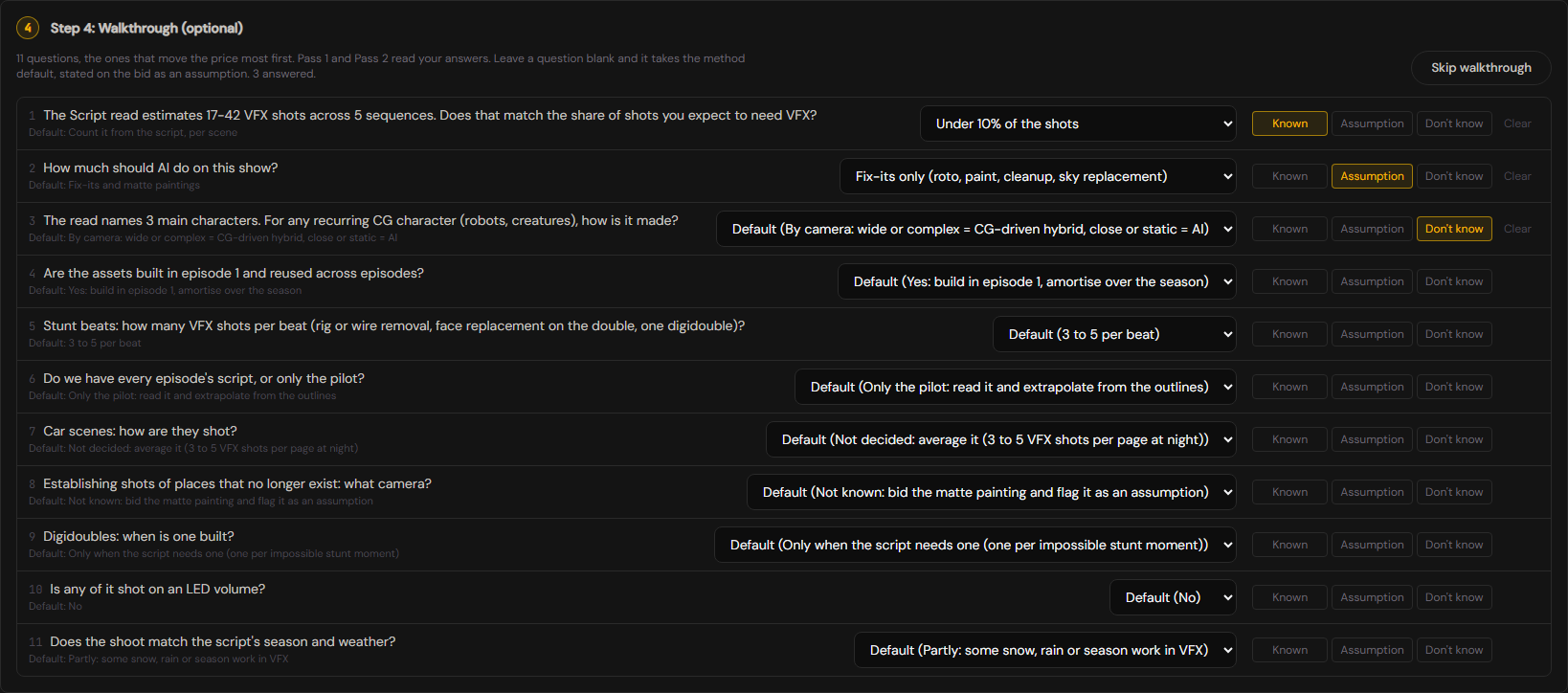
Step 4: Walkthrough (optional). The questions a VFX supervisor asks before a breakdown, for this project type, the ones that move the price most first. For each, choose an answer and how sure you are: Known, Assumption or Don't know. Anything you leave blank takes the method default and is listed on the Bid as an assumption. Skip walkthrough skips them all. Pass 1 and Pass 2 read your answers. The questions about the bid itself (who keeps the AI saving, red lines, per-episode caps, on-set supervision, delivery cadence) are asked later, when you start a bid.
Below the steps: Optional notes for the VFX Supervisor (for example "Focus on creature decomposition. The hero's mech has 4 LODs.") and Deterministic mode (three runs of Pass 1 and a consensus, about three times the cost, much lower variance; worth it for a client quote).
Then click the button at the end. It names your choices, for example Run Full production on the whole script or Run Boutique on pp. 25-66. Until the project type is chosen it reads Choose the project type first.
Pass 1 and Checkpoint 1
Pass 1 streams while it reads. When it finishes, the AI plan is made, and Checkpoint 1 opens with the script on the left and the breakdown on the right. Passages in the script are underlined once Pass 1 has linked them: hover one to see its items, click to open one.
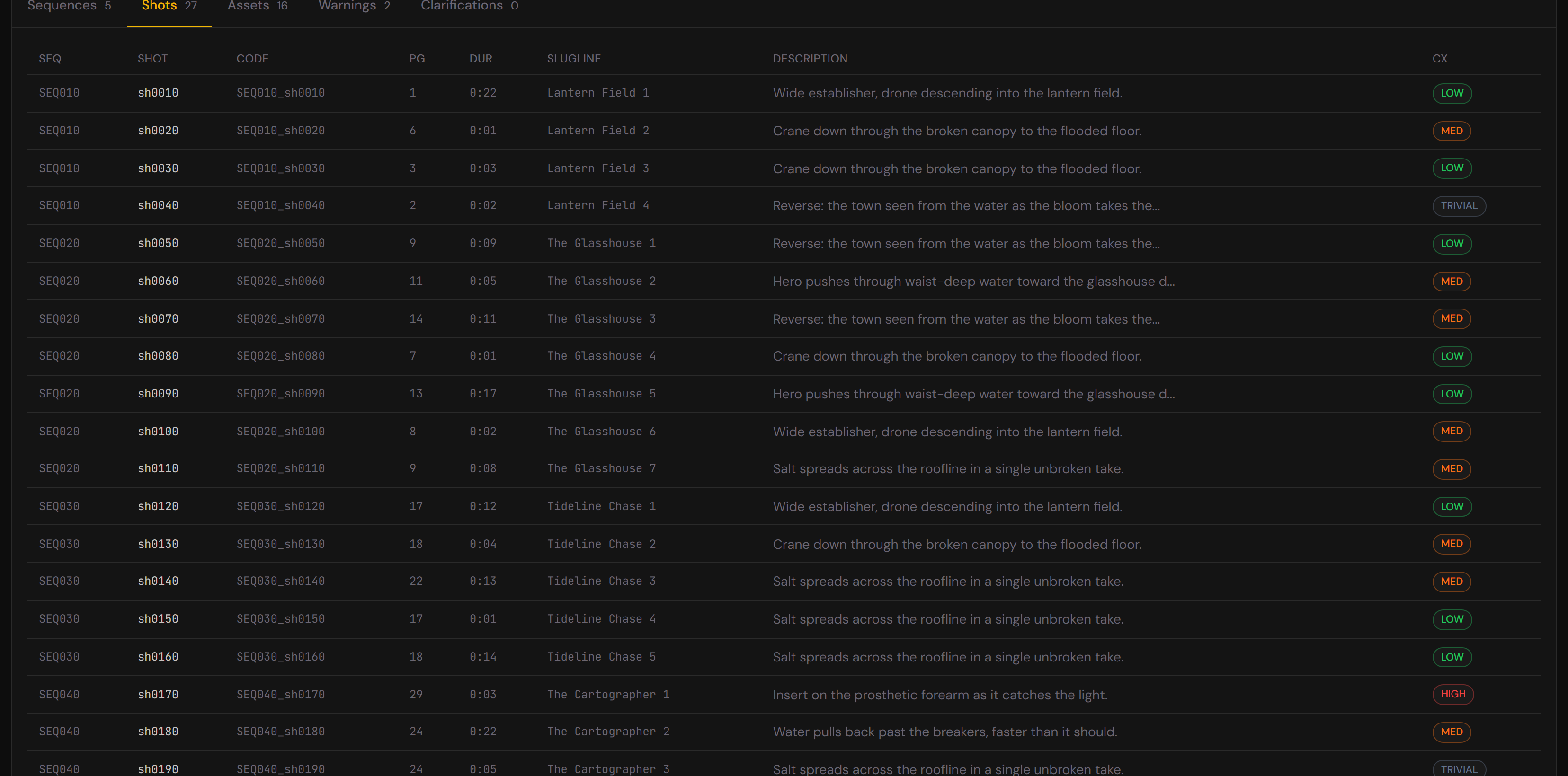
The tabs: Sequences, Shots, Assets, AI plan, Warnings and Clarifications. Click any row to edit it in a drawer: name, sequence, complexity, assets and so on.
On the Shots tab, three quick controls per shot:
- Treatment: Full (normal work), Light (a lighter version, to be updated later; priced one complexity step down) or Skip (left out of the price and of the PXLflow file; the row stays, greyed, and can be brought back). The same control is on every asset.
- VFX scope: No VFX (the shot stays listed and is priced at 0), Traditional (no AI on this shot) or AI-assisted. Set it once for a whole sequence on the Sequences tab; a shot's own setting wins.
- Framing: wide, medium, close or hero. It tells the bid which assets are seen up close.
Add note on any shot or sequence takes a typed note or a voice note. Voice notes are transcribed on your computer; the audio is never uploaded. A note can be sent, as text, with Re-evaluate with AI on the Bid.
The bar at the bottom: Revert edits, Add notes (notes for a re-run), Re-run Pass 1, Save edits, Download JSON (a PXLflow-ready file), Export PDF, and Approve & continue → Pass 2. Before you move on you are offered a JSON backup, or Continue without saving. Your work is saved in the browser either way.
The AI plan
The AI plan tab is made right after Pass 1, before Pass 2, in every mode including Breakdown only. It never shows or sends a price.
For each shot, one or more techniques:
- CG to AI: basic CG layout and animation, with AI as the render.
- Fully prompted: generated from text and images.
- First / last frame: two keyframes drive the shot between them.
- Video to video: a filmed plate restyled, its motion kept.
- AI fix-it: clean-up and fixes on a plate.
- AI matte painting: a generated set extension or matte.
- None: done the traditional way.
Set all shots on a sequence's header sets every shot in it at once.
For each asset, a source: Build, Already built (the studio has it modelled and textured, so only look development is left), Downloaded / library (a library asset, so nothing is built), Character Creator (a light model, texture and rig), AI generated (clean-up of the model and textures) or Procedural.
The departments follow the plan. CG to AI keeps layout, animation, the AI pass and comp. Fully prompted, first / last frame, fix-it and matte painting keep the AI pass and comp. Video to video keeps roto, the AI pass and comp. A department already tagged for effects, character effects, crowd, track or roto stays on a CG to AI shot.
What you set is kept. A technique or source you choose is locked (a padlock) and stays through Pass 2 and Suggest again. A shot set to No VFX or Traditional takes no technique.
Two departments come with the plan: the AI pass (ComfyUI), and Motion Graphics (After Effects) for titles, end cards, supers, logo animation and graphic swooshes, which are never FX. In a priced bid the AI pass is the AI artist's time.
Pass 2
Pass 2 refines the breakdown: it splits wide shots into workable shots, tags the departments each shot and asset needs, and regrades where the new detail changes things. It needs the original script attached, because the breakdown holds only short quotes from it. If you reloaded the page, attach the script again first.
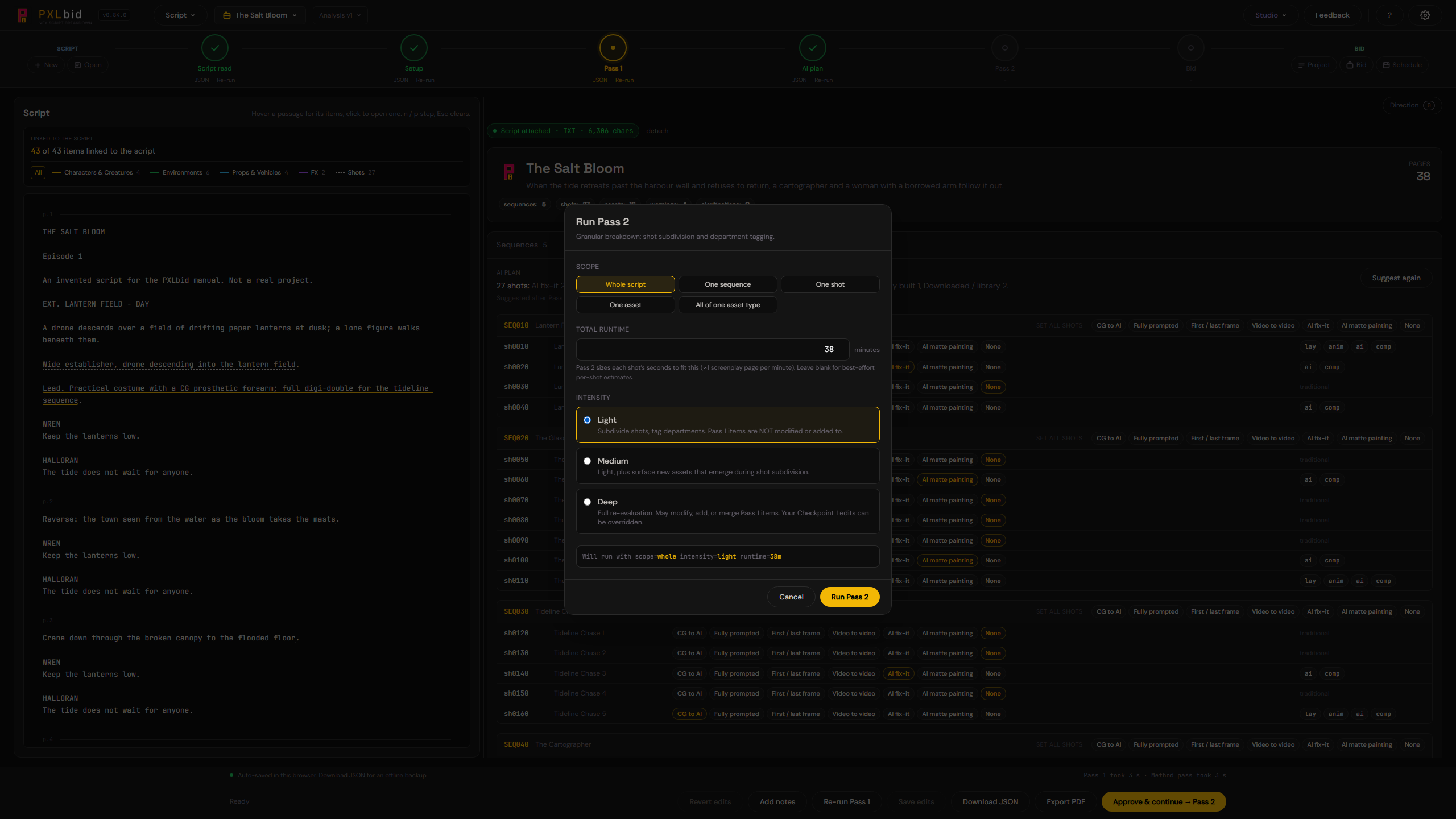
- Click Approve & continue → Pass 2. The Run Pass 2 dialog asks for:
- Scope: Whole script, One sequence, One shot, One asset or All of one asset type. A narrow scope is faster and cheaper.
- Total runtime in minutes: Pass 2 sizes each shot's length to fit it. Leave it blank for best-effort estimates.
- Intensity: Light (subdivide and tag; Pass 1 items are not changed), Medium (also adds assets that emerge from the split) or Deep (a full re-evaluation that may change your Checkpoint 1 edits).
- Click Run Pass 2.
- Checkpoint 2 opens with a Pass 2 changes card at the top. Your treatments, VFX scopes, framing, notes and AI plan choices are kept.
The Assets tab lists every build the script needs, with the departments that build it. This is where a character or a full CG environment gets its price.
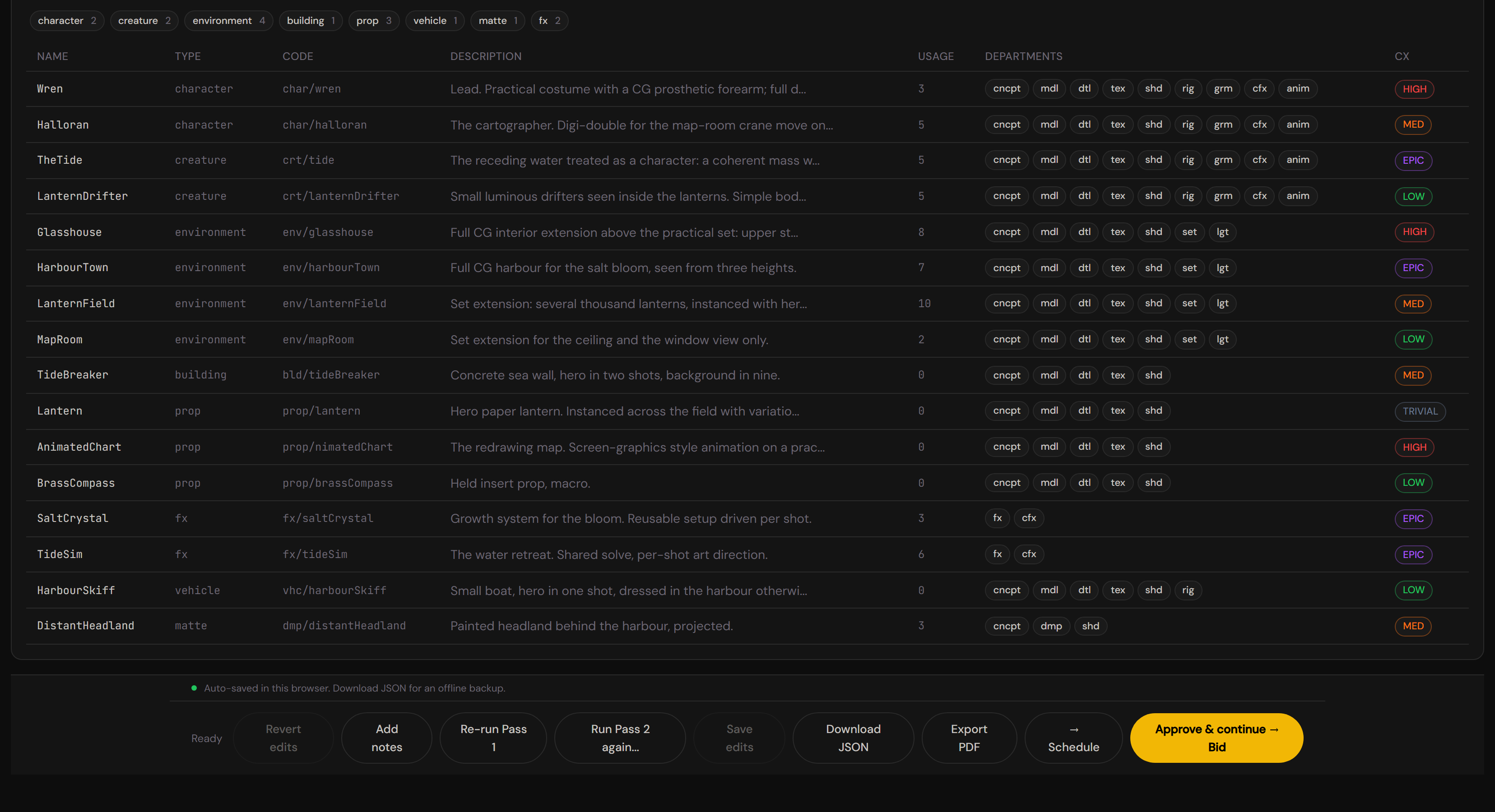
Warnings is the tab to read before you send anything. It is where PXLbid says what it was unsure about, and where a number may not mean what it looks like.
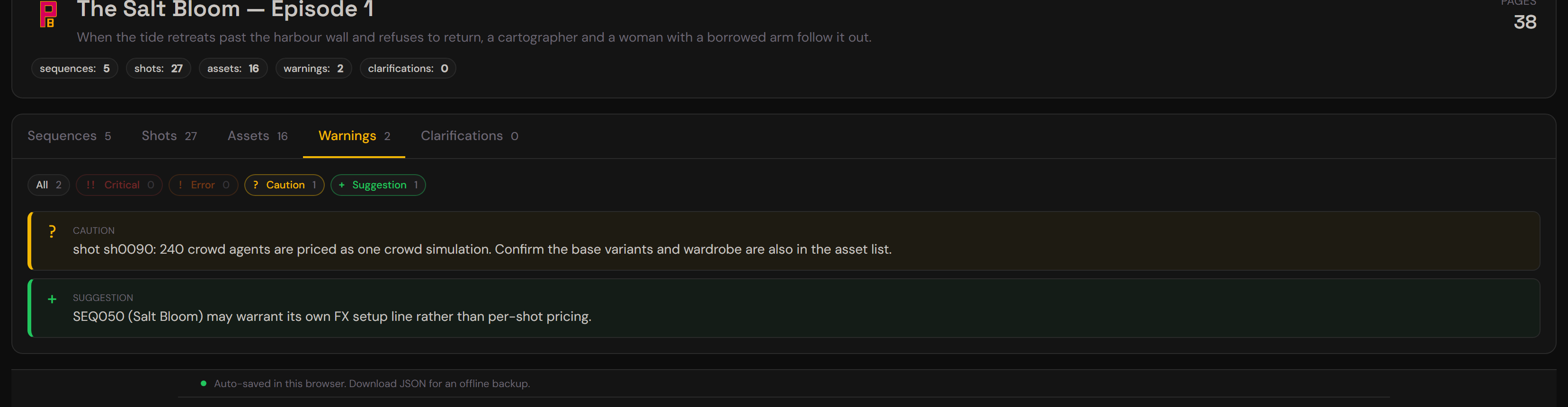
From Checkpoint 2: Approve & continue → Bid, → Schedule, or Run Pass 2 again.... You can also skip Pass 2: open Bid on the journey bar straight from Checkpoint 1. One shot per scene is often enough for an early number.
Breakdown only: shots and assets with no pricing
For a job with no budget to bid, choose Breakdown only in Step 3. Step 1 then asks for the Naming convention (Generic PXL, or Thresholds: hybrid VFX/AI) and a Show code of three or four letters, and hides every money field. The AI plan is made for you. There is no Bid and no Schedule.
At Checkpoint 1 choose → Review and export, or Approve & continue → Add departments (Pass 2) first; Pass 2 adds the departments that become PXLflow tasks.
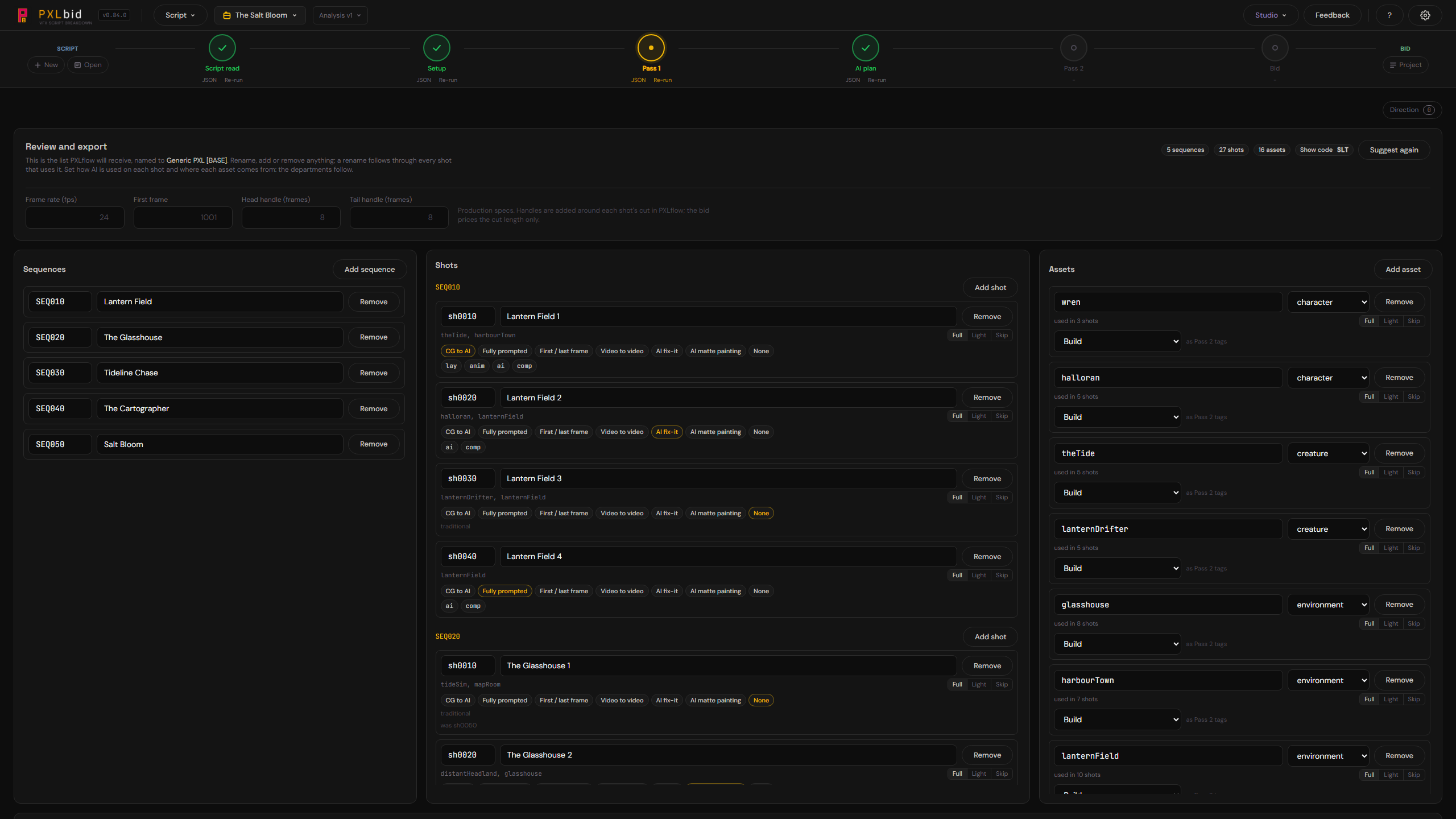
Review and export lists the sequences, shots and assets as PXLflow will receive them: SEQ010, sh0010 (numbered inside each sequence) and camelCase asset names. Rename, add or remove anything; a rename follows through every shot that uses it. Set each shot's techniques and each asset's source here too, and the production specs at the top. A name the convention refuses is marked with its fix and stops the export. When the footer reads Every name fits the convention, click Export to PXLflow. In PXLflow, choose Bulk Import and pick the file. Sequences, shots and assets arrive; link the assets to their shots in PXLflow, because its import does not read that link yet.
Download backup on the checkpoint bar saves a file PXLbid can open again in Breakdown only.
Script analysis: one analysis, several bids
Everything up to Pass 2 is the Script analysis: the Script read, the setup, the walkthrough, Pass 1, the AI plan and Pass 2. It holds no money. The budget, the contingency, the fix-it allowance, the growth reserve, the AI saving split and the budget questions of the walkthrough belong to a bid, and none of them is sent with Pass 1 or Pass 2. One analysis serves every bid you make from it.
Open it from the Script menu (Script analysis), or with Bid on the journey bar when there is no bid yet, once Pass 1 has run.
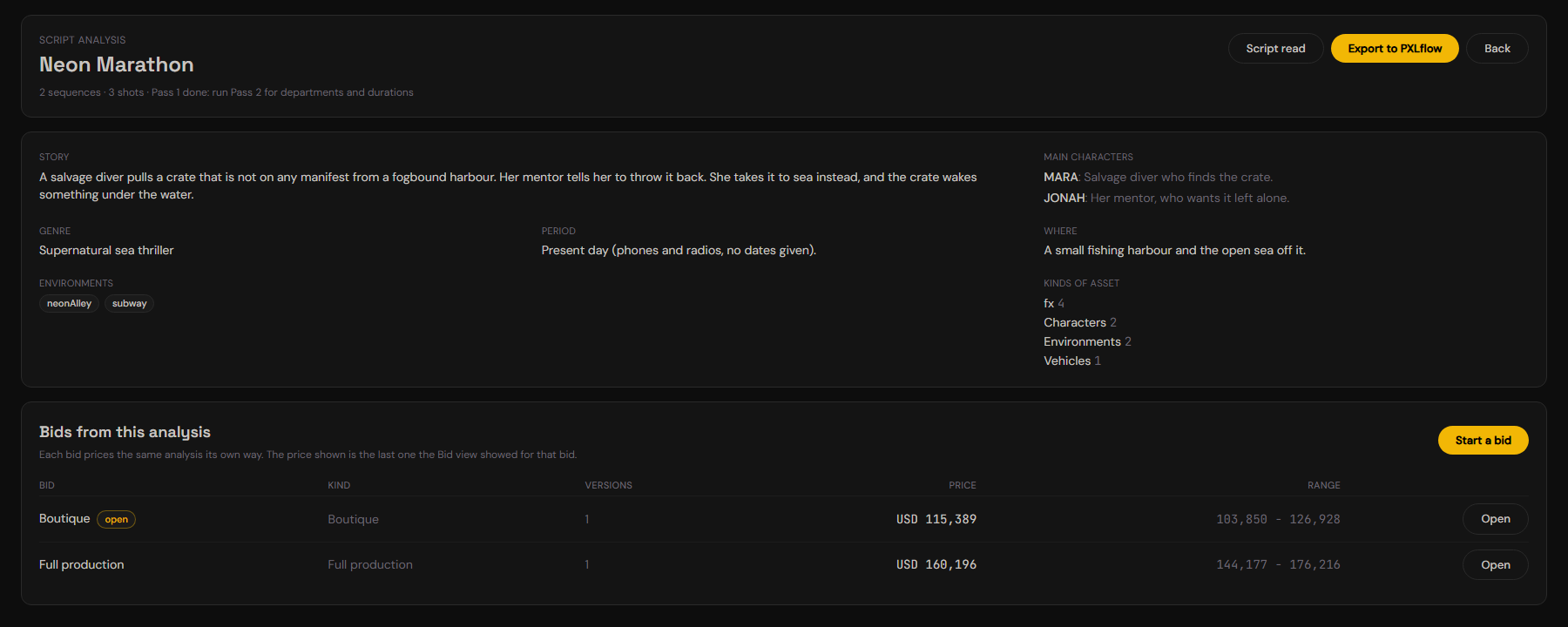
- At a glance: the story, the main characters, the genre, when and where it is set, the environments and the kinds of asset with their counts.
- Export to PXLflow: sends the analysis to PXLflow straight away, so the team can start before any price exists. The file holds sequences, shots, assets and, after Pass 2, departments and durations. It holds no money. Codes that already fit the naming convention keep the names the bid uses.
- Bids from this analysis: every bid, its kind (Full production, Boutique, Guesstimate), its versions and the last price the Bid view showed for it. Open makes a bid the active one and opens it.
- Start a bid: price the same analysis another way. Choose how to bid, give it a name if you like, and set this bid's money: the budget range (empty until you type one), the fix-it allowance and the growth reserve (filled with the method defaults, 12.5% and 30%), the contingency (empty means your Rates & effort value, shown in the field) and the AI saving. Below it come the questions about the bid itself: who keeps the AI saving, what is never traded away, any per-episode cap, on-set supervision and delivery cadence. Leave one blank and it takes the method default. Nothing is read or run again. The bid you were on is kept as it was, with its versions, sent bids, schedule and money.
A Breakdown only project is an analysis with no bid yet: Start a bid turns it into a priced project without running anything again. The Script read is kept the moment it finishes, so dropping the same script again in this browser never pays for a second read.
The Bid
Click Approve & continue → Bid (or Bid on the journey bar). The page reads top to bottom, from the answer to the detail. The header shows the project type and, for a Boutique bid, says Boutique.
The price. Estimated price with its best and worst range, and the waterfall beside it: labour, unscripted fix-its, supervision, infrastructure, facility overhead, AI generation, asset purchases, contingency and margin, down to the price. Under it: asset build, shot work and man-days. When AI is used you also see what the same show costs the traditional way and how much of the saving goes to the client. The growth reserve shows what the price is projected to be at turnover; it is not in the price.
Three buttons sit under the price:
- Run Producer Review: an AI producer reads the priced bid and suggests effort corrections. Nothing changes until you apply one.
- Mark as sent: stores the bid exactly as sent. See Projects.
- Export: Summary quote, Detailed bid (client), Internal cost report, Bid spreadsheet (Excel), Breakdown JSON, ShotGrid (CSV) and ftrack (CSV).
Budget. The production's range from the bid's money, and whether the price is inside it, under it or over it by how much. Below it, Levers to fit it, in order, each with what it saves and an Apply button, and Fit to budget (next section). Some things are never traded away: on-set supervision, capture (HDRI, LiDAR, scans), hero shot quality and contingency.
Assumptions. The script-stage numbers the price rests on, stated so they can be checked: the VFX shot count and share of the runtime from the Script read, the average shot length by kind, the fix-it allowance, the contingency, the share of the AI saving passed to the client, and every walkthrough answer taken as an assumption. Change one and the price follows.
How this price was built. Hours times the day rate per shot, then supervision, overhead, contingency, allowances and margin, step by step.
VFX scope and AI method. The scope of every sequence and shot (No VFX shots stay listed at 0), and each shot's technique and each asset's source, with the AI generation they cost. Re-evaluate with AI asks again for one shot, asset or sequence, with a note if you want, and shows the price change before you Accept or Reject. Options on an asset shows its ways side by side (build, library, AI from concept, procedural). Propose AI method runs the plan again.
LoRA lines. A recurring character, creature or set can get a LoRA (a consistency model) to keep it on model across AI shots. It is priced only when you Accept it.
Traditional vs AI. The same shots priced twice, with the saving per technique, and a Client PDF.
Compare ways of doing it (see Compare ways), then Supervision and Infrastructure, each with its own lines.
The lines. Asset build (one-time asset work, by family) and Shot work (by sequence). Expand a group to see every discipline line with its complexity, seniority, hours, days and cost. Change a line's complexity or seniority and the bid recomputes. Click × to drop a line, and ↩ to bring it back.

Direction: talk it through
Direction lets you steer the bid by talking instead of editing. Open the Direction chip on the Script analysis, after Pass 1, or in the Bid.
- Press Record, speak, press Stop, check the transcript and press Send. You can also type. Your voice is transcribed on your computer; the audio is never uploaded.
- The agent replies in text and may ask a question. When you have decided something it proposes a plan: rules in plain words and actions such as "Set SEQ020 to Traditional" or "Bid SEQ010 both ways".
- Edit any rule, untick any action, then press Approve plan. Until you approve, nothing changes. After approval the chip shows how many rules are active.
- What you decide steers what comes next: the Script analysis plan steers Pass 1 and everything after it; the Pass 1 plan steers Pass 2 and the AI plan; the Bid plan steers every re-evaluate.
A sequence flagged both ways shows its traditional and AI price side by side in the Bid and in the client quote, the detailed client bid and the spreadsheet. The total is unchanged; choose a side with the Scope control when you decide. The conversation is saved with the project as text.
Fit to budget
When a bid is over the production's budget, Fit to budget proposes what to make lighter, and only if that is not enough, what to cut, so the price lands at or under the target.
- On the Bid, the Budget card shows the range. When the bid is over it, click Fit to budget (the target is the top of the range). With no range set, type a target price in the card and click Fit to budget.
- The plan lists its moves in groups: One-off assets as shot work, Asset sourcing (a library kit, AI from a concept, procedural), Environments as matte paintings (on a filmed show), Lighter shot method (one step down per shot), and last, merged or cut shots.
- Each move shows its saving (the bid priced with that move alone) and a quality cost with a short note on what you give up. Moves are ranked by saving per quality cost. Hero shots and assets are marked Hero and their quality cost counts double.
- The best moves are already ticked, in rank order, until the price fits. Merges and cuts are marked Scope cut and are only ticked when the lighter moves cannot reach the target. If nothing reaches it, the panel says by how much the bid stays over.
- Tick and untick moves, or use Tick all and Untick all per group. The figure at the top right, With the ticked moves, is the price of the ticked set together. Read that figure, not the sum of the savings, because moves overlap.
- Apply writes the ticked moves onto the breakdown. Undo last change on the Budget card puts it back. Cancel changes nothing.
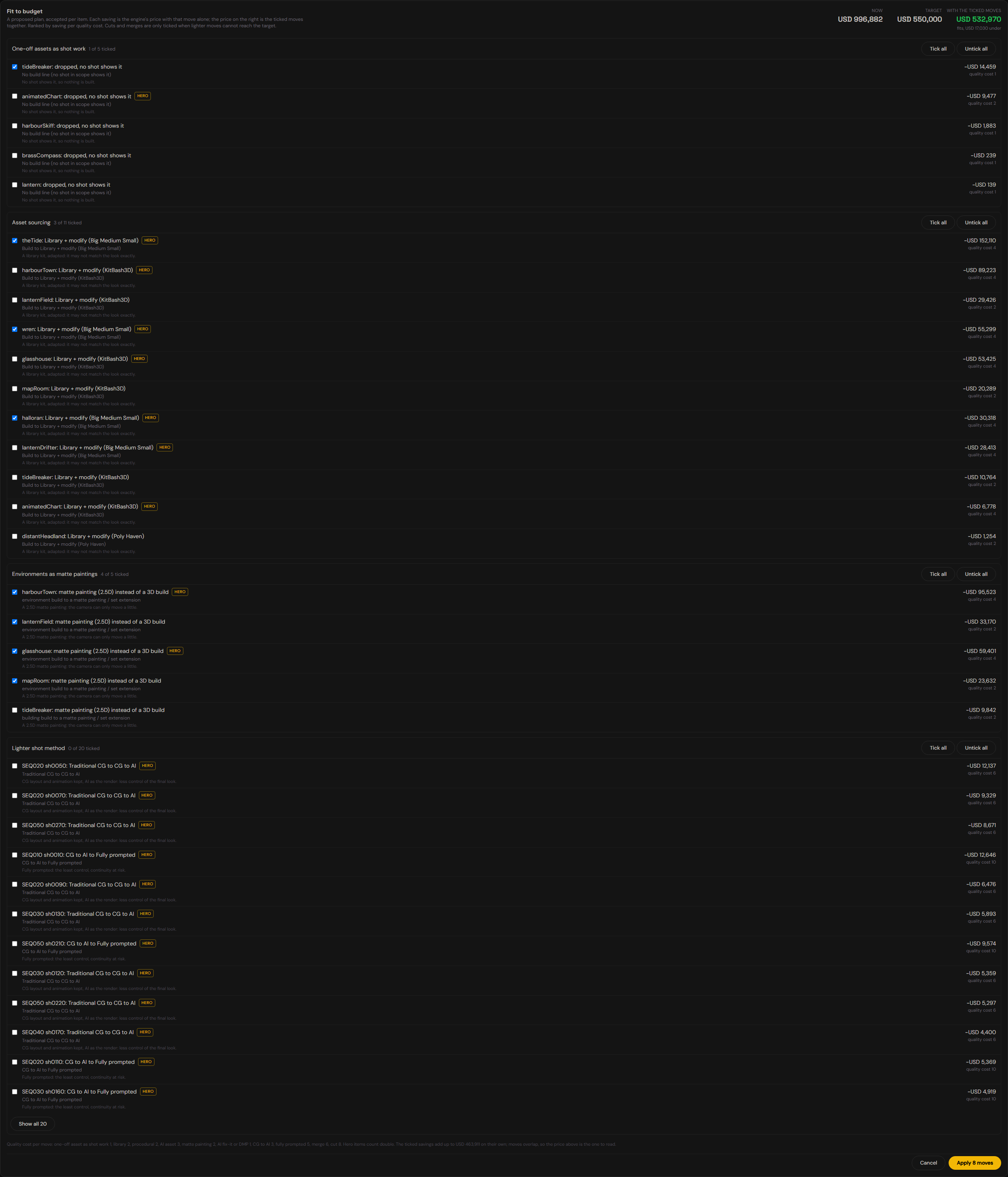
Every price in the plan comes from the same engine as the bid. Moves that need the AI method switch it on for the bid when you apply them.
Compare ways
Compare ways of doing it, on the Bid, prices the same shots and assets several ways side by side:
- Full production: the full production team.
- Boutique: a boutique team on the Boutique rates.
- AI support: one person at their own day rate, with the tools they own, AI on every eligible shot and no supervision team. It carries the Boutique overhead and margin, so it compares like for like with Boutique. Set AI support day rate to that person's rate.

Click Compare, then switch ways on or off. Each card shows the total, the man-days and the day rate, plus AI generation when there is any. The table has three tabs: At a glance, By sequence (each sequence's shot work) and By department (labour). Supervision, infrastructure, overhead, contingency and margin are in the totals. Light and Skip are priced in every view. The ways you choose are saved with the project. Export opens a printable comparison.
Schedule
Click Schedule on the journey bar (or → Schedule at Checkpoint 2). The Timeline shows every department on its own lane, asset build feeding shot work, with crew count and duration.
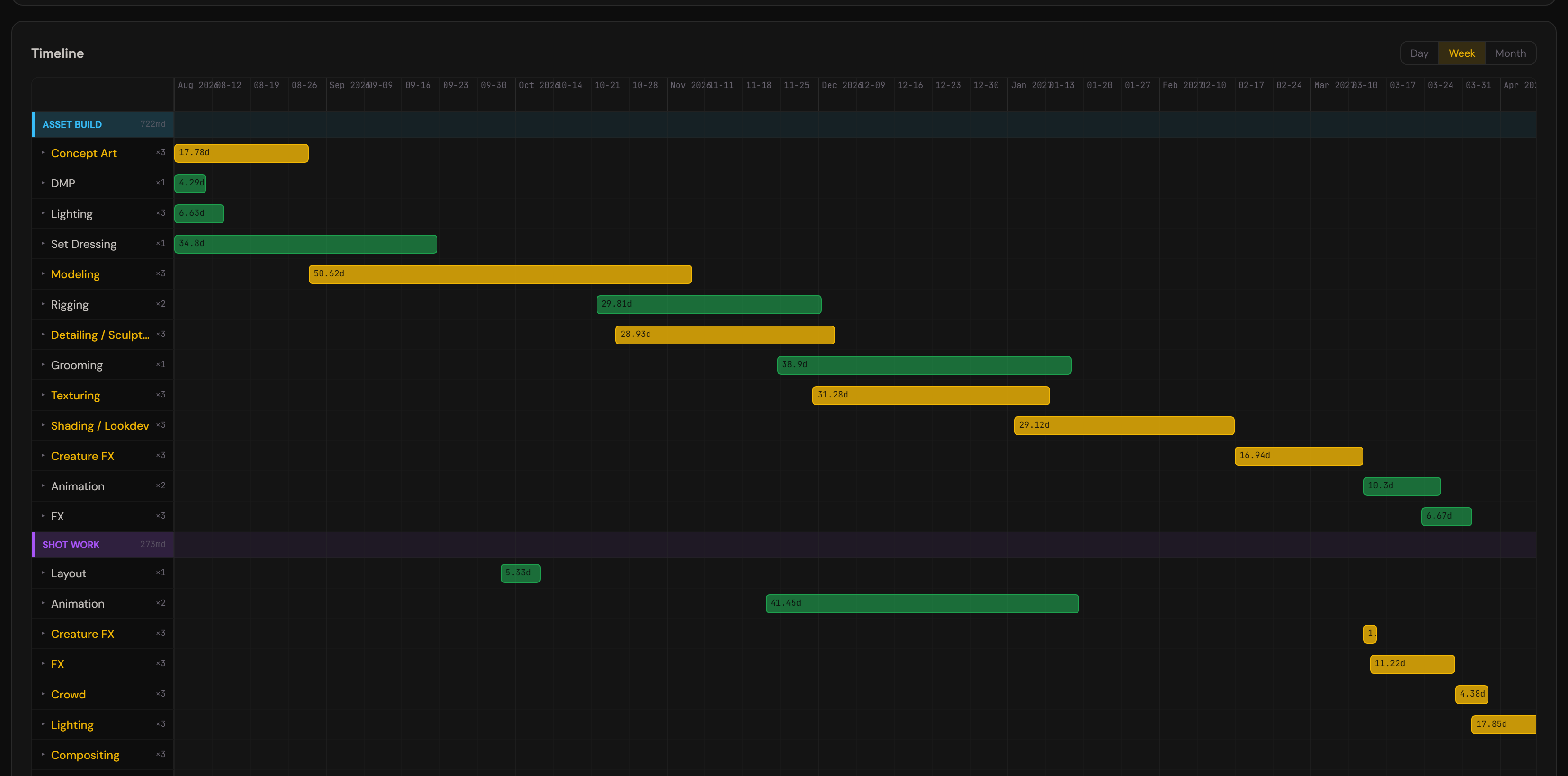
- Dependencies (who hands off to whom) set the order. Edit them in Rates & effort > 1. This project > Dependencies.
- Team sizes compress calendar time: two artists on one lane halve its duration.
- Set a start and a target end; if the target cannot be met, PXLbid shows what it would take. Back to optimal returns to the resource-optimal plan.
- Export offers a Schedule JSON for PXLflow, Excel, PDF, and ShotGrid and ftrack CSVs.
Scheduling assistant (preview)
Preview. Since v0.85.0 the scheduling assistant is on for everyone, under the Schedule tab. It is still marked Preview and may change.
The assistant reads the schedule (numbers only: no script, no shot or asset names, no prices) and proposes changes to the crew for one discipline, the client target date, or overtime. It also flags over-allocated departments and, given a what-if date, explains what moving the deadline would cost.
- Nothing changes until you click. Each suggestion shows what changes, why, and its impact, from the same schedule engine as the tab.
- Apply takes one suggestion; Apply all takes every one that still fits. Undo last change reverts the last apply, and refuses if you have edited the schedule by hand since.
- If you change the schedule after asking, a suggestion that no longer fits is marked out of date. Press Ask again.
- It runs through the same processing location as every pass, on the same key or credentials.
Switching it off. The administrator sets PXLBID_ENABLE_SCHEDULE_ASSIST to anything but true on the PXLbid service and redeploys; the card stays visible and every request is refused with a note that it is switched off. Your schedule still reaches the PXLbid service, but nothing is sent to the model.
Bidding part of a script
A full feature in one pass runs long and gets shallow exactly where you want depth. Bid the part you care about and add more later.
- In Step 2: What to analyse, choose Choose sections. When the Script read has finished, each sequence is listed with its page range, VFX load and a rough shot count. If the read failed, Index script runs it from here. Without it, the list is built from the scene headings, free, with no VFX load.
- Tick the sequences you want, or type page ranges such as
5-10, 42-51. The two add up and overlapping ranges merge. A typo (a backwards range, a page past the end) shows in red and blocks the run. The line under the list shows the pages chosen and about how many tokens Pass 1 will read. - Run. The breakdown, the Bid and every export say which pages they cover, for example
Scope: pp. 5-10, 42-51. Pass 2 reads only those pages. - To add more, click Bid another range at Checkpoint 1, choose the next pages and run again. The bid keeps its mode. The new range is merged in: shots add up, and an asset in both ranges is counted once.
How a new range fits. PXLbid tells the AI which sequence codes, shot codes and asset names the bid already has, so numbering continues and a character keeps its name. If a code still clashes, the new item gets the next free number and everything that points at it moves with it; a MERGE warning names each change. A sequence that runs across the boundary (same code, touching pages) is joined into one. An asset with the same name but a different type stays separate and is renamed.
Page numbers. For a PDF they are its own pages. Word, text and pasted scripts have no page boundaries, so their pages are estimated from line counts and labelled that way.
AI solutions and Boutique
Two choices on the setup are independent: how your studio works (Full production: specialists with formal handovers; Boutique: a small team of generalists) and Propose AI solutions. A big studio can use AI, and a boutique still builds assets, environments, look dev and layout. Both price from the same department breakdown.
How an AI shot is priced. A shot's techniques decide which departments stay (see The AI plan); the rest are handed to the AI pass and are not "unpriced work", so they never block an export. A one-off fully generated shot keeps a compositing touch-up one complexity step below the shot. An asset that appears in several AI shots keeps a base model and look dev, built once for the whole show. An asset is built once per show whatever the mix of methods.
Which model. The AI only says what a shot needs (character consistency, a camera locked to a 3D layout, photoreal, HDR or EXR output and so on). PXLbid picks the cheapest model in its catalog that covers those needs at your target resolution, and bills it the way vendors do: whole clip lengths and per-generation minimums. Where a model tops out below your resolution, PXLbid adds an upscale step and warns you. The AI never quotes a price and never names a model.
Asset sources and your toolset. A source other than a build is priced at the share of a from-scratch build it leaves, plus any purchase or generation cost, charged once per asset. The shares are estimates set with a VFX supervisor: change them in Rates & effort > 2. Your studio > Asset sources. The plan proposes only tools your studio owns: tick them in Toolset, with your monthly price and seats. An owned subscription becomes a Software line in Infrastructure for the length of the show. Cloud AI 3D tools send the concept art to the vendor and are marked not for NDA work; local tools are proposed first under an NDA. A price nobody could verify reads price on request and holds the export until you enter your own.
Nothing is priced at zero. An AI shot no model can cover, a library asset with no price, or a role with no day rate is listed under not priced and left out of the totals until you fix it. Exporting with items not priced asks you to confirm first.
Keeping prices honest. The AI model catalog and the asset-source catalog are dated, and every row carries its source and a fact-check verdict. AI prices move monthly: the bid warns once the model catalog is more than 60 days old.
Boutique. Runs Pass 1 and Pass 2 like Full production and prices the same departments at the Boutique day rate (the blended rate of your Boutique roles unless you set one), with merged roles: a modeller who textures, a texture artist who does look dev, a layout artist who animates, a lighter who composites. Each merge saves 15% of the second department's hours (an estimate until you set your own in Rates & effort > Boutique > Merged roles). A Boutique bid made before v0.73.0 on the old per-shot bands keeps them, and the Bid offers Re-base on departments, asking first.
Addenda. A base model already sold is never billed again. If a shot changes method after sending, the bid names the credit for you to apply by hand; nothing is subtracted silently.
Guesstimate: bidding without a final script
Small shows often have no final script and no edit. Guesstimate prices them from assumptions, clearly labelled on screen and on every export: GUESSTIMATE: based on assumptions, not a shot breakdown. It uses the Guesstimate rates and the AI generation cost.
Starting one. Choose Guesstimate in Step 3: How to bid (the sections from Step 2 still apply), or use Guesstimate without a script... on the start screen. Give it any of: a draft, a treatment or a script; the lowest and highest shot count you expect; a budget cap in USD; the runtime; the genre and look; how much of the work should be AI (none, some, most, max or a percentage); and notes. The form alone is enough.
What comes back is a distribution, not a shot list. The AI proposes groups (a sequence each, or one for the show), each with a shot count range (low, likely, high), an average shot length, a mix of production tiers (AI full, AI hybrid, AI enhance, traditional), a mix of complexity, and the share of AI shots that need character consistency, a locked camera, photoreal output or HDR. It never quotes a price. The engine turns each group into representative shots and prices them. The same input gives the same result.
Reading it. The top card shows the likely price, the range across your shot count, the AI generation subtotal and a confidence badge with its reason. A separate execution band shows how much the same show could move with how hard it turns out to be. Beside the group table are the assumptions, the questions that would change the estimate most, and budget fit.
Editing it. Change any count, shot length or mix (edit the mixes on a group for the percentages) and the price follows. A mix that does not add up to 100% is rescaled and says so. Reset to the model puts back what the AI proposed.
Budget fit. The cap stays in your browser: it is never sent to the AI. Each shot count says whether it fits the cap. When the likely count is over, two levers show how many shots would have to go, and the smallest share of AI that would fit, each found by re-pricing.
When no AI model covers a shot. Those assumed shots are priced one tier more manual instead of quietly dropping the need, and a note lists each one.
Exporting. Excel and PDF carry the GUESSTIMATE banner, the assumptions, the low, likely and high totals, the group table and the budget fit.
Projects: adding work to a bid
A show is a project. It keeps the bid you edited, every version you sent, the schedule and the Script read. Reopen it from the start screen with Open project.... Open the Project view from the journey bar.
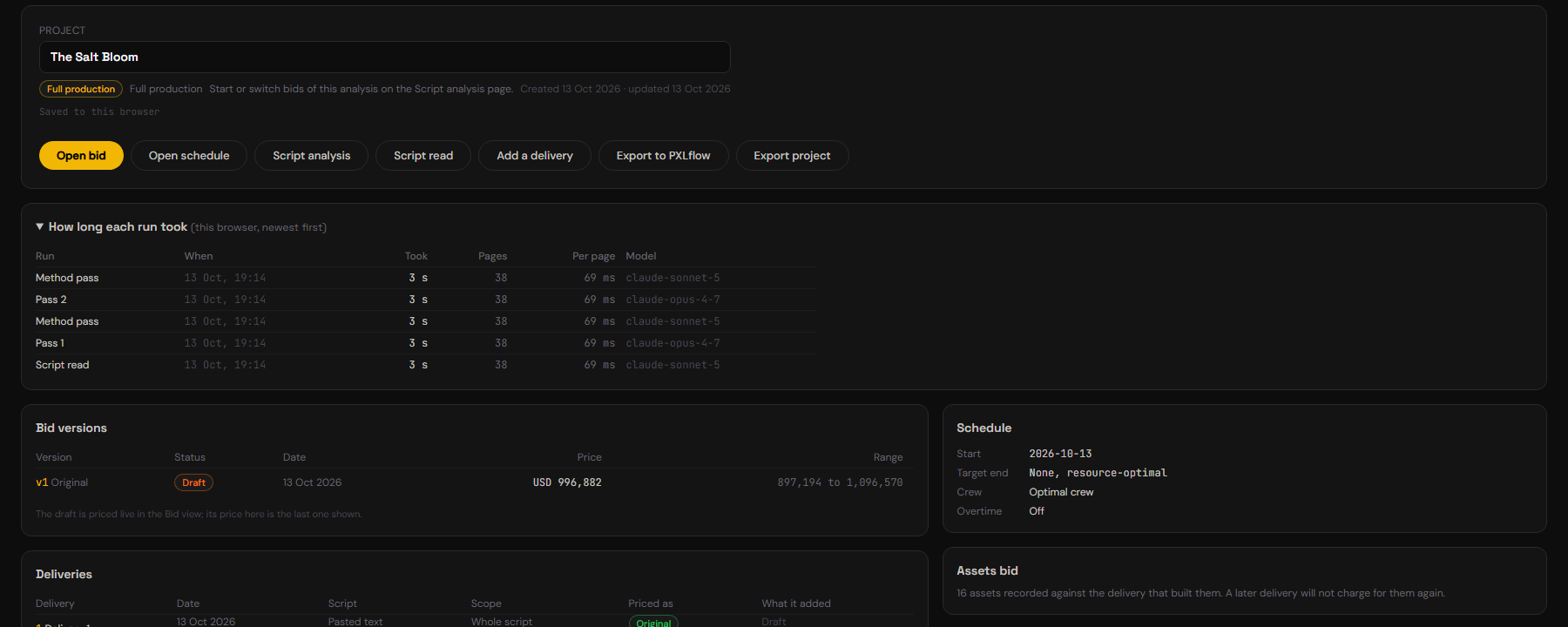
The Project view shows How long each run took (each read and pass, its time and pages), Bid versions (draft and sent), Deliveries, the Schedule and the Assets bid. The buttons: Open bid, Open schedule, Script read, Add a delivery, Export to PXLflow and Export project. The mode is fixed for the life of a project.
Marking a bid as sent. Click Mark as sent on the Bid. The bid is stored exactly as it stands: the priced lines, the totals, your edits, the rates and the catalog date. It becomes read-only, and an export of it reproduces it even after your rates change. Edit as new version starts a draft from it.
Adding a delivery. When the client sends more script, click Add a delivery.
- Load the script: a new one, or the same one again (the pages already bid are skipped).
- Set up the run: the same steps as always; the mode is the project's. Pass 1 is told the codes and asset names the bid already has.
- Check the assets. Each asset that looks like one already paid for is listed. Choose Reuse (no build cost), Needs more work (priced as an upgrade, 30% of the build to start, editable) or Different asset (rename it; priced in full). The shots that use a reused asset are still priced.
- Review the new shots, and run Pass 2 on them if you want.
- Price it. Click Price delivery and choose (if no bid has been sent yet, the delivery simply joins the draft):
- Addendum: the bid you sent stays exactly as sent. The addendum prices only the new shots, new assets and upgrades, shown as Original + Addendum = Combined, with its own quote (PDF and Excel) and a Combined summary.
- Merged bid: one bid over every delivery, priced again with today's rates, each asset counted once, saved as a new version with the change against what you last sent, per sequence.
- Choose the schedule: Keep existing dates (new work goes in the capacity left; you see the new end date and any department that runs over) or Re-plan everything (you see which sequences moved).
Guesstimate projects. A delivery is a new guesstimate; an addendum prices it on its own, a merged bid prices every delivery's assumed shots together.
One editor per project. A project is edited in one tab at a time. A second tab opens it view only and says so. Take over asks the other tab to save and let go, then shows the latest copy.
Nothing sent is lost. A bid is marked as sent, and a delivery added, only once the browser holds a safe copy. If it cannot, you see "Can't mark as sent: this project can't be saved in this browser. Export it first." If you try to leave a project with unsaved changes, a dialog lists exactly what would be lost.
Exporting to PXLflow
- Breakdown only: Review and export, then Export to PXLflow (see Breakdown only).
- Full production and Boutique: Export to PXLflow on the Project view offers Whole project or one delivery. Codes are unique across the show, so PXLflow's import never sees a collision. Download JSON at a checkpoint and Export > Breakdown JSON on the Bid write the same PXLsuite format.
- The schedule: Schedule, Export, Schedule JSON. The dates land on the matching shots in PXLflow.
Skipped shots and assets are left out of the file. A Light item goes through with "Treatment: light." in its description. The production specs (frame rate, first frame, handles) travel with each shot.
The screens, one by one
The top bar and the journey bar

The top bar. Script is a menu: New script, Open recent, Open project... and Script analysis. Next to it is the project selector: the open project's name, with the other projects in this browser to open, and beside it the analysis version (see below). On the right, the Studio menu holds Rates & effort, Library, Templates & data and House rules; then Feedback, the ? help menu (Quick guide in the app and Full manual, this page) and the gear icon for Settings.
The journey bar. Six stages in the order you work: Script read, Setup, Pass 1, AI plan, Pass 2, Bid. Each is one of four things: done (green check), current (gold dot), out of date (orange warning) or not run (dim ring). Click a stage that is done to open it from any screen. New and Open (recent) are at the left end, under the name Script; Project, Bid and Schedule are at the right end, under the name Bid. If there is no bid yet, Bid on the stage row opens the Script analysis, where Start a bid is.
Under a stage that has run, two small links:
- JSON opens a read-only viewer with exactly what that stage saved: the Script read, the setup and the walkthrough answers, the Pass 1 breakdown, the AI plan, the Pass 2 detail or the bid. Copy and Download are in the viewer. A stage that has not run shows no link.
- Re-run runs the stage again, as a new analysis version. The version you were on is kept exactly as it was, with its later stages and its bids. The stages after the one you re-ran are marked out of date until you run them again. Re-run needs the original script attached (a project does not keep the script text).
Analysis versions. The label next to the project name, for example Analysis v2, is the version on screen. Open it to switch to any earlier version: its Pass 2, its AI plan and its bids come back as they were. A project that was never re-run is version 1. The project's name and your Direction are shared by every version. Re-run asks first ("Make Analysis v2 and run Pass 1 again?"), and a run that fails makes no version. Every version is kept whole, so the menu shows how much of the project's room is used; Delete version N... frees the room of a parked version (never the one you are on, and never one that holds a sent bid).
On a script with no bid yet, Project, Bid, Schedule and the Studio items wait and say why. While a read or a pass runs, the Studio menu, help and Settings open without stopping it, and a Back to the analysis bar takes you back. New script, Open recent and Project ask first.
Settings
The gear icon at the top right. The Anthropic API key and Test connection are at the top. Folded below:
- Where your scripts are processed: Anthropic (your own key), Your AWS Bedrock or Your Google Vertex AI.
- Model per stage: the model for Pass 1 and for Pass 2. Both default to Opus. A Sonnet for Pass 1 is cheaper and usually good enough while you calibrate.
- Max output tokens: raise it if you see TRUNCATED warnings on a very long script.
Your Google account and Sign out are here too.
Recent
Open recent lists the breakdowns saved in this browser, newest first. Click one to reload it. The 20 most recent are kept.
Compare versions
Compare versions... on the start screen puts two breakdowns side by side, useful for checking what Pass 2 changed.
House rules (corrections log)
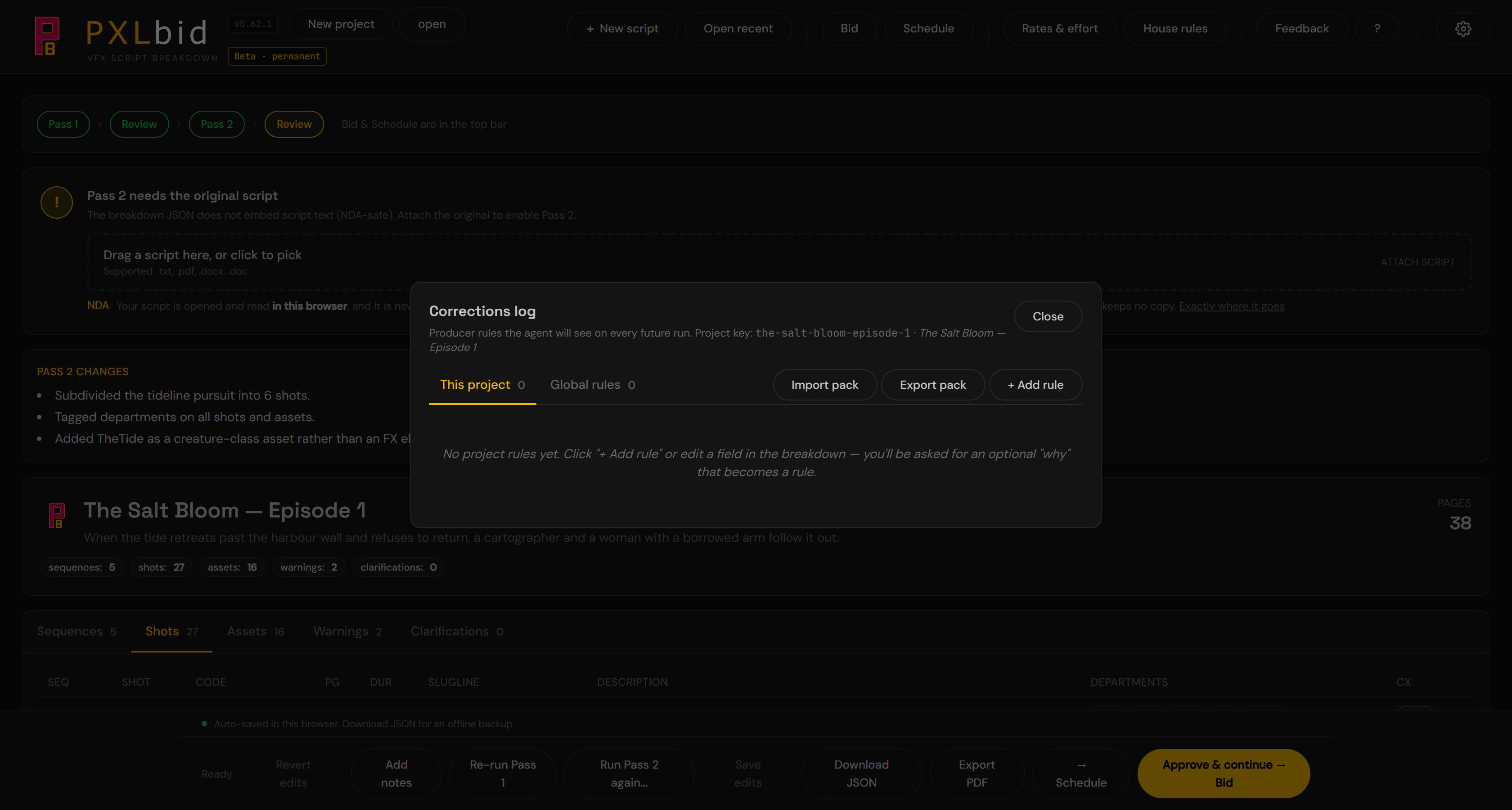
House rules in the Studio menu opens the corrections log. When you correct the breakdown and say why, the reason is kept as a rule and sent with later passes. Each rule is for This project (the default) or Global. Project rules go only with that project's passes. Global rules go with the passes of every project, including the first pass on a new script, so the names and reasons in a global rule travel with other shows' scripts. Keep anything specific to one production as a project rule. + Add rule, Import pack and Export pack share rules between machines.
Making it yours: Rates & effort in depth
Every section and every number in Rates & effort is explained in place. Hover the small info dot next to any heading, row or field and a panel opens with what that lever does, a worked example using your own current values, and a warning where one applies.
Rates & effort has three zones:
- 1. This project: Project Type and Dependencies. These change per show.
- 2. Your studio: set once, carried across every project. A switch at the top, Rates for, chooses Full production, Boutique or Guesstimate; each has its own tabs, and a change in one never moves a bid in another.
- Full production: Rates & markups, Effort, Complexity, Seniority, Toolset, Asset sources, Supervision, Infrastructure, AI house rules.
- Boutique: Markups, Merged roles, Roles, Bands, AI takes, AI models, plus Toolset, Asset sources, Supervision and Infrastructure.
- Guesstimate: Markups, Roles, Bands, AI takes, AI models, Supervision and Infrastructure.
- 3. Data & tools: Templates & Data (see below).
Each tab has Save, Revert and Reset. Moving away with unsaved edits asks whether to discard them.
Project Type
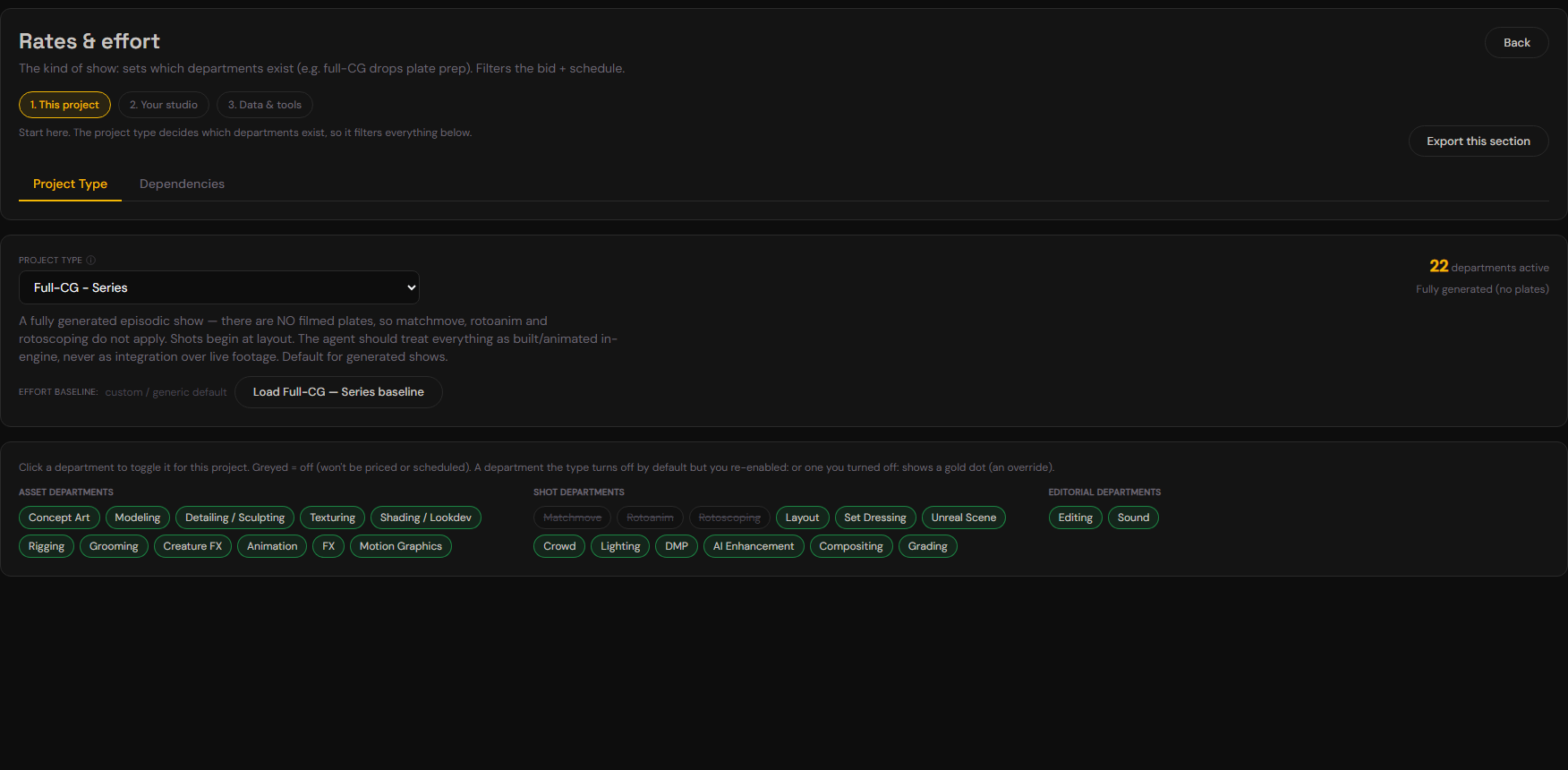
The type sets which departments exist in the bid and the schedule: a full-CG show drops matchmove, rotoanim and roto. Click a department to switch it on or off for this project; a gold dot marks your override. The project type chosen in the setup is the one the bid uses.
Dependencies
Production order: who hands off to whom (model, rig, layout, animation, lighting, comp, for example). The schedule uses it. Safe to leave as it is.
Effort
One mid-artist baseline per discipline, for an average shot or asset. Use the five questions at the top (see Step 2) or open a family and edit a single row. Each row also has a default seniority.
Complexity
The five tiers and what they mean (the AI grades by these words):
- Trivial (×0.25): near-free. A hold, a reuse with tiny tweaks, a clean-up or paint-out.
- Low (×0.55): below average. Straightforward, standard pipeline, one clear action. A junior can deliver it.
- Med (×1): the average shot or asset for this show. The anchor.
- High (×1.9): above average. Several interacting elements, hero-adjacent, tricky integration. Needs lead attention.
- Epic (×4): a set-piece or hero moment. Novel R&D, many sims, full-CG close-up.
Global multipliers apply to every discipline. Add a per-discipline override where one behaves differently (a high FX shot blows up faster than a high comp shot). Leave a cell blank to inherit the global.
Seniority
Junior 1.5 (takes longer), mid 1.0, senior 0.7 (faster). Global plus per-discipline overrides. A line's cost is its hours at a mid artist's cost: a junior takes longer but is billed at a junior's rate.
Rates & markups
- Day rate: one blended price per man-day. Leave it empty for a schedule with no money.
- Currency: the display currency.
- Facility overhead (not people): rent, machines, software and IT, as a share of the cost. Supervision is its own section.
- Contingency and Margin.
- Hours per work day (8 by default) and default team size, with per-discipline team sizes.
- Feedback buffer: extra time and labour for revision cycles (off by default).
- Overtime: a last-resort lever the schedule pulls only in the tail of a project.
The bid calculates: labour + supervision + infrastructure, then + facility overhead, + contingency, + margin = price, with a best and worst range around it. There is one day rate per way of bidding; per-artist rates belong in PXLflow.
Supervision
The people who run the show, priced from its length, not hidden in a percentage. The shipped roles are a VFX supervisor at 50% of their time, a CG supervisor, a visual development / art director, a producer and a coordinator, each at 100%. Each role has an annual salary or a day rate, a share of their time and a phase: whole show, or pre-production (the first 20% of the show by default). The weeks come from the schedule, or are estimated from the man-days and marked "estimated". The salaries shipped are placeholders: put in yours. If you used PXLbid before v0.71.0, supervision starts switched off on your existing rates; tick Price supervision to add it.
Infrastructure
Rented GPUs for final AI takes, shared storage and a collaboration drive, priced from a dated, fact-checked catalog. GPU rental is for self-hosted models only (API models are already priced per second). GPU hours are the takes times your minutes per take, which has no default: measure it on your own runs. Until you set it, the GPU line reads set minutes per take. Providers not recommended for NDA work are hidden unless you tick Show providers not recommended for NDA work. Catalog prices are in USD: if you bid in another currency, the bid warns you. Boutique and Guesstimate use Full production's supervision and infrastructure until you untick Same as Full production on their tab.
Toolset, Asset sources, AI takes and AI models
Toolset lists the asset tools you own, with your monthly price, seats and, for a library, your price per asset; add your own at the bottom. Asset sources holds the share of a build each source leaves. AI takes sets the takes per finished AI shot, per tier, for the low, likely and high cases (10, 15 and 20 by default); every AI line reads "15 takes x the price of one take". AI models is the dated model catalog.
AI house rules
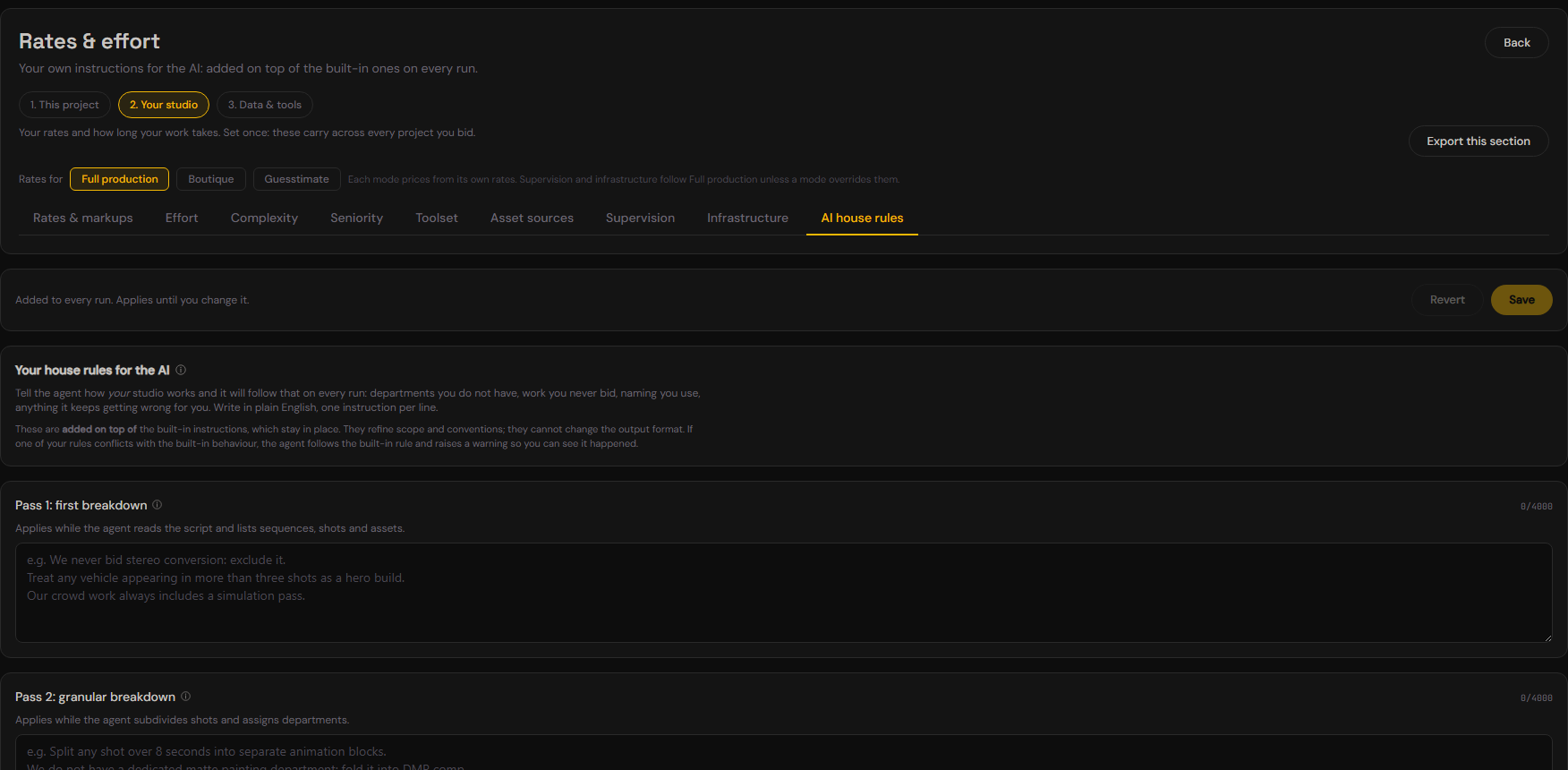
Tell the agent how your studio works and it applies that on every run: a department you do not have, work you never bid, naming you use, anything it keeps getting wrong. One instruction per line. For example:
We never bid stereo conversion - exclude it.
Treat any vehicle appearing in more than three shots as a hero build.
We have no dedicated matte painting department - fold it into comp.
There is one box per stage (the first breakdown, the granular pass, the bid review). Your rules are added on top of the built-in instructions. They refine scope, naming and conventions; they cannot change the output format. If one conflicts with the built-in behaviour, the agent follows the built-in rule and raises a warning. House rules are stored in your browser and sent with every pass of that stage.
Where your work is saved
Everything lives in this browser, on this machine: your projects, breakdowns, Rates & effort and house rules. Nothing you produce is saved on a server. Saving a project into a project folder on disk is switched off in this version.
So keep your own copies:
- Export project on the Project view saves the whole project (bid edits, sent versions, deliveries, schedule) as one file. Store it with the show. Load JSON from disk... on the start screen opens it again, on this machine or another. If this browser already has that project, the file opens as a separate copy and nothing is overwritten.
- Download JSON at a checkpoint saves the breakdown.
- Export current config in Rates & effort saves your rates and effort.
When the browser is full, saving is refused and says so; remove an old project from Open project... or export this one. Clearing this browser's site data removes everything saved in it.
When two copies disagree. If two copies of a project each hold changes the other has never seen, PXLbid overwrites neither and asks you to choose: keep the other copy, keep yours as a separate copy, or export both.
Templates & Data
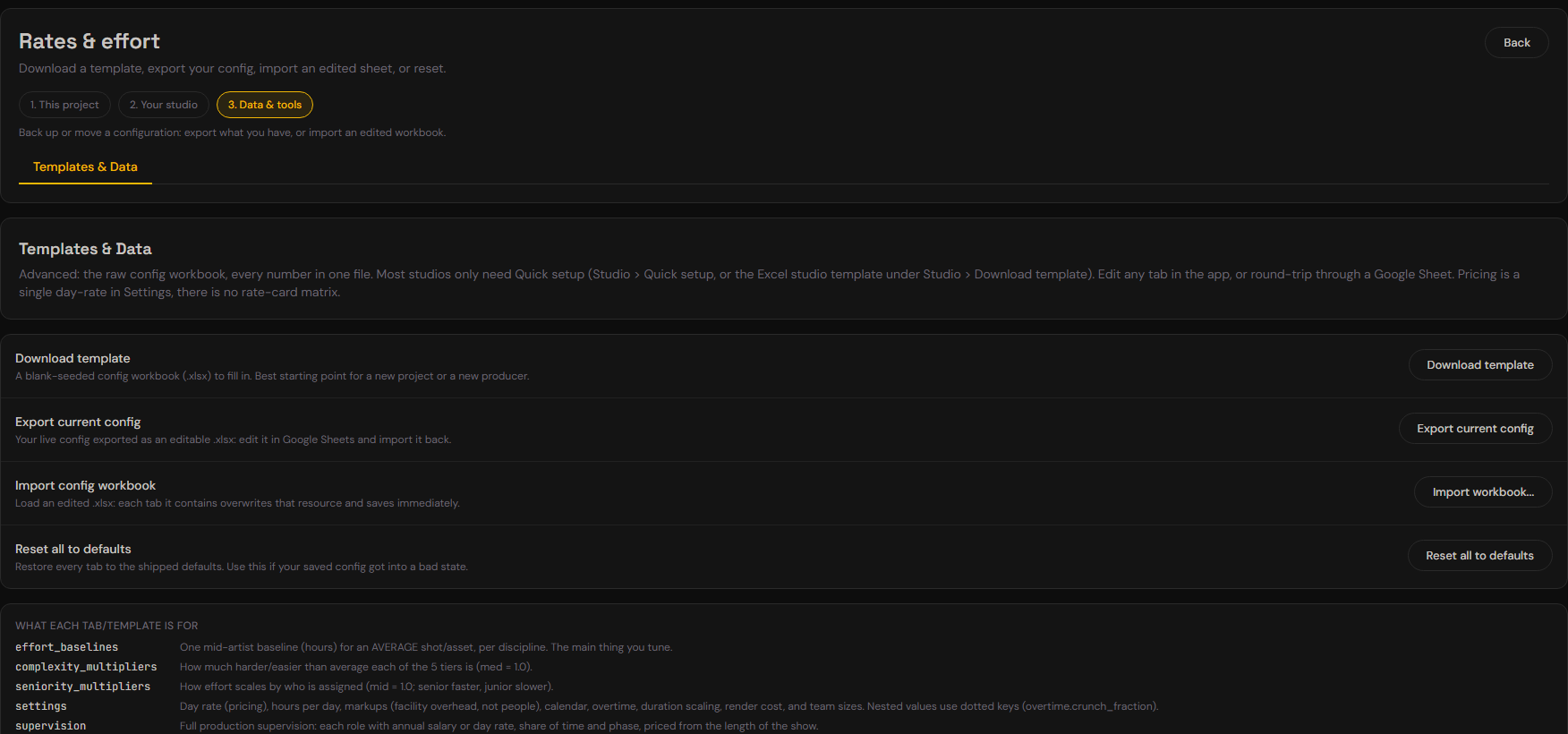
Rates & effort > 3. Data & tools > Templates & Data:
- Download template: a configuration workbook (.xlsx) to fill in offline and import back.
- Export current config: your live settings as an editable .xlsx. Edit it in Google Sheets, download it, import it back.
- Import workbook...: load an .xlsx. Only the tabs the file contains are read; anything it does not mention is left as it is.
- Reset all to defaults: restore every tab to the shipped values.
Export just one section
Each zone has its own Export this section button, next to its description: 1. This project exports project_type and dependencies; 2. Your studio exports your studio constants. Use it to hand your studio numbers to someone without the current show. Both import back through Import workbook....
The workbook tabs:
effort_baselines: one mid-artist baseline (hours) per discipline.complexity_multipliersandseniority_multipliers: global rows plus per-discipline overrides.settings: day rate, currency, markups, hours per day, team sizes, calendar, overtime, duration scaling and render cost.supervisionandinfrastructure: Full production's supervision roles and infrastructure choice.mode_profiles: Boutique and Guesstimate markups, and whether each follows Full production's supervision and infrastructure.project_typeanddependencies.complexity_rubric: the tier definitions (reference only).
The workbook is configuration only: script, breakdown and bid data never go in it.
Editing the settings tab by hand
Excel has no nested cells, so nested settings use dotted keys, exactly as exported:
overtime.crunch_fraction        0.3
duration_scaling.weights.anim   1
render.render_min_per_frame.epic 45- Keep the spelling. A misspelled key is ignored and reported in the import warnings.
- Percentages accept either form:
20or0.2both mean 20%. - On/off rows take
TRUE/FALSE. holidaysis a comma-separated list ofYYYY-MM-DDdates. Format the cell as text first, or Sheets turns a lone date into a number and the entry is rejected.work_weekis seven comma-separated values, Monday to Sunday,1= working day.- Deleting a row does not delete the value. Rows apply on top of what you have. To switch a duration-scaling discipline off, set its weight to
0. - A tab you delete is simply not imported. That is what makes the per-section exports safe.
Exporting to ShotGrid and ftrack
Both export menus (the Bid and the Schedule) offer ShotGrid (CSV) and ftrack (CSV). Each downloads one .zip named after the show and the date, with the CSV files, a Warnings.csv of anything that could not be mapped, and a README.txt.
- From the Bid, every task gets its labour hours and man-days, without the feedback buffer and markups, so the tasks add up to the labour subtotal, not the price.
- From the Schedule, tasks also get start and due dates: the window of each department's lane. Refine them per task in the tracker.
- Schedule hours can differ from Bid hours. The Schedule prices from the breakdown and does not apply the regrades or dropped lines you set on the Bid.
- Tasks: one per department on each shot and asset.
- Asset names stay exactly as in the breakdown (camelCase), because shot-to-asset links match on the name.
- Sequence titles and shot sluglines go at the start of the descriptions.
Read Warnings.csv first. Rows land there when a department has no pipeline step, an asset type has no match in the tracker, a shot names an asset that does not exist, a frame range cannot be read, or a line you dropped on the bid is still tagged in the breakdown. PXLbid never drops those rows silently.
Check the bid units on one task first. Neither vendor documents how its importer reads a plain number in a bid column. Import one task, confirm it shows the bid you expect, then import the rest.
ShotGrid (Flow Production Tracking)
The headers are ShotGrid's default field names. Import in this order, each file onto the importer on its own page:
Sequences.csvon the Sequences page.Assets.csvon the Assets page.Shots.csvon the Shots page. Sequence and Assets link by name.Tasks.csvon the Tasks page. Link is the shot code or the asset name.
- Cut In, Cut Out and Cut Duration: some sites also have Smart Cut fields with the same names. Pick the plain Cut fields.
- Bid is in hours, and Bid (days) holds the same bid in man-days. Map only one of them.
- Assets: several assets in one cell are separated by
,. Check the importer preview splits them. - Re-importing
Shots.csvreplaces the Assets links of shots that already exist. Use it to create new shots. - Pipeline steps are matched by name. Create the steps first, or change
DEPARTMENT_MAPinsrc/utils/exportProductionTracking.jsto match your site.
ftrack
- Open
Import.csvand copy everything, including the header row. - In ftrack, open the project's spreadsheet page, click Import and paste.
- Map Sequence, Shot, Task, Task type, Start date, End date, and exactly one of Bid (hours) or Bid (days).
- Check the summary, then click Import.
- Task types are matched by name, so create any missing type first.
- Asset builds are not imported.
AssetBuilds.csvis a reference sheet; create those in ftrack by hand. - Frame ranges are only in the ShotGrid export.
Where the numbers come from (and where they don't)
Every effort baseline carries a provenance tag, because the honest answer differs cell by cell:
- sourced: a named senior practitioner or primary data. Animation, from Scott Squires (VES Fellow, ex-ILM), at 8 to 12.8 hours per second of screen time.
- derived: arithmetic from such a figure.
- practitioner: Cris's own call as a working VFX and CG supervisor, where no published figure exists.
- unsourced: a considered estimate with no public data behind it. This is most of the file.
Said plainly: no per-discipline artist-hour data for VFX asset builds exists publicly. So treat the absolute hours as a starting point. What is defensible is the proportions (a creature costs more than a character, a rig costs more than a texture pass), and that is what the five questions scale. Replace the absolutes with your studio's actuals and they stop being estimates.
Squires' 8 hours per second describes a hero shot, so it sits at high complexity, not at the average. Putting it at the average would count it twice once the tier is applied.
The full audit trail, including rejected sources, is in src/config/effort-research.json.
How shot length changes the price
Every department scales with a shot's length, on its own curve, so a careless length goes straight into the number.
- Frame by frame, close to linear: animation, roto, rotoanim.
- Steeply: FX, cloth and hair sim, crowd. Caches break and interactions multiply over a longer run.
- Meaningfully: compositing (a 2000-frame shot is a different job from a 20-frame one) and AI enhancement.
- It depends: lighting. A car chase relights constantly; a locked interior does not.
Two departments depend on the camera, not the clock. On a camera: static shot, matchmove becomes a single-frame line-up: one solve, however long the shot runs. Matte painting behaves the same way: one projection for a static camera, several across a long move. If the AI cannot tell whether the camera moves, the bid assumes animated, the safer and more expensive assumption.
A crowd is two costs, not one. The crowd system (setup, simulation, caching, integration) is priced per shot and is flat in agent count. The crowd's asset builds (body variants, wardrobe, props) are separate and are often the larger number, so Pass 1 asks about them and the producer review flags a crowd shot with no crowd assets.
Where your script goes (NDA)
This is the question every producer should ask before putting a client's pages into a tool they did not write, so here is the whole answer.
Opened on this machine. The file you drop is opened and parsed in your browser: TXT directly, PDF via pdf.js, DOCX via mammoth. Loading a script uploads none of its content: you can drop a script in, read it and close the tab without any of its text leaving your machine. Loading it does send a usage note to PXLbid's beta log, a Google Sheet we keep: that a script was loaded, with your email, name, app version, browser and screen size, at most once every 30 minutes. The note never includes the file name, the title or any text.
The full script is never stored. Script text is not written to browser storage. That is why Pass 2 asks you to re-attach the script after a reload. The breakdown does carry short verbatim quotes: every shot and asset (and usually every sequence) has one or two lines from the script, with the page number, so you can jump to the source. Those quotes are saved wherever the breakdown is: this browser's storage, the breakdown history and any file you export or copy.
Producing a breakdown sends the text to us, then to the model. No tool of this kind can avoid this, so it is stated plainly. To read your script, the pass sends its text to a PXLbid service we run, which adds the instructions that tell the model how to break a script down and forwards the request to api.anthropic.com using your API key on your Anthropic account. If you chose your own AWS Bedrock or Google Vertex AI account in Settings ("Where your scripts are processed"), it forwards the request there instead, using the cloud credentials you entered. Your key or credentials travel in the same request. So two parties handle the material: us, in transit, and the model provider you chose.
What else goes with a pass. The same request carries your notes for that run, your AI house rules for that stage, and your saved corrections. A second pass also carries the first-pass breakdown, and a bid review carries a trimmed breakdown and the priced bid. Corrections saved as Global go with the passes of every project, not only the one where you made them.
We keep no copy of either. The service holds your script and your key in memory only while the pass runs, which can be several minutes on a long script. Neither is written to a database, saved to disk, or recorded in our logs. We log sizes, token counts and timings so we can tell whether a run succeeded, never the content. Nobody at PXLbid can go back and read a script you ran, because there is nothing to read. The terms of the model provider you chose govern the model side; PXLbid adds no retention of its own.
Why it works this way (changed in v0.59.0). Earlier versions sent your script from the browser straight to Anthropic. The instructions that make PXLbid work were shipped inside the app, where anyone could read them, and because a tester who left kept a copy, access could not really be withdrawn. Moving those instructions onto a server we control fixed that, and the cost is the extra hop described above.
Not used for AI training. On Anthropic direct (the default), every pass runs on your own Anthropic API key, and API use falls under Anthropic's Commercial Terms, which state: "Anthropic may not train models on Customer Content from Services." Anthropic deletes API inputs and outputs within 30 days, except when a request is flagged for a usage-policy review, the law requires longer retention, or your organization has a separate agreement with Anthropic. The five-year training and retention figures you may have read about apply to Claude's consumer plans, not to the API. On your own Bedrock or Vertex account, the model call is made under your agreement with AWS or Google, not under Anthropic's API terms, so the training and retention terms are the ones in that agreement.
If your NDA forbids sending pages to any third-party AI service, or to any intermediary, do not run a pass on that script. The breakdown cannot be produced without that step, and no setting changes it. You can still use Rates & effort, the bid and the schedule on a breakdown produced elsewhere.
Getting your client's OK
Not using AI for training is not the same as having permission to share the pages. Most NDAs are about who receives the material, so the clean route is to tell your client up front and get their agreement in writing. Until you have it, try PXLbid on a released or public script: the breakdown and pricing work the same way.
A request you can send as it is:
Before we start the breakdown, one quick confirmation.

We use PXLbid, an AI-assisted tool, to read the script and flag VFX work early, so nothing is missed in the bid. The script is processed through PXLbid and the Anthropic Claude API under commercial terms that do not allow it to be used for AI training. PXLbid keeps no copy, and Anthropic deletes API inputs and outputs within 30 days, except when a request is flagged for a usage-policy review or the law requires longer retention.

Could you confirm this is fine under our NDA, or add the short clause below to it?
A clause your client can add to the NDA or to a one-page addendum. It is a starting point for their lawyer, not legal advice:
AI-assisted script analysis.

The Recipient may process the Confidential Information, including scripts and screenplay pages, with AI-assisted software for the sole purpose of preparing VFX breakdowns, bids and schedules for this project.

The approved services are PXLbid and the Anthropic Claude API, which PXLbid uses to analyze the text. The Recipient will use these services only under commercial terms that prohibit using the material to train AI models, and will not use any consumer AI service for this purpose.

The material remains Confidential Information under this Agreement, and all other obligations of this Agreement continue to apply.
If you run on your own Bedrock or Vertex account, name that service (for example "Claude on AWS Bedrock under our AWS agreement") in place of "the Anthropic Claude API" in both texts.
The same note is in the app, under Using PXLbid under an NDA on the start screen.
Known limits and gotchas
- Your work lives in one browser. Projects, breakdowns and settings are saved in this browser on this machine, with no sync. Use Export project, Download JSON and Export current config to keep copies (see Where your work is saved).
.doc(old binary Word) is not supported on the published site. Use PDF, DOCX or TXT.- The full script is never saved. Pass 2 needs the script re-attached after a page reload. This is intentional.
- 20 recent breakdowns. Only the 20 most recent are kept in Open recent. Projects are kept separately until you remove them.
- Your Rates & effort settings are yours alone, never shared with other users.
- Unsaved Rates & effort edits. Each tab saves on its own. If you change something and move away, you are asked whether to discard it. Press Save first.
- No server-side diagnostics. The service that relays a pass logs only sizes, token counts and timings, never your script, your key or the output. If a run fails, use Feedback and say what you were doing. If the Send button is off, the collection endpoint is not switched on in this build: use Copy instead and email the report to Cris.
Sending feedback
Click Feedback in the top bar. Choose what kind (Something broke, Result looked wrong, Idea / request) and write your message.
What gets sent: your message, the project title (if any), the app state (which screen you are on, recent clicks) and the app version.
What never gets sent: the script, the breakdown, your bid, your API key, your Rates & effort settings, or any other sensitive data.
Workflow tips
- Calibrate once, bid many times. Your rates and effort carry across every project.
- Read the Script read before anything else. It tells you where the work is before you spend on a pass.
- Bid long scripts in parts. Start with the sequence that worries you most.
- Set VFX scope and treatments at Checkpoint 1. They carry through Pass 2 and into the price.
- Deterministic mode for client quotes. Three runs cost about three times as much and vary much less.
- Regrade on the Bid. Complexity and seniority are the levers you use most.
- Export the project at every milestone, and store the file with the show.
Troubleshooting
"Test connection" fails. Check the key was pasted whole: it starts with sk-ant- and is long. If it was, the key has been rejected: it may have been deleted, or copied from a different organisation. Make a new one at platform.claude.com/settings/keys.
"Test connection" passes but a real run fails. Almost always an empty balance. The test is a one-token request and can succeed on a near-zero account while a full pass cannot. Open Billing and buy credits; API credit is separate from a Claude Pro or Max subscription. PXLbid names this case when it happens and links you there.
A run fails, or the breakdown comes back empty. Try a shorter script to confirm the key and connection work. If one script reproduces it, tell us via Feedback and say which model was selected in Settings.
The bid totals look wrong. Check for the gold "not calibrated" banner. If it shows, the numbers are our placeholders: see Your first ten minutes. If not, start with Rates & effort > Rates & markups (day rate and markups), then Effort.
Everything disappeared. Your work lives in this browser profile on this machine. A different browser, a different machine or cleared site data all start empty. Check Open recent and Open project...; if they are empty, the data cannot be recovered from our side, because we have no copy. Load your last exported project file.
The app went blank or showed an error card. Press Reload PXLbid on the card; your work and settings are saved and come back. Use Copy error report first and send it to us: it is the only record of what happened.
Questions this guide does not answer: send them through the Feedback button. Gaps in this document are useful feedback too.